
Items are an essential part of any business, supporting daily operations and sales activities. With KaHero POS, adding and managing items is quick and convenient, allowing businesses to efficiently organize their products and keep their inventory ready for transactions.
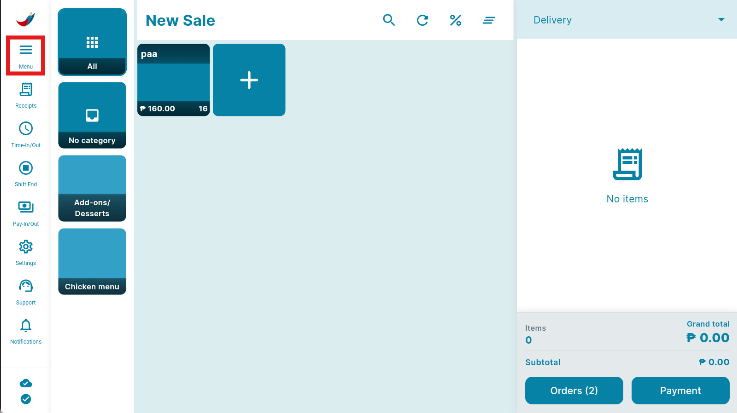
- Press the Navigation Menu icon.
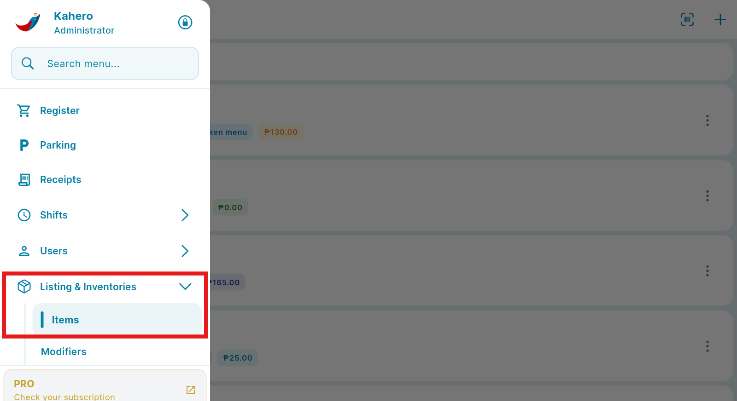
- Scroll all the way to Listing and Inventories press Items.
- Click the plus (+) icon at the upper right of your screen.
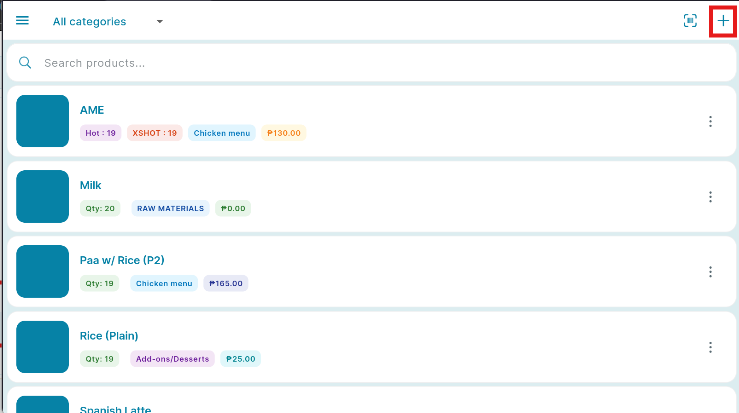
You will then be redirected at the Add Item screen.
💡The Add Item feature lets you add and customize your item, such as their description.
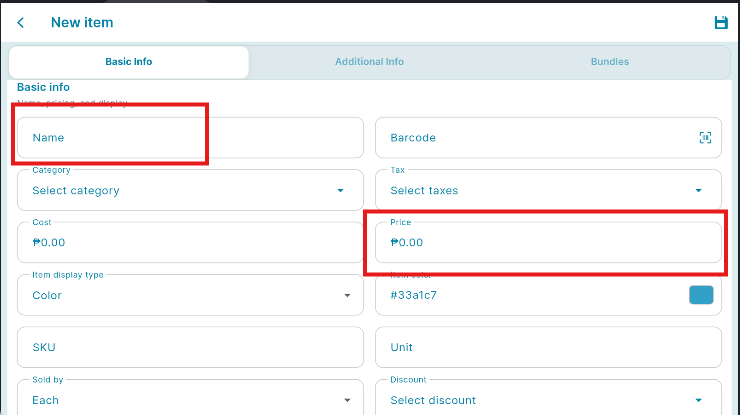
- Enter the following details on the blank space provided below.
Item Name and Item Price in Add Item screen
ADD CATEGORY
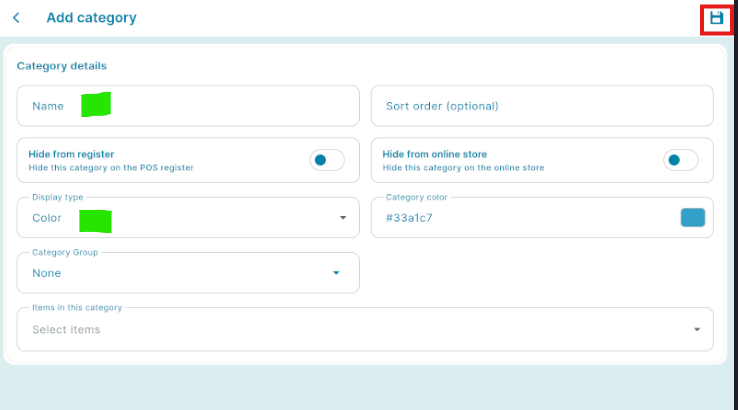
In this section you can customize your own category.
To categorize your Item:
- Add category name if there is no existing.
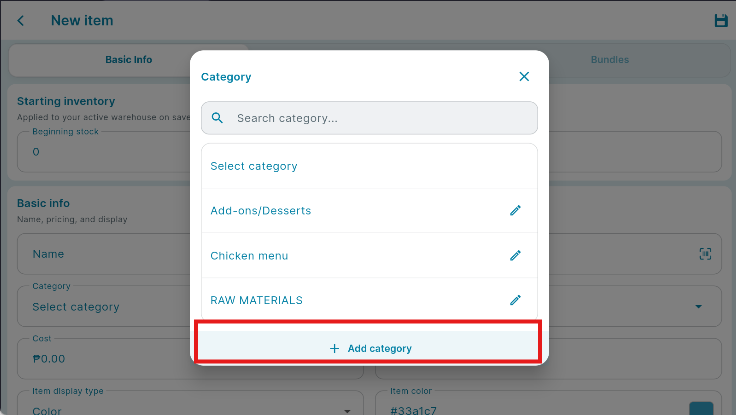
- Input Category Details such as Name, color and select Items under this category and SAVE.
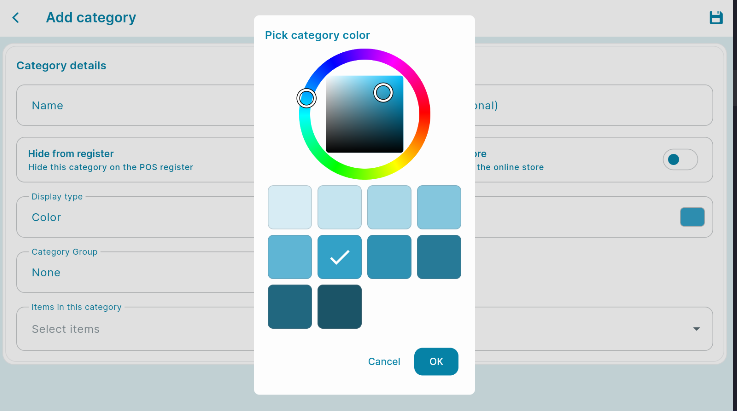
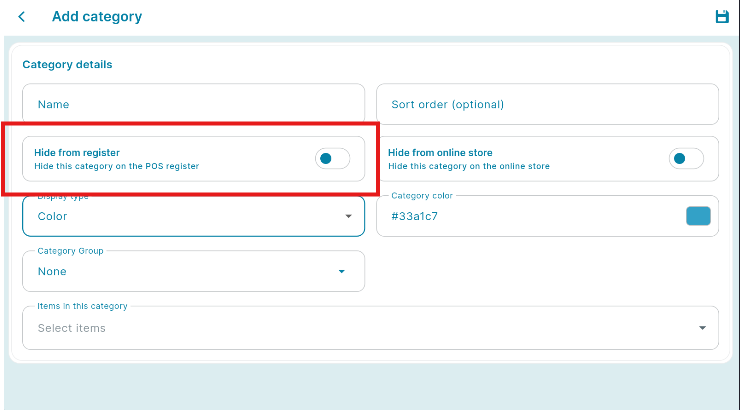
Under Hide from the Register
- Enabled - If you want to hide the Category from Register.
- Disabled - If you want to show the Category from Register.
Select items you want to add to your Category.
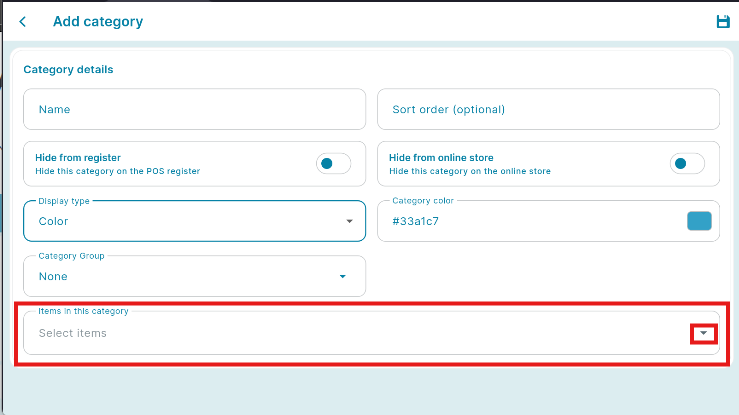
🥳Yay! You have now successfully added a new category.
Adding Items (cont.)
Set the item's SKU (Stock Keeping Unit), Item Cost, and Unit of Measurement (kg/inch/ml) by pressing and entering the information in the blank spaces provided below.
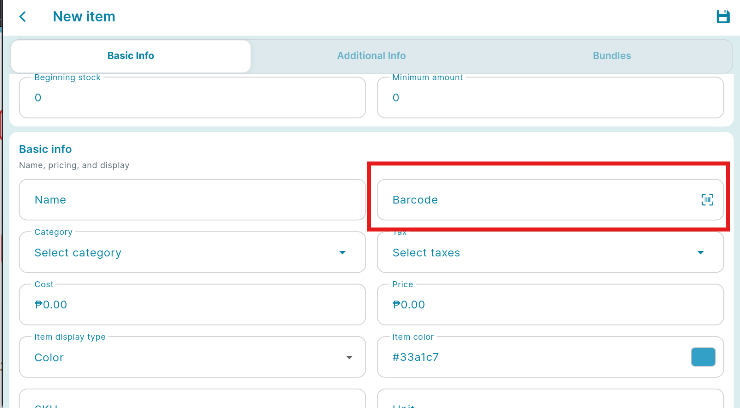
- For Barcode:
- Press the Barcode text field to manually enter the barcode of the item.
- Press the Barcode icon on the right side to use a Device to scan and enter the barcode for you.
- Under Sold By:
- If item is sold by each, press Each.
- If item is sold by weight, press Weight.

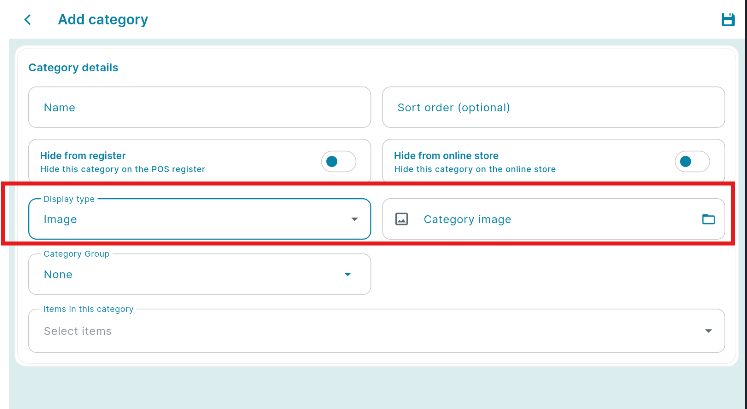
To use an image as a representation for your item:
- Press Save to add the item and save everything.
🤩Job well done! You've successfully added and customized your item.