This displays your cash balancing report during a certain amount of time. It displays the time and date the cash adjustment was made, the type of adjustment made, the comment made during the adjustment, and the total amount of the adjustment.
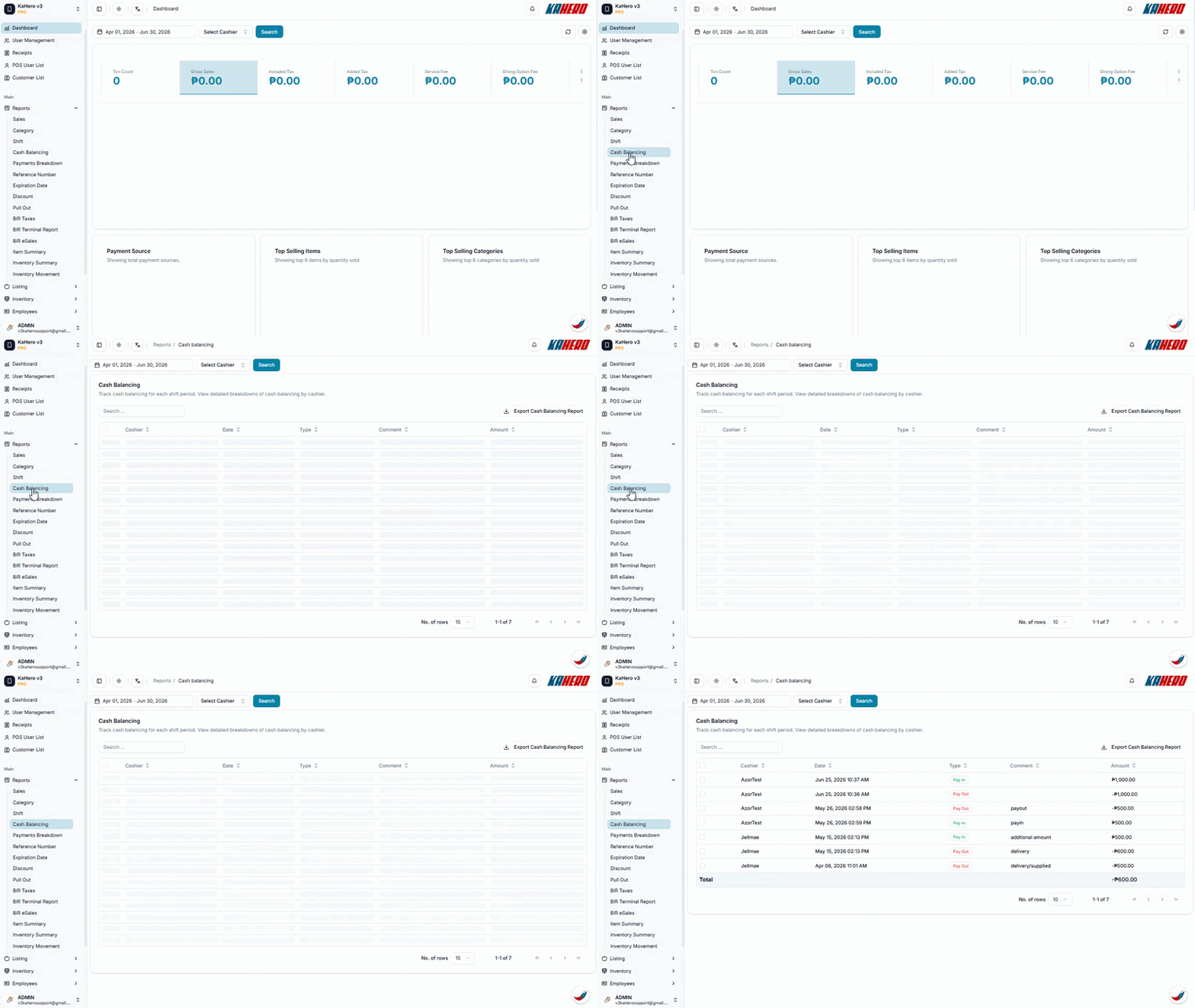
To view Cash Balancing in KaHero Backoffice, follow these steps:
- Log in to KaHero Backoffice using your account.
- On the left-side menu, click Reports to expand the available report options.
- Select Cash Balancing.
- You will be redirected to the Cash Balancing page.
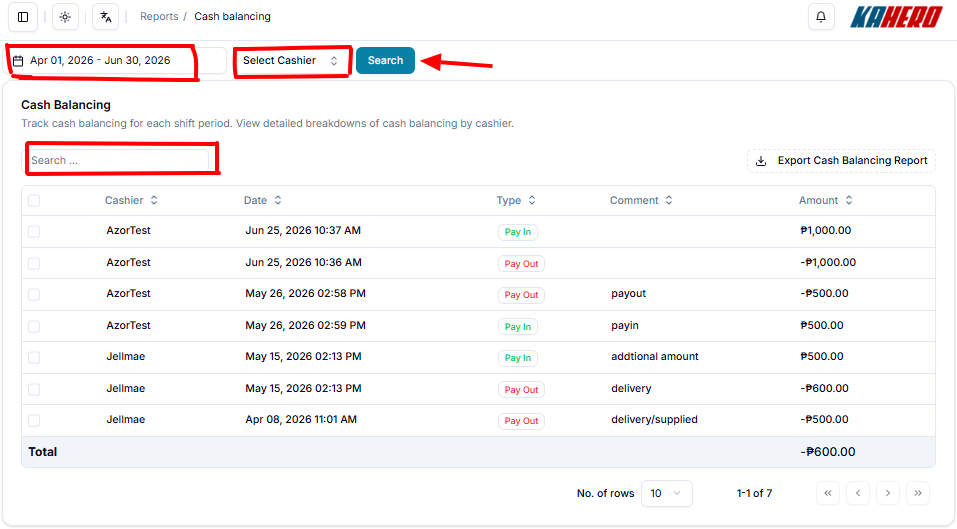
Once you're on the page, you can:
- Select a date range – Use the date filter at the top to choose the period you want to review.
- Select a cashier – Use the Select Cashier dropdown to view cash balancing records for a specific cashier.
- Click Search to apply your selected filters.
- Use the Search field to quickly find a specific cash balancing entry.
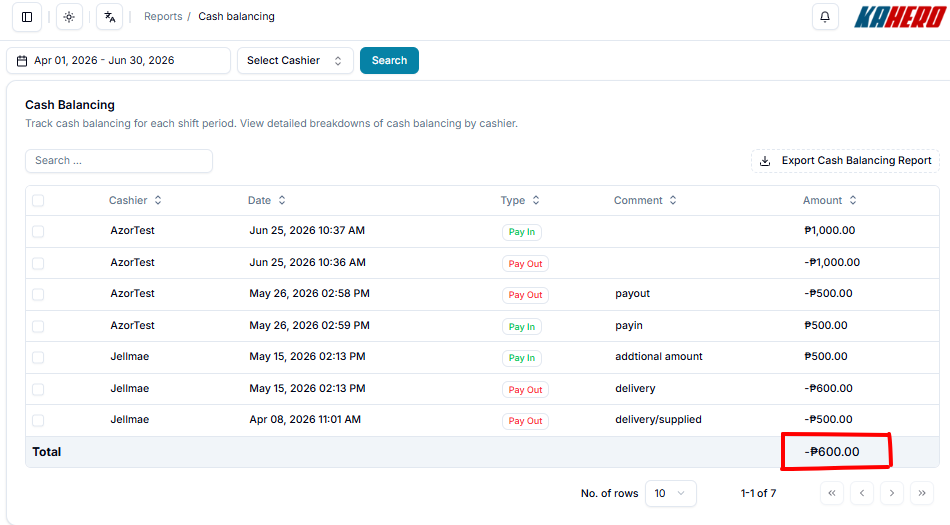
Review the following details:
- Cashier – The user who recorded the cash adjustment.
- Date – When the cash balancing entry was made.
- Type – Shows whether the transaction is Pay In or Pay Out.
- Comment – Displays the reason or notes entered for the adjustment.
- Amount – Shows the amount added or deducted.
Check the Total at the bottom to see the overall cash balancing amount for the selected period.
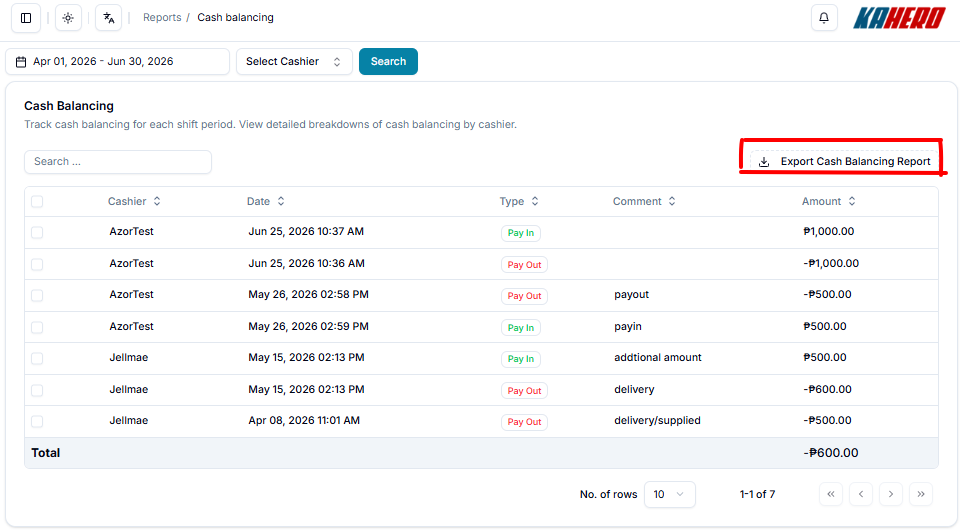
Click Export Cash Balancing Report to download the report for record-keeping or further analysis.