
How to connect a USB-wired XPrinter to KaHero POS using Tablet or POS Machine
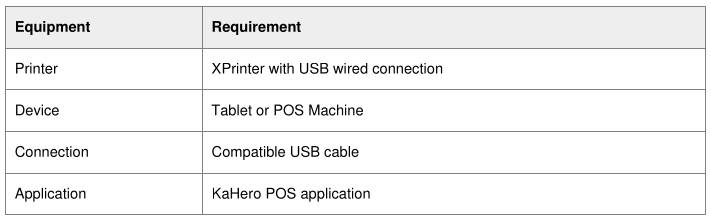
Required Equipment

Step 1: Allow KaHero App Permissions
Go to: Settings → Apps & Notifications → KaHero app → Permissions
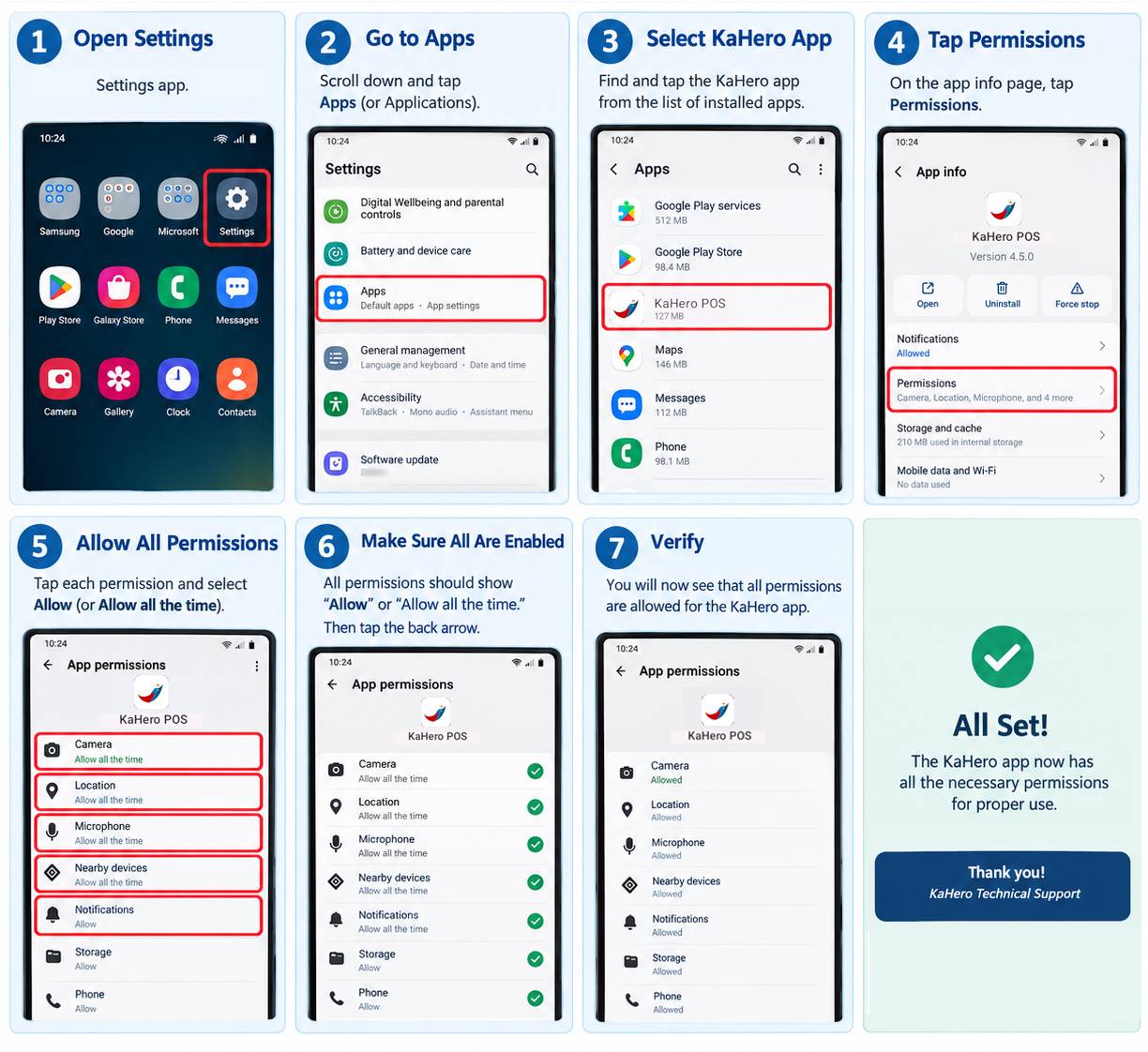
Enable all permissions:
• Camera
• Location
• Microphone
• Notifications
• Storage
Step 2: Login to KaHero POS
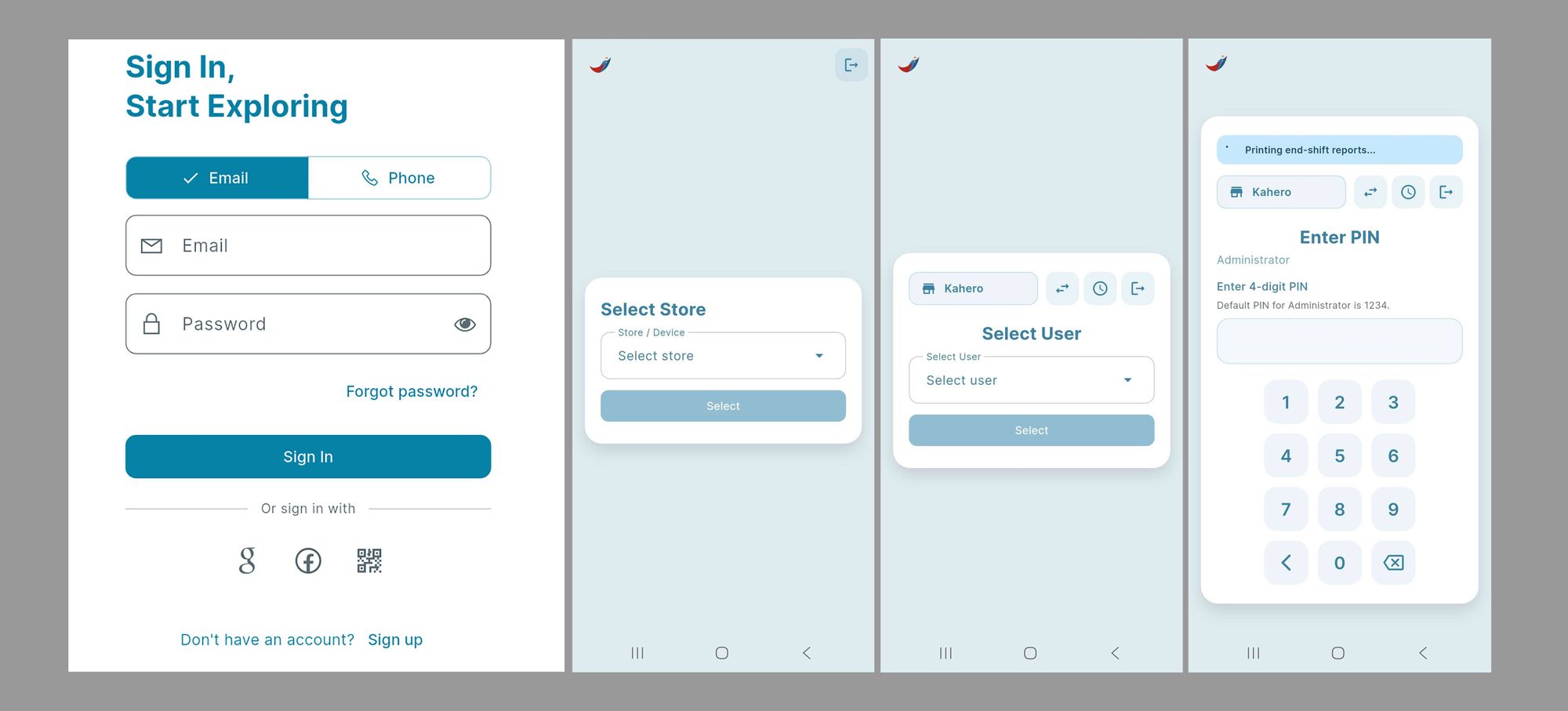
- Open the KaHero POS app.
- Login to your account.
- Select Store
- Select User
- Enter PIN
Step 3: Add Printer
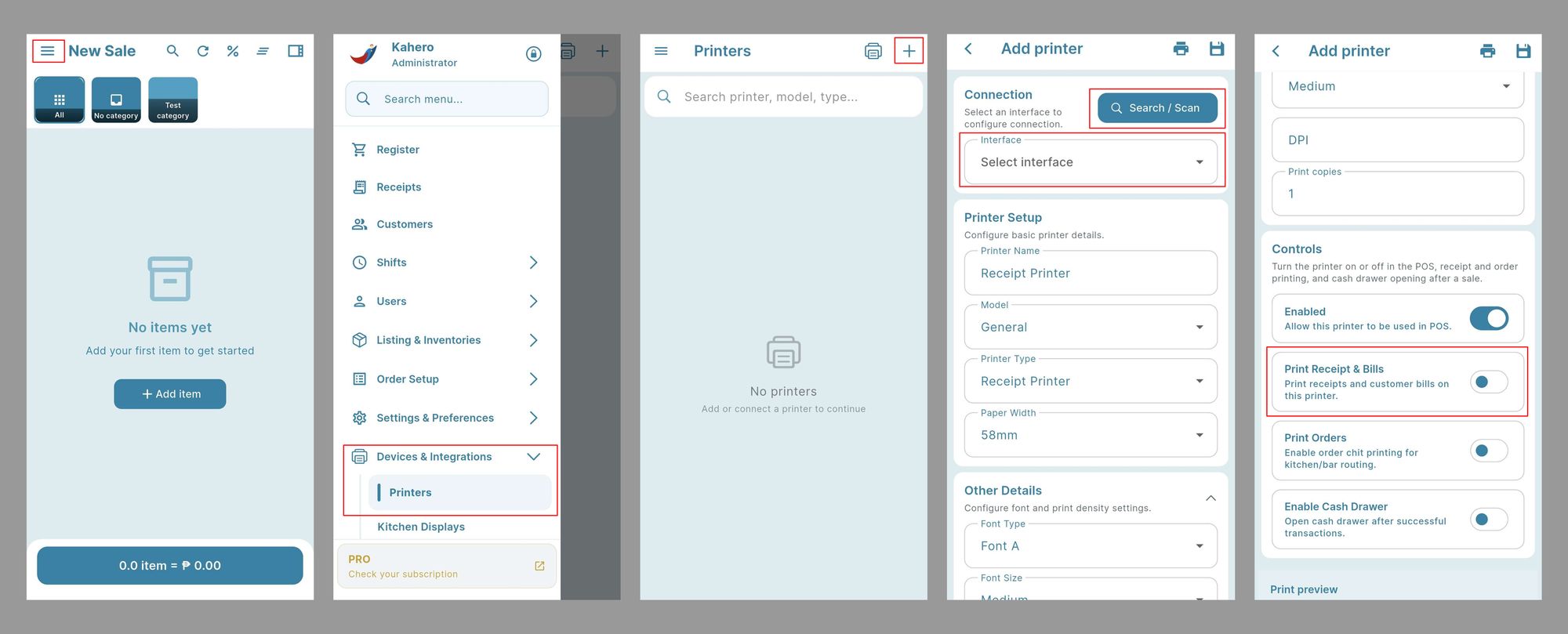
- Tap Add Printer.
- Select Interface: USB.
- Tap Search/Scan.
- Select the XPrinter.
- Printer Type: Sticker Printer/Receipt.
- Sticker (Set Y Position to 50) / Receipt (Enable Receipt and Bill.)
- Tap Save.
Troubleshooting
- Make sure the XPrinter is powered on.
- Check that the USB cable is properly connected to both the printer and the Tablet/POS Machine.
- Disconnect and reconnect the USB cable, then try Search/Scan again.
- Close and reopen the KaHero POS application.
- Confirm that the correct XPrinter is selected.
- Check that the correct Printer Type and Receipt/Bill options are enabled.
Important: If the XPrinter is not detected after checking the USB connection, please provide the device specifications and a screenshot or video of the printer settings so the setup can be checked.