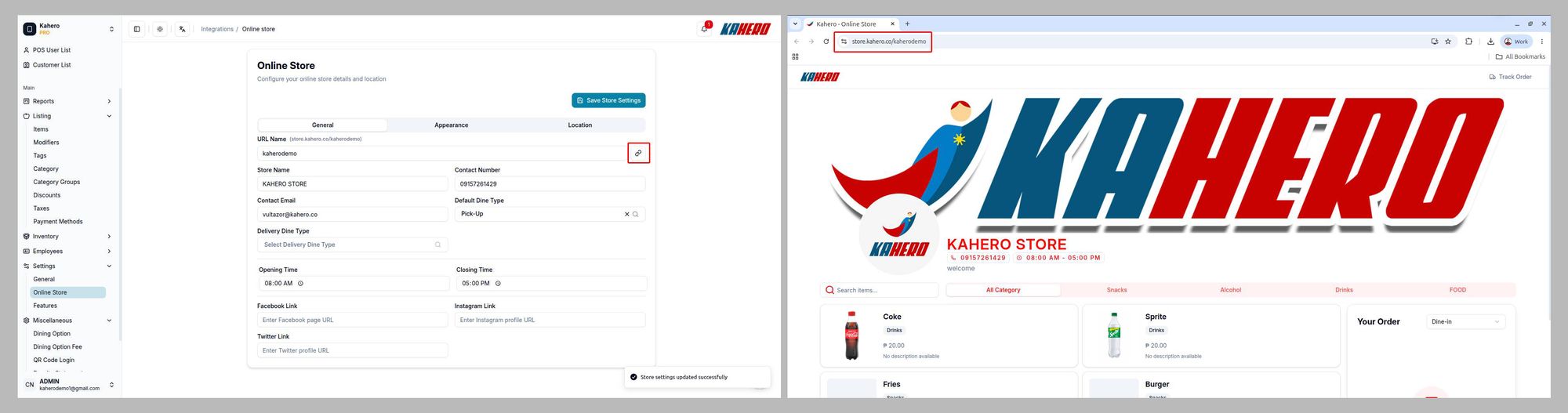
Step-by-step guide to enable the Online Catalog, configure Dining Options, customize the Online Store, and share the online ordering link.
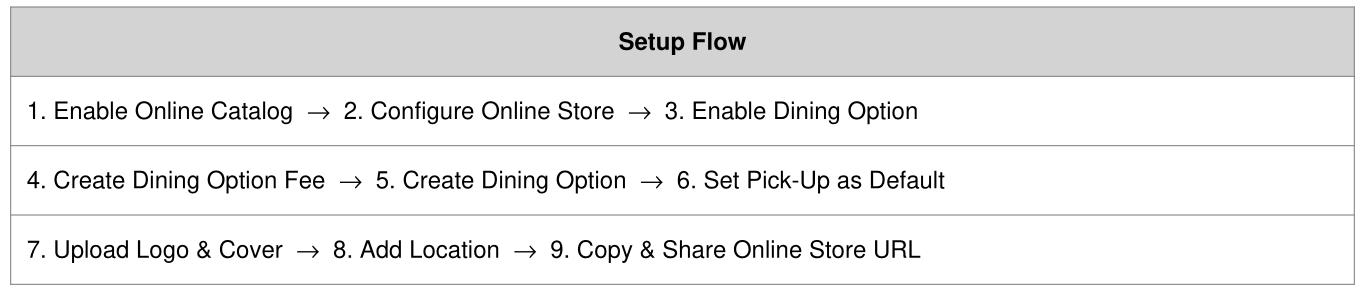
Step 1 — Enable Online Catalog
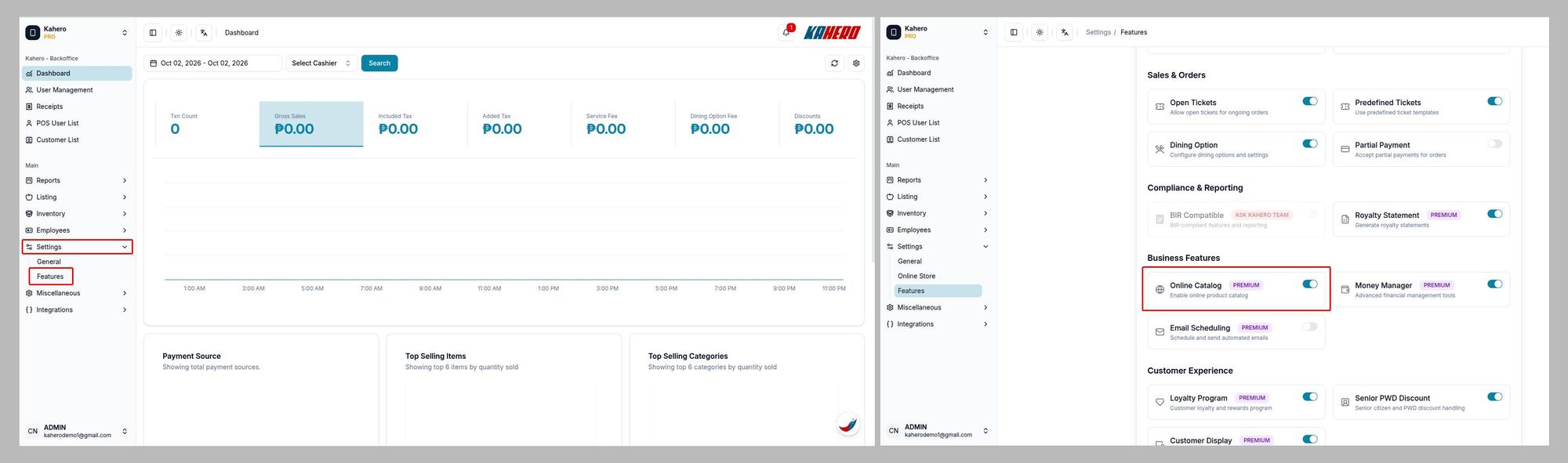
1. In Backoffice, go to Settings > Features.
2. Find Online Catalog under Business Features.
3. Turn on the Online Catalog toggle
Step 2 — Configure the Online Store
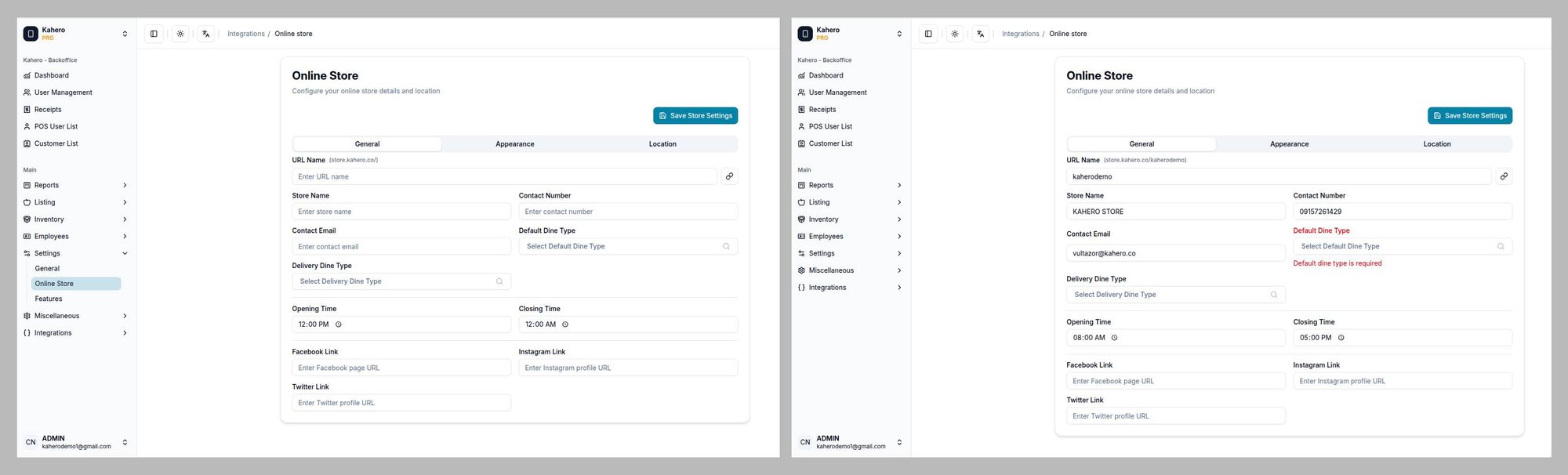
1. Go to Settings > Online Store.
2. Fill in the required Online Store information.
3. Review the details before continuing.
Step 3 — Enable Dining Option & Create a Dining Option Fee
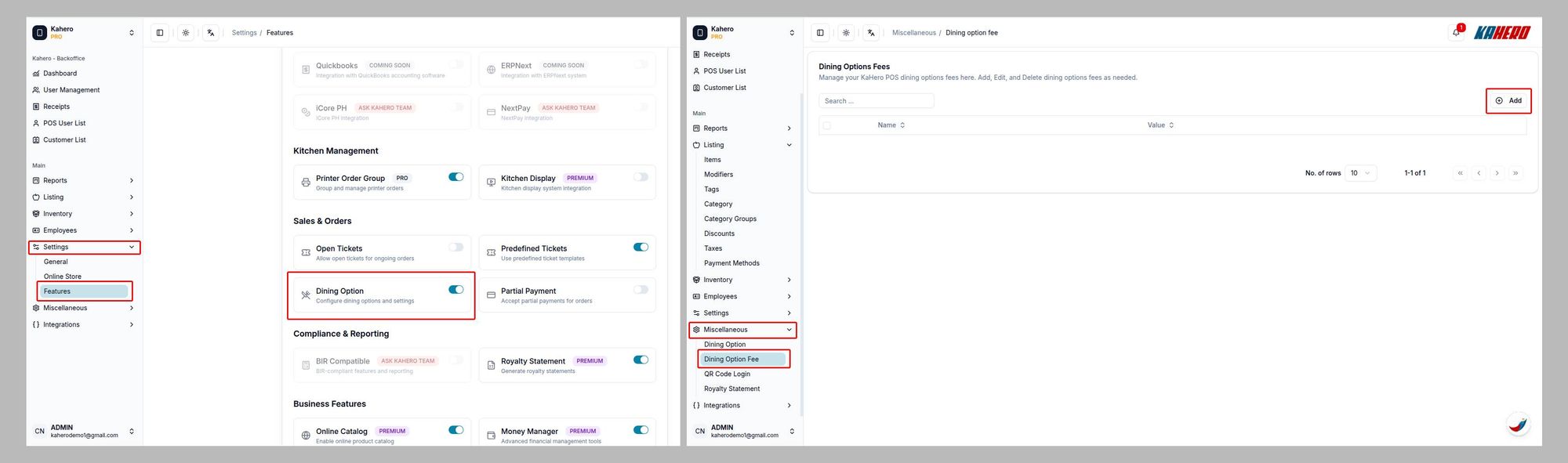
- Go to Settings > Features.
- Find Dining Option under Sales & Orders.
- Turn on the Dining Option toggle.
- Go to Miscelleneous > Dining Option Fee.
- Add Dining Option Fee.
Step 4 — Fill in Dining Option Fee
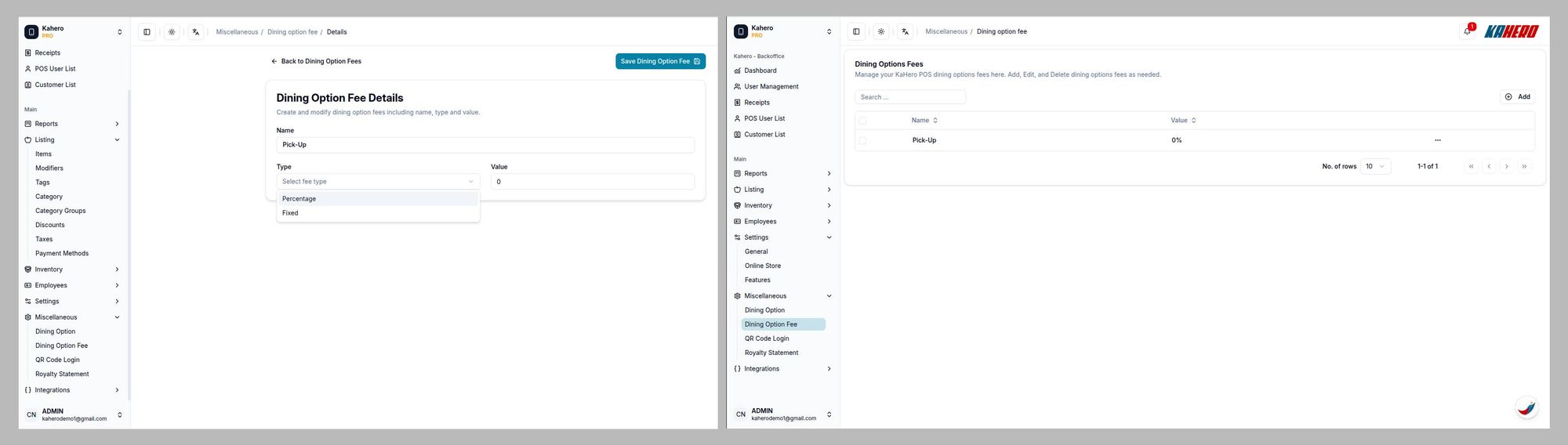
- Fill in the Dining Option Fee Details, including the name, type, and value.
- Click Save Dining Option Fee.
Step 5 — Create and Enable the Dining Option
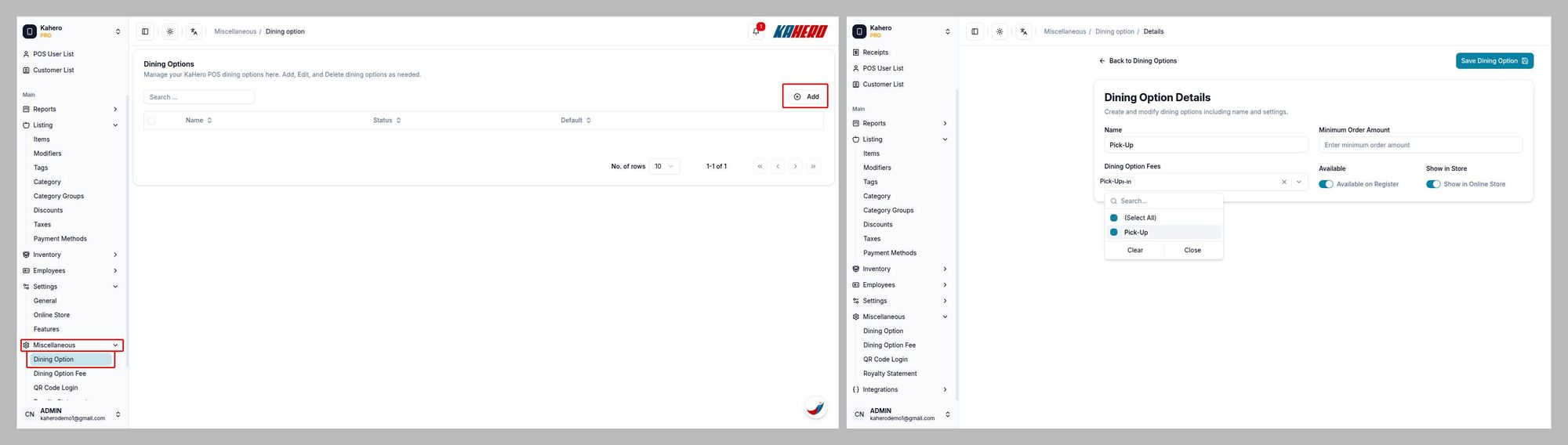
- Go to Miscellaneous > Dining Option.
- Click Add and fill in the Dining Option details.
- Select the applicable Dining Option Fee.
- Enable Available on Register.
- Enable Show in Online Store.
- Click Save Dining Option.
Step 6 — Set Pick-Up as the Default Dine Type
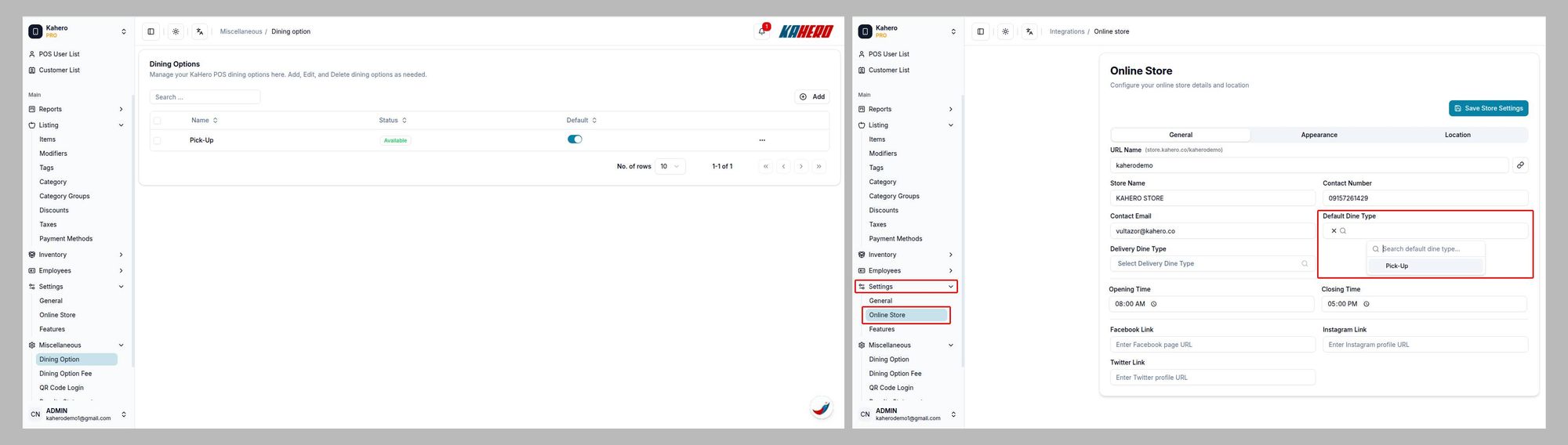
- Go to Settings > Online Store.
- Under Default Dine Type, select Pick-Up.
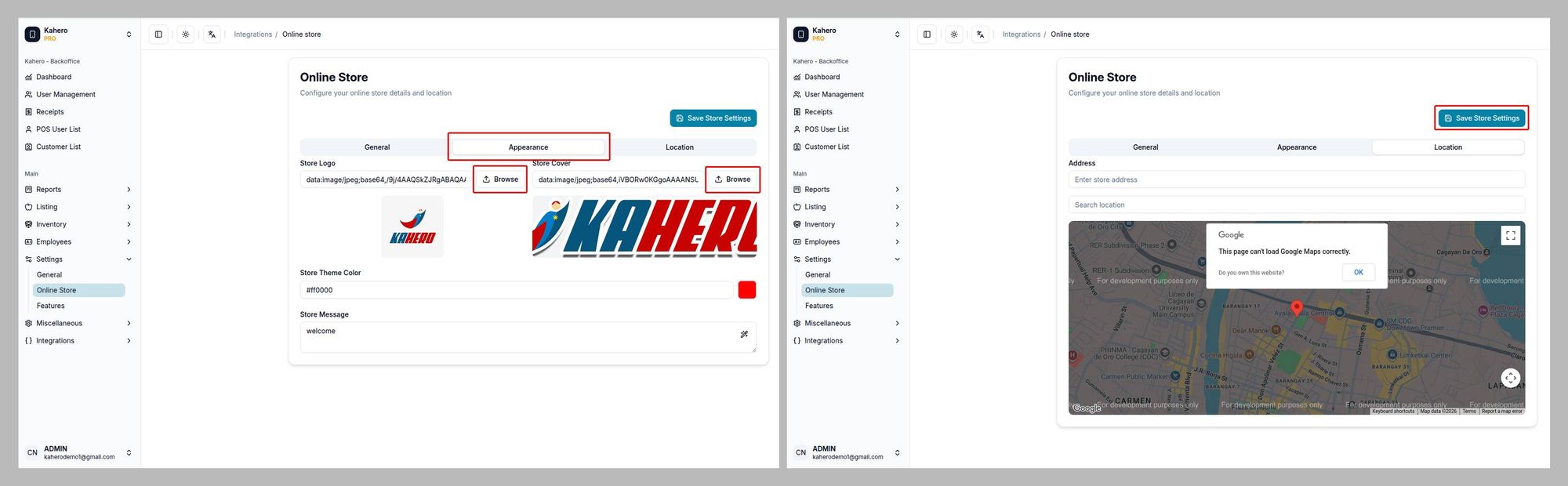
Step 7 — Upload the Store Logo and Cover also Add the Store Location
- In Settings > Online Store, open the Appearance tab.
- For Store Logo, click Browse and upload your logo.
- For Store Cover, click Browse and upload your cover image.
- Check the preview to confirm the images are displayed correctly.
- Open the Location tab.
- Fill in the store Address and Search Location information.
- Review the map/location details.
- Click Save Store Settings.
Step 8 — Copy and Share the Online Store URL
- Go to Settings > Online Store.
- Click the Attachment/Link icon beside the URL Name field.
- Copy the generated Online Store URL.
- Send the URL to the client so customers can order online.
- You may also paste the URL into any webpage, social page, or other page that you have created.