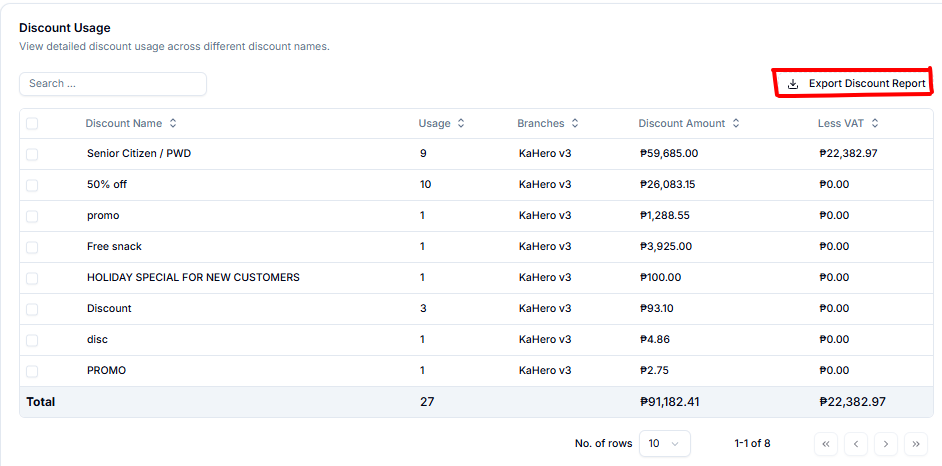
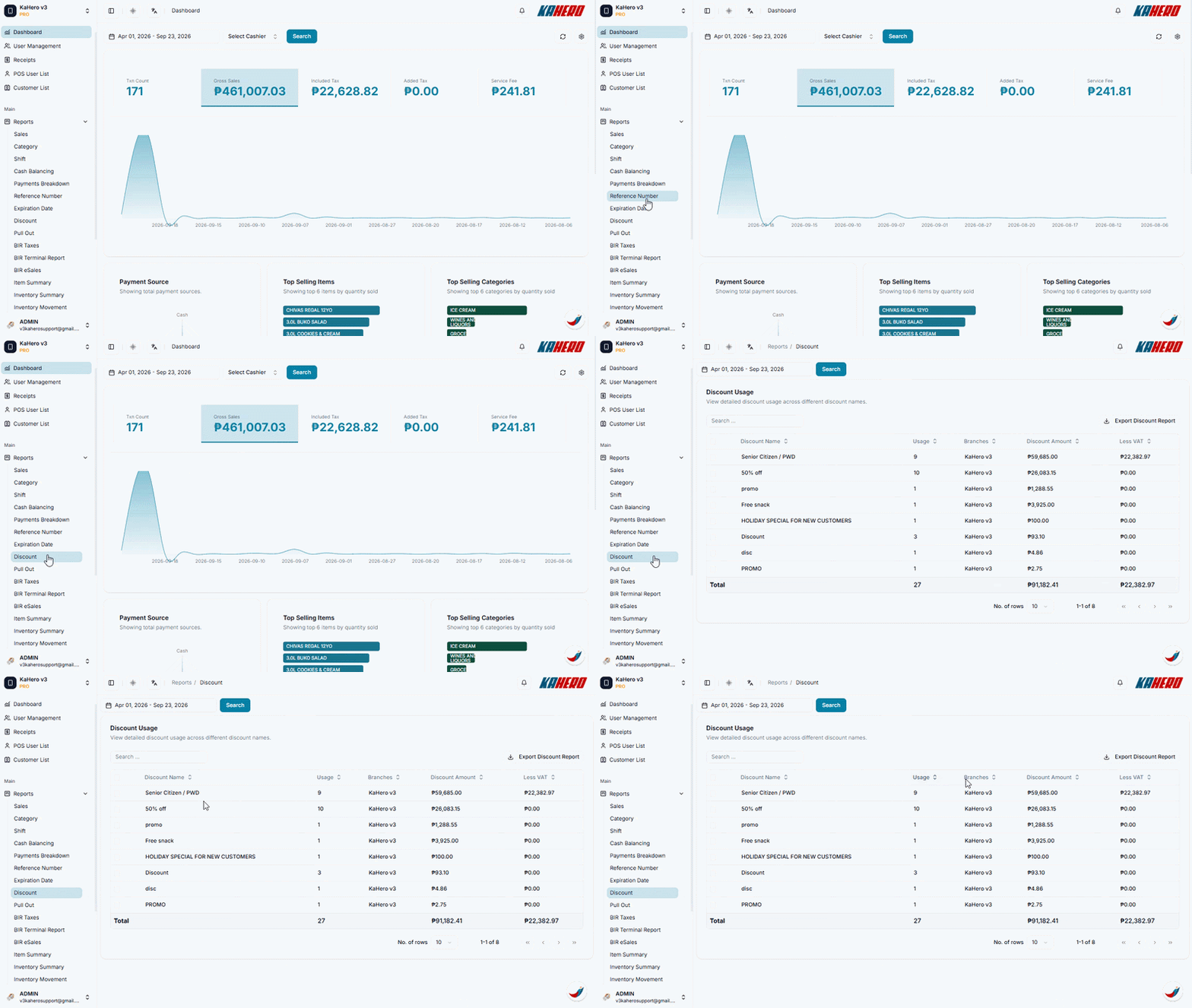
To view the Discount Usage report in KaHero Backoffice, follow these steps:
- Log in to KaHero Backoffice using your account.
- On the left-side menu, click Reports to expand the available report options.
- Select Discount.
- You will be redirected to the Discount Usage page.
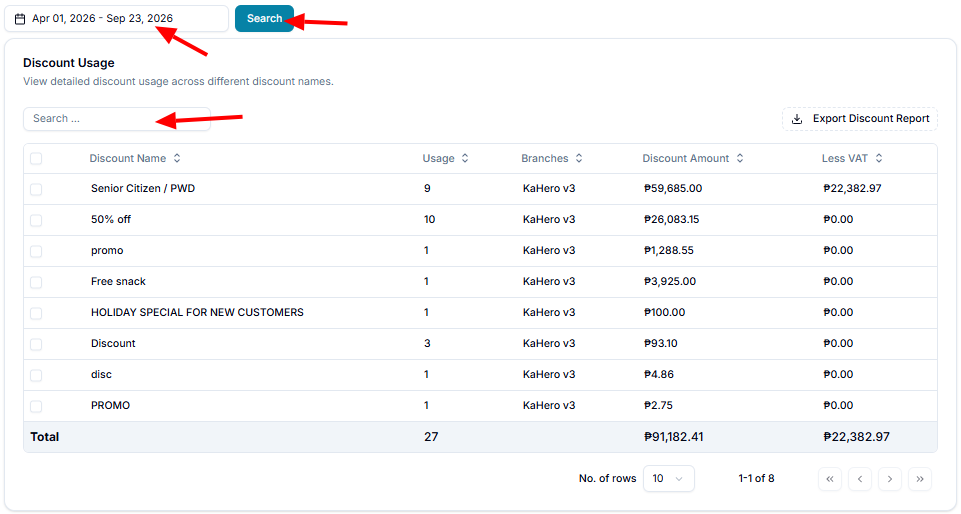
Once you're on the page, you can:
- Select a date range – Use the date filter at the top to choose the period you want to review.
- Click Search to apply the selected date range.
- Use the Search field to find a specific discount name.
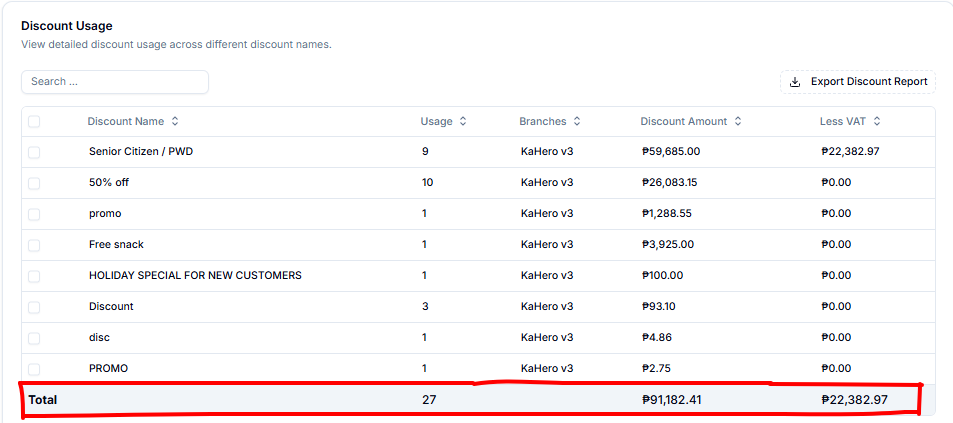
Review the discount details, including:
- Discount Name – The name of the discount used.
- Usage – The number of times the discount was applied.
- Branches – The branch where the discount was used.
- Discount Amount – The total amount deducted through the discount.
- Less VAT – The VAT amount deducted or affected by the discount.
Check the Total row at the bottom to see the overall discount usage and amounts for the selected period.
Click Export Discount Report to download the report for record-keeping or further analysis.