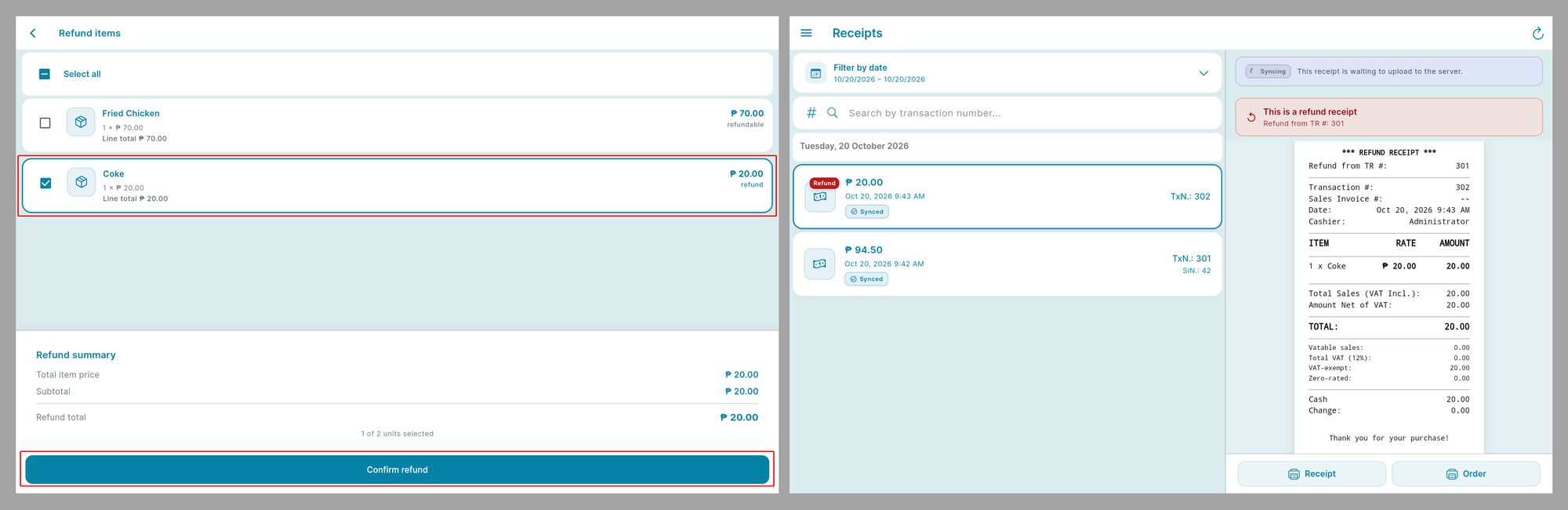
Follow these steps to complete a sale, then refund a selected item or the entire receipt.
Part 1: Complete a Sale
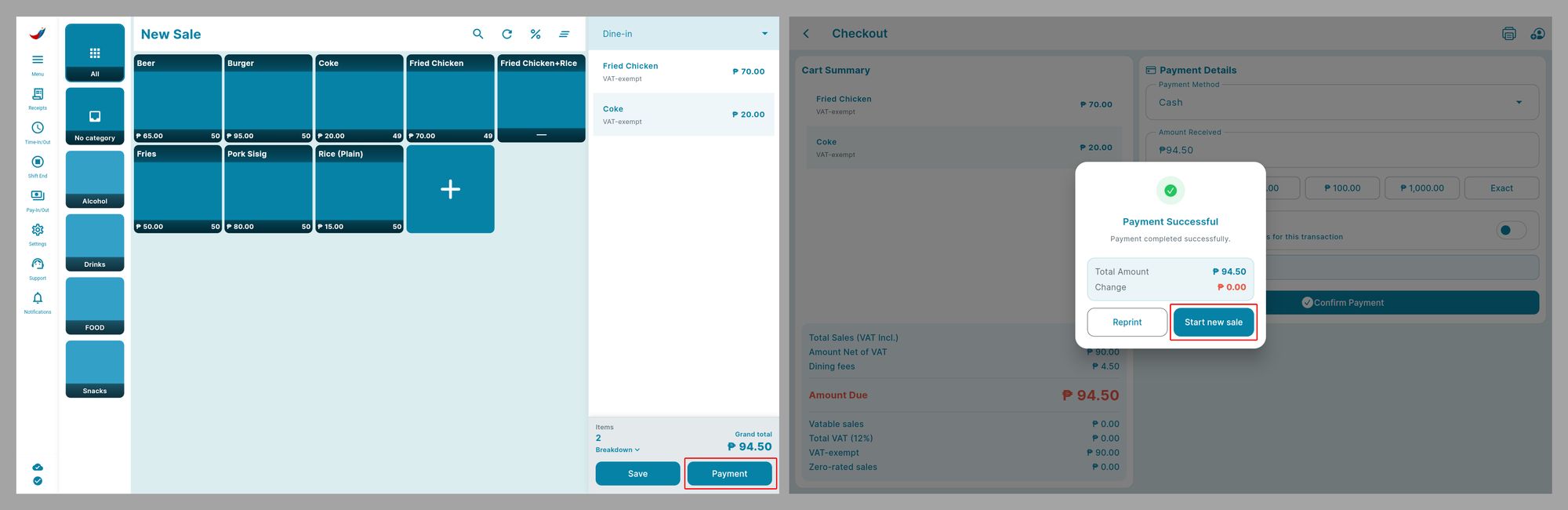
1. On the Register screen, punch the items you want to sell (for example, Coke and Fried Chicken).
2. Tap Payment.
3. Enter the payment amount, then tap Confirm Payment.
4. When the Payment Successful message appears, tap Start new sale.
Part 2: Open the Receipt to Refund
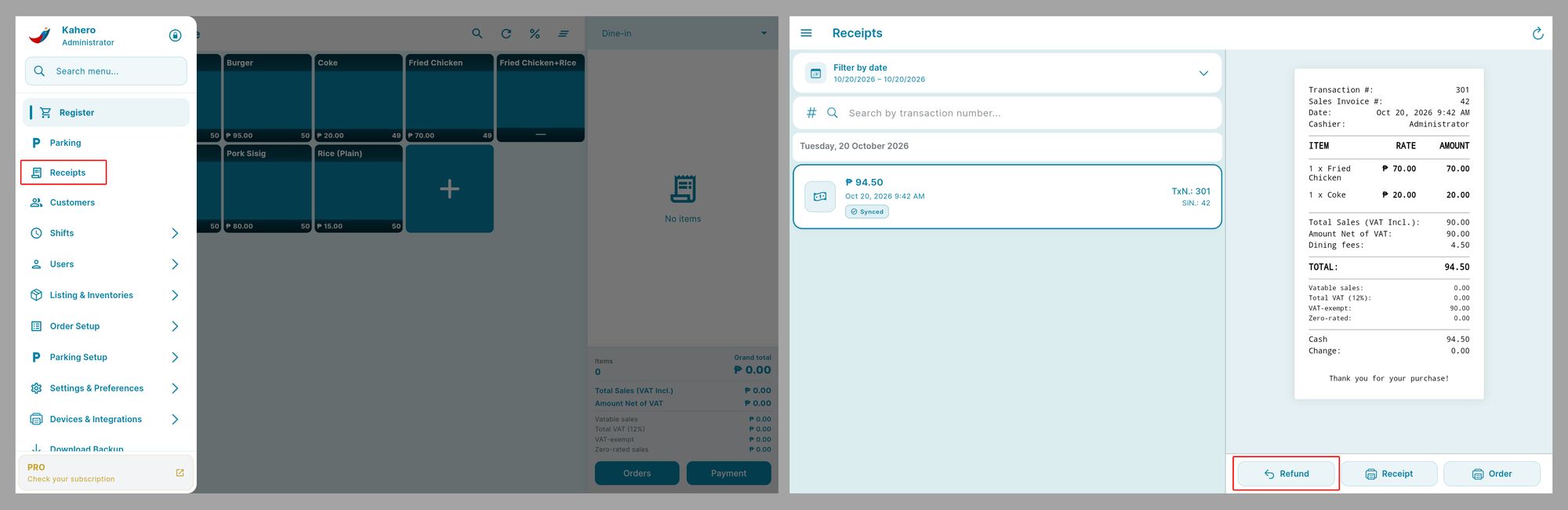
5. Open Menu, then select Receipts.
6. Find and select the receipt for the sale you just made.Check the transaction details to make sure you selected the correct receipt.
7. Tap Refund at the bottom of the receipt screen.
Part 3: Select Items and Confirm the Refund
8. On the refund screen, select the specific item(s) you want to refund. If you need to refund every item on the receipt, choose Select All.
9. Review the selected item(s) and refund amount carefully.
10. Tap Confirm Refund to complete the refund.