
User Manual – Dashboard Overview and Navigation
1. Purpose of the Analytics Dashboard
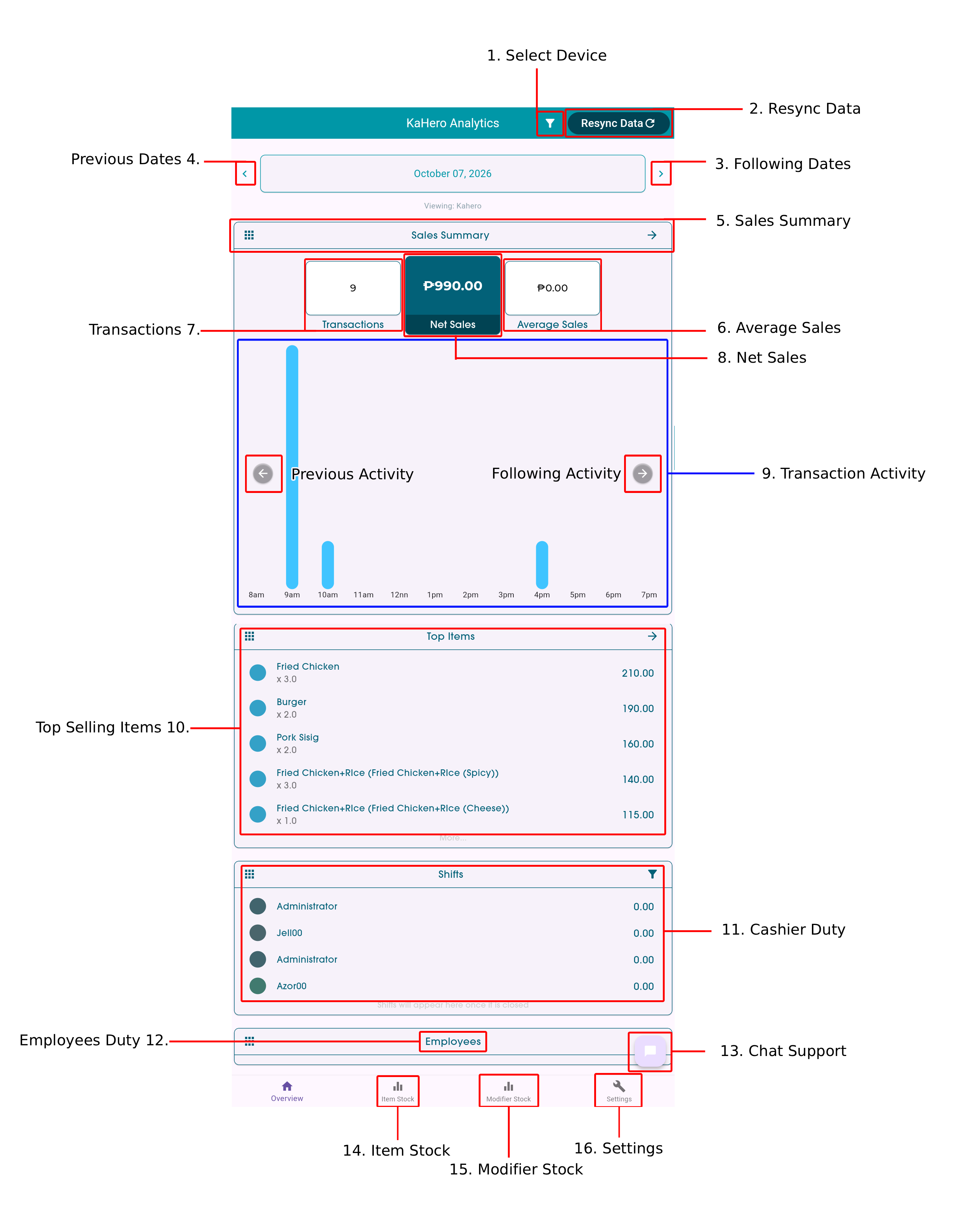
KaHero Analytics provides an overview of sales performance, transaction activity, top-selling items, cashier
duty, employee duty, and stock information. The dashboard also provides tools for selecting a device,
synchronizing data, and moving between dates.
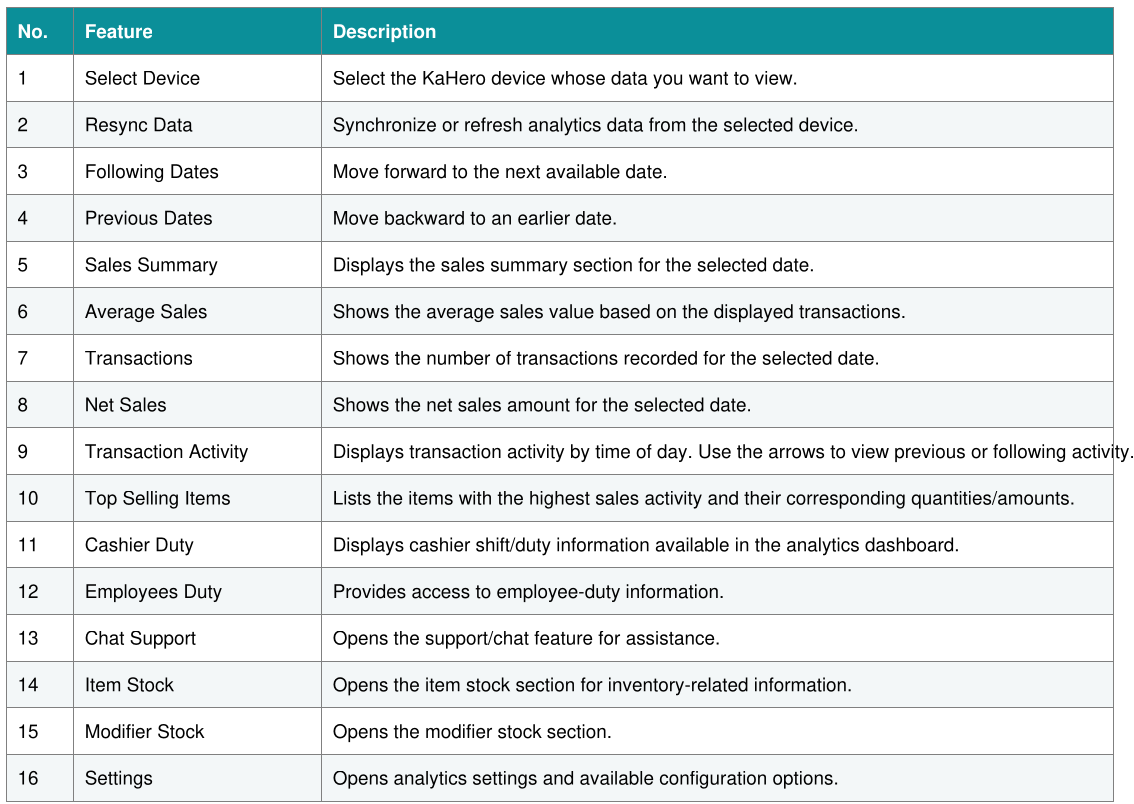
2. Dashboard Features
3. How to Use the Dashboard
Step 1 – Select a Device
Tap the device/filter control at the top of the dashboard and select the device you want to review.
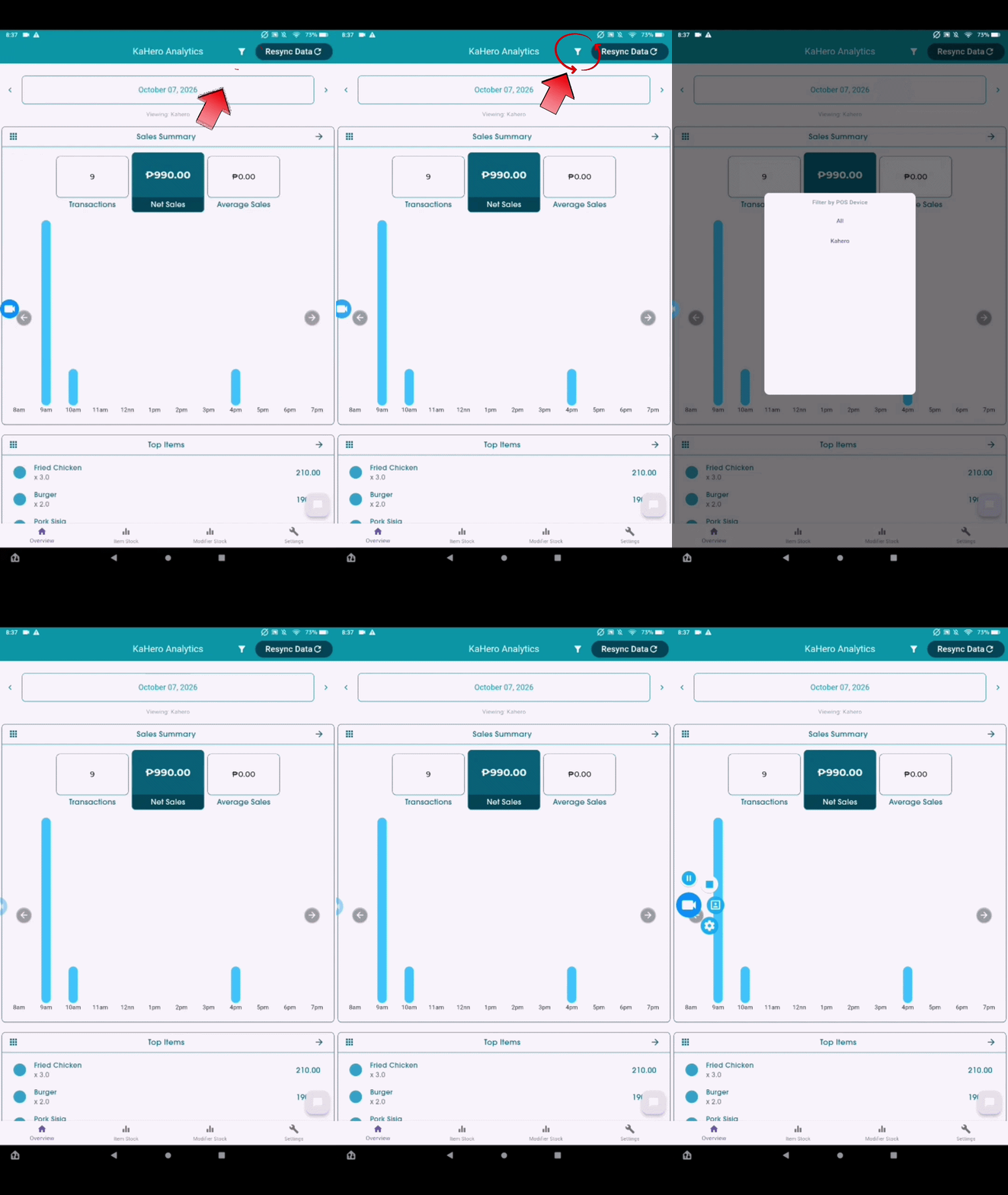
Step 2 – Resync the Data
Tap “Resync Data” after selecting the device. Allow the synchronization to finish before reviewing the figures.
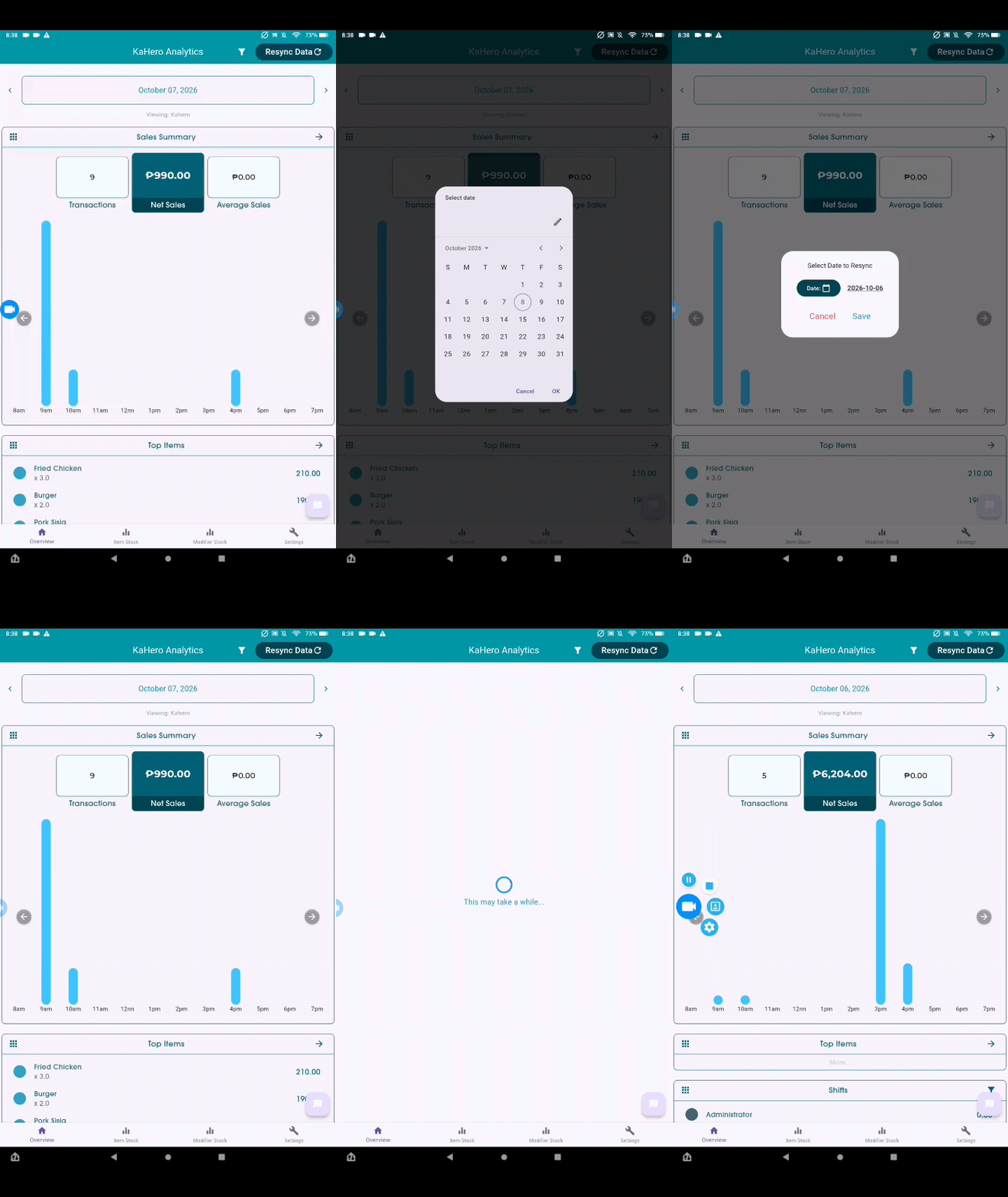
Step 3 – Select the Date
The date is displayed below the top controls. Tap the left arrow to view a previous date or the right arrow to view a following date.
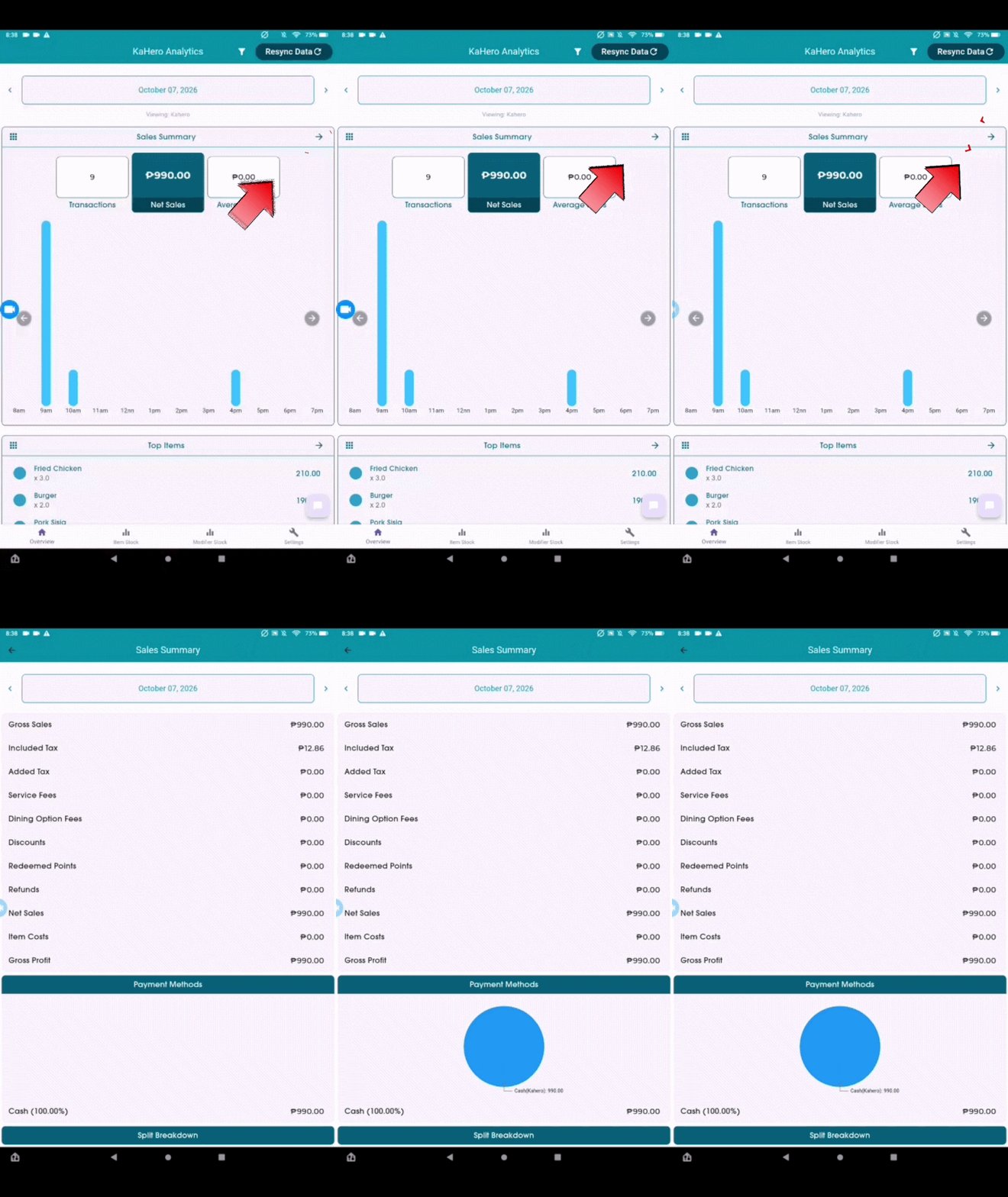
Step 4 – Review Sales Summary
Review Transactions, Net Sales, and Average Sales to get a quick view of the selected day's performance.
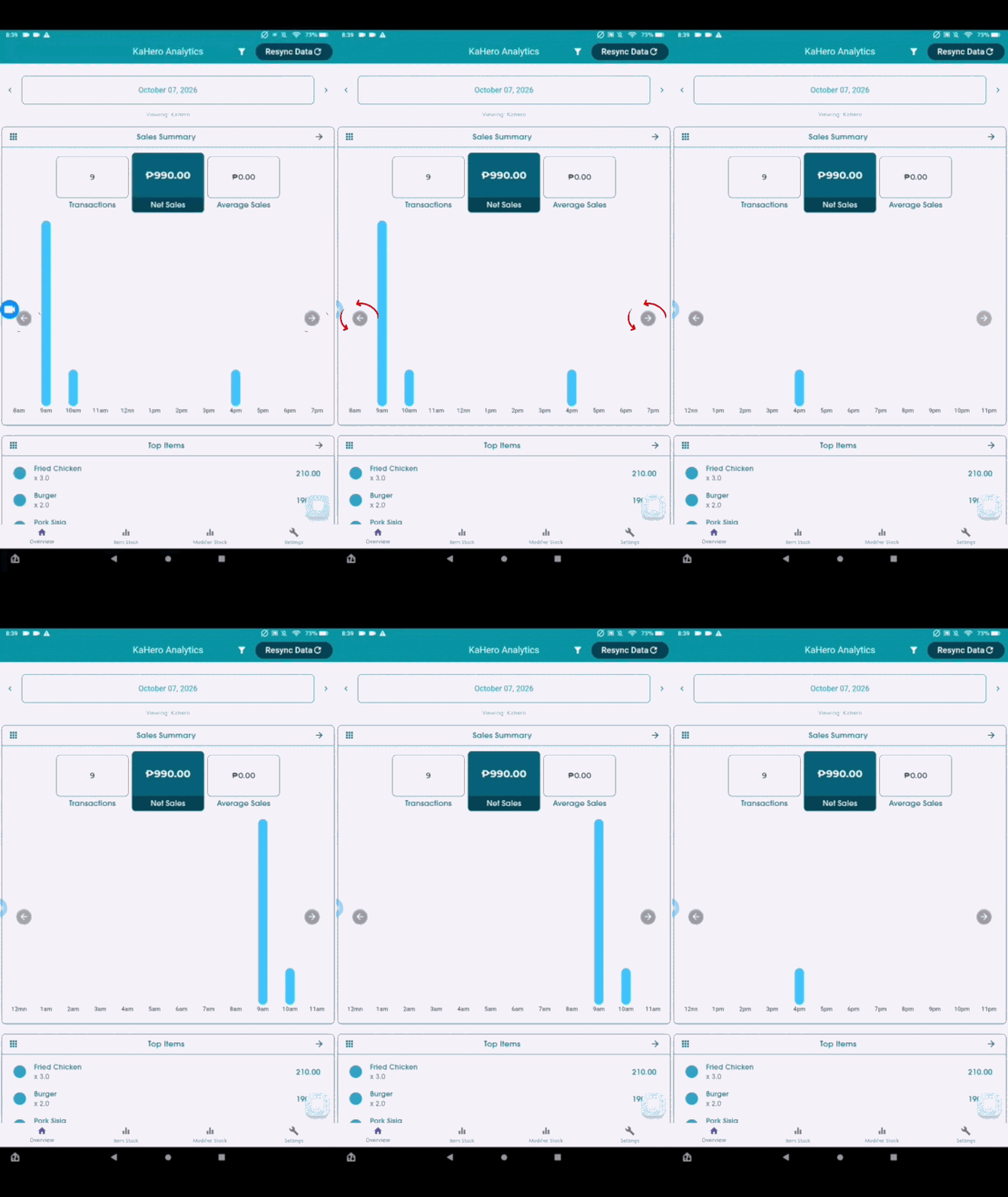
Step 5 – Review Transaction Activity
Use the activity panel to identify the times when transactions were recorded. Use the left and right arrows to navigate through activity periods.
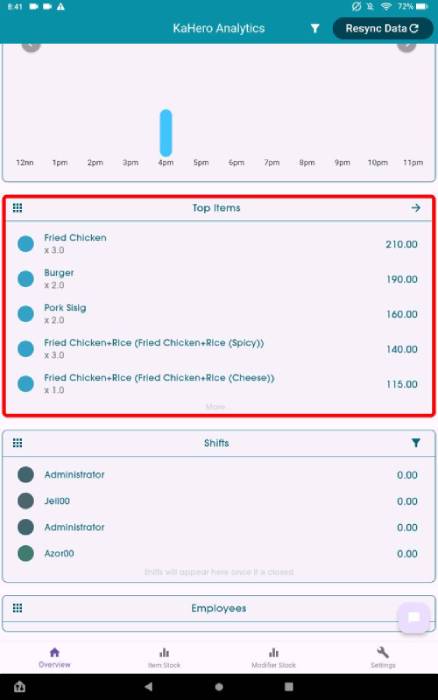
Step 6 – Review Top Selling Items
Check the Top Items section to identify products with the highest sales activity. The displayed quantity and sales amount can help identify best-selling products.
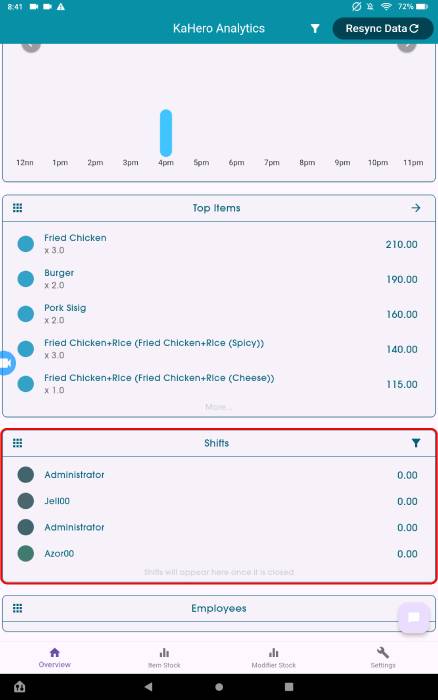
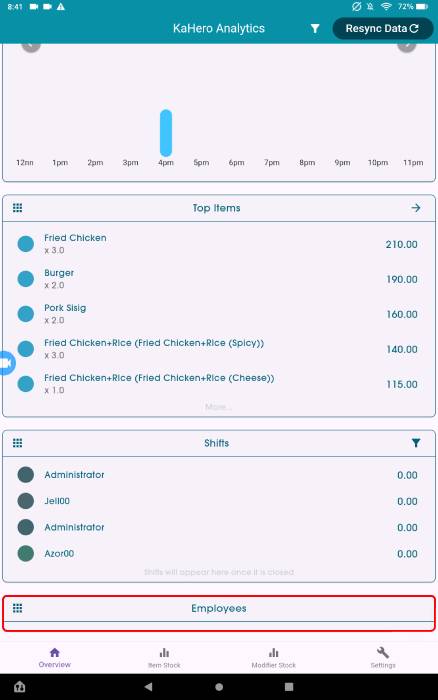
Step 7 – Review Cashier Duty
Check the Shifts/Cashier Duty section to review cashier duty information shown for the selected date.
Step 8 – Review Employee Duty
Use the Employees section to access employee-duty information.
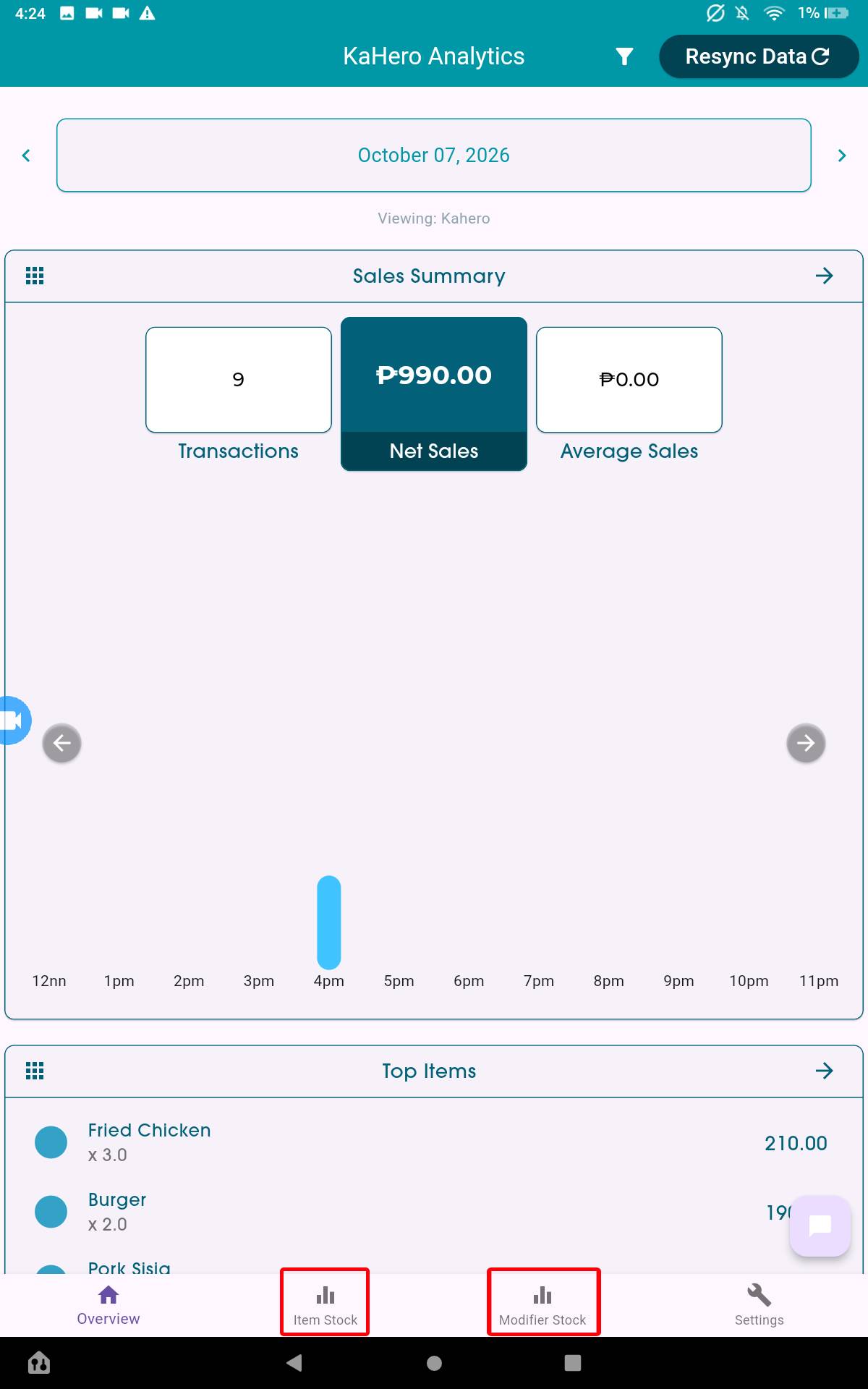
Step 9 – Check Stock
Use Item Stock or Modifier Stock from the bottom navigation to review inventory-related information.
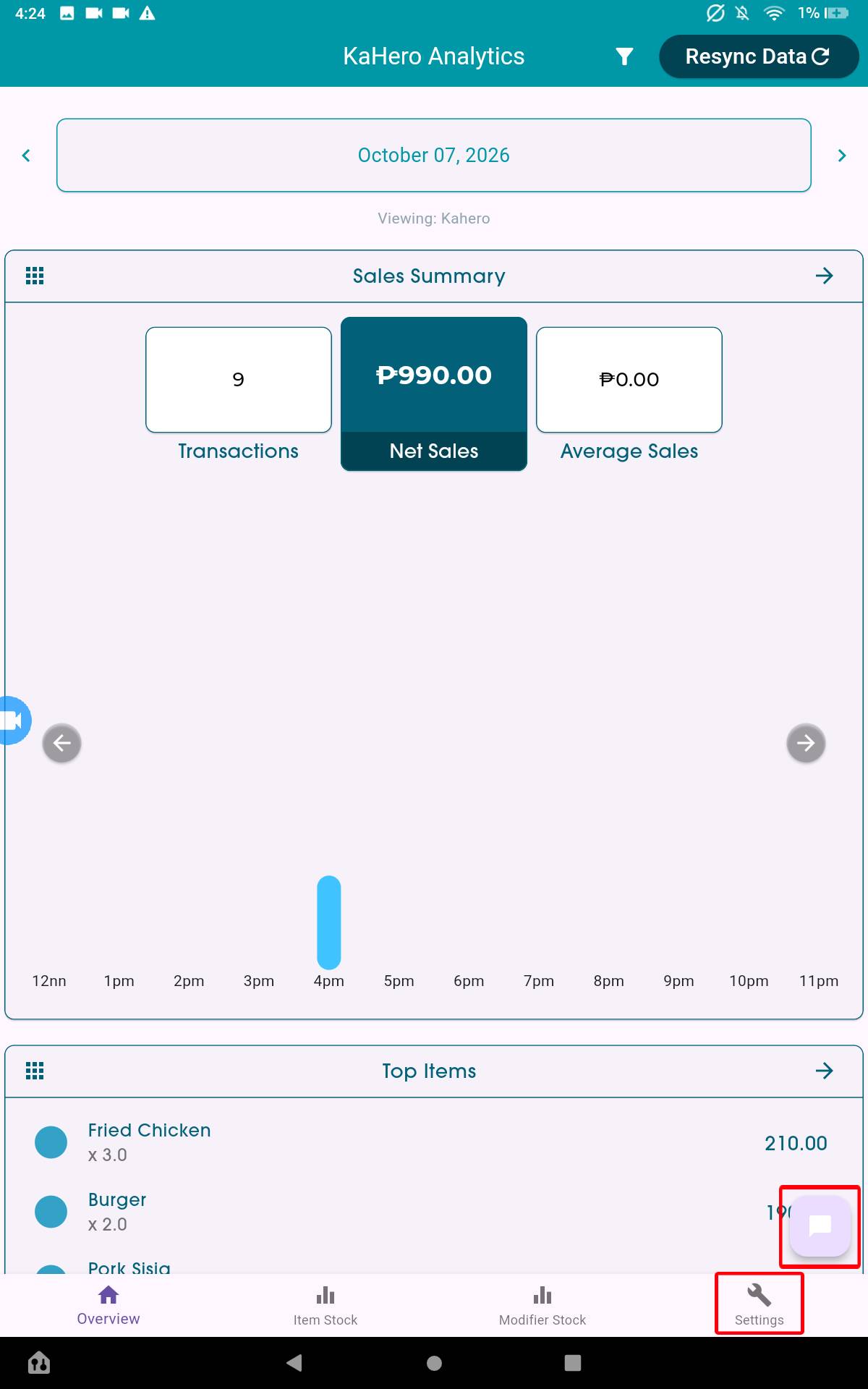
Step 10 – Open Settings or Chat Support
Use Settings for available configuration options.
4. Understanding the Main Sales Figures

5. Recommended Workflow
For the most reliable review, first select the correct device, then resync the data. Confirm the date before interpreting the figures. Review the Sales Summary, Transaction Activity, Top Selling Items, and Cashier Duty sections. If figures appear incomplete, perform another data synchronization and verify that the correct device and date are selected.
6. Quick Reference
Top controls: Select Device → Resync Data → Select Date
Sales review: Transactions → Net Sales → Average Sales
Activity review: Transaction Activity → Top Selling Items → Cashier Duty
Other tools: Employees Duty → Item Stock → Modifier Stock → Settings → Chat Support.