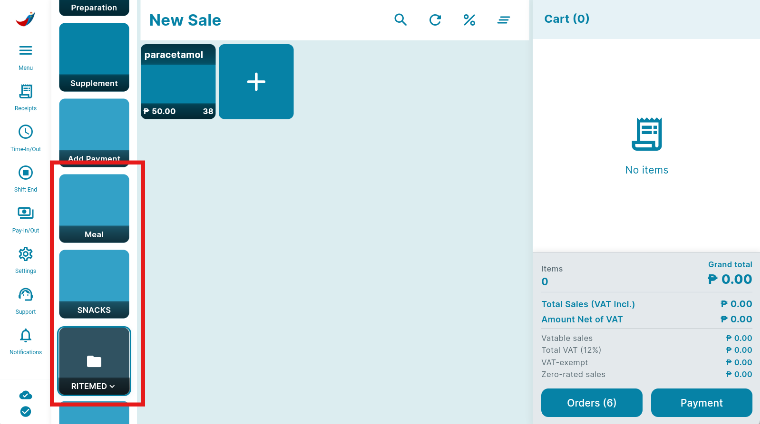
Category Groups are used to organize and group related categories, making the category list on the Register screen shorter and easier to navigate.
For example, if you have Meals, Snacks and Medicines separate categories, you can group them under a Food category group. This allows you to organize multiple related categories under one group and keep your Register screen more organized and user-friendly.
You can add category groups in the Back Office.
In the Back Office, go to Listings, then select Categories to access the category management section.
Click the Category Group tab, then click ADD to create a new category group.
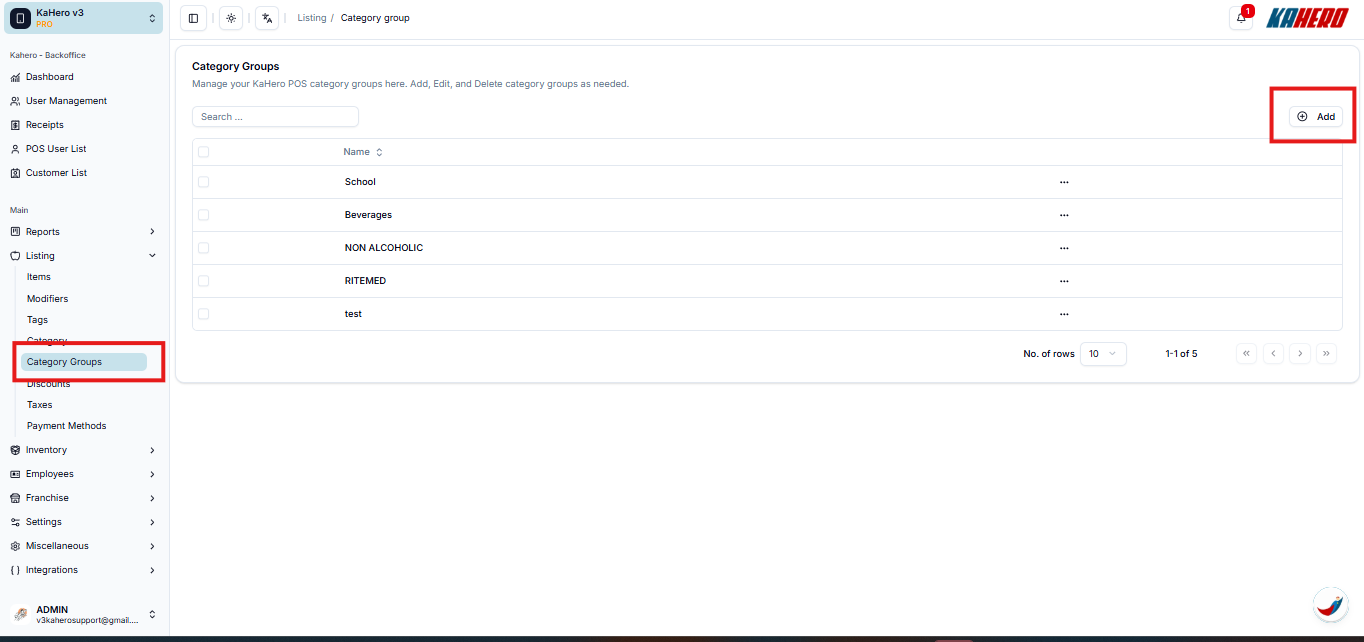
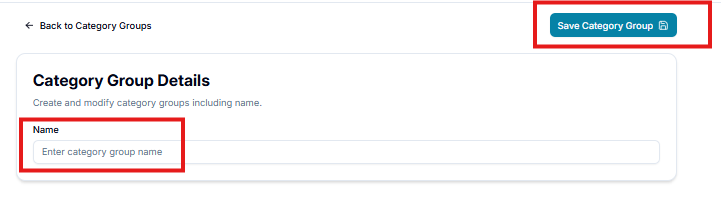
Input the name of your Category Group. Click Save.
After adding Category Groups, they will be displayed on the Register.
For example, the PARACETAMOL categories are grouped under the RITEMED category group. This allows you to organize related categories and keep the Register screen more organized.
You can also choose to show or hide categories within the Category Groups based on your preference.