
Customer ordering, OTP verification, order tracking, and POS order processing
Process at a glance
Part 1 — Customer website: Select product → Add to order → Checkout → Enter customer details → Review summary → Place order.
Part 2 — OTP and tracking: Retrieve the SMS OTP → Verify and place order → Save the tracking number → Open the top-right Track icon → Track your order.
Part 3 — POS: Register → Orders → Open the customer order → Move it through Pending, Confirmed, Preparing Order, Ready for Delivery/Pickup, and Completed → Print the order.
1. Place an order on the customer website
Steps
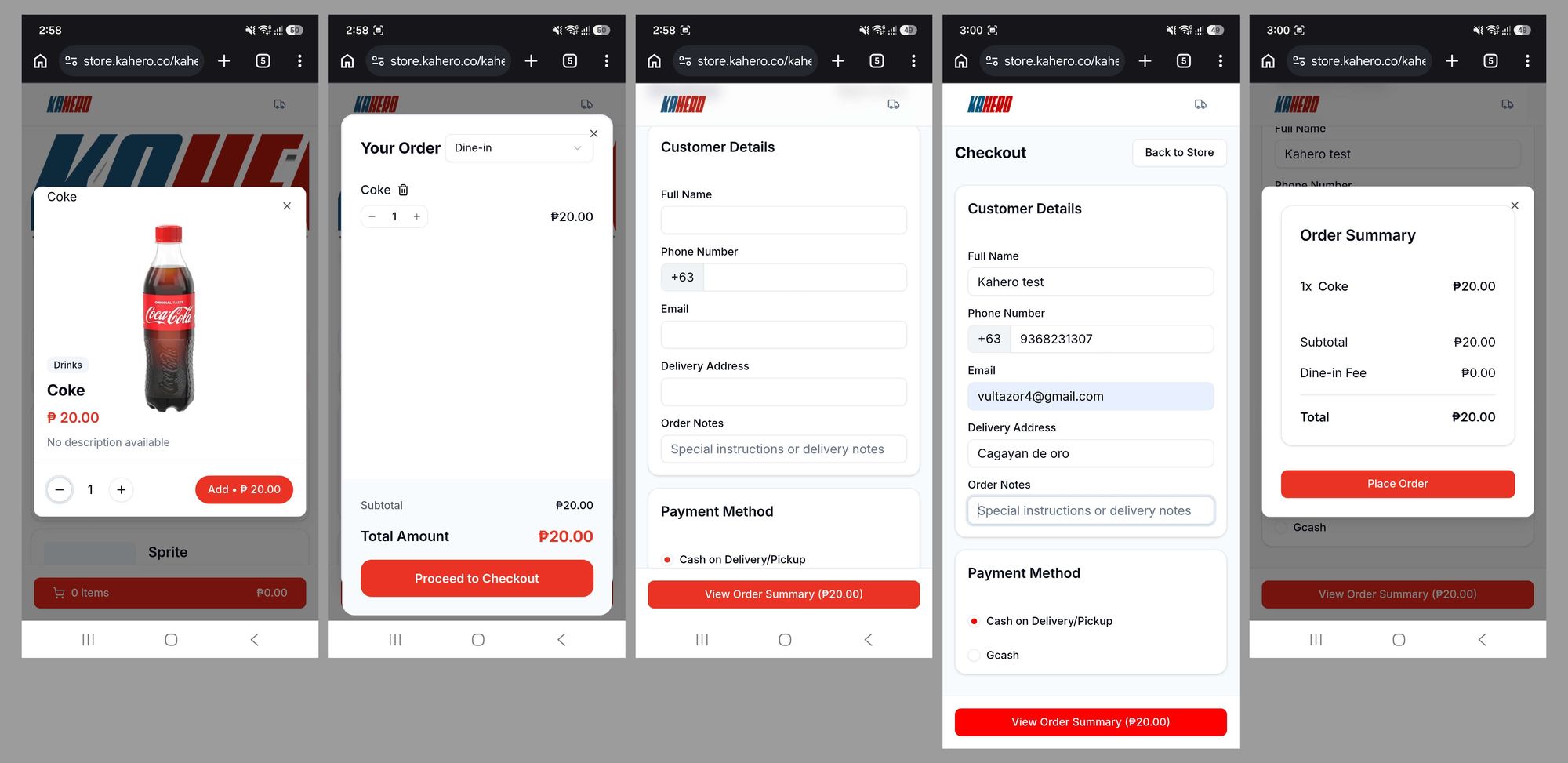
- Open the Kahero Client Order Online website.
- Select or punch the product (example: Coke), then tap Add. Adjust quantity if needed.
- Open the cart and tap Proceed to Checkout.
- Fill in the customer details: full name, phone number, email, delivery address, and any order notes. Choose the payment method.
- Tap View Order Summary, review the items and total, then tap Place Order.
2. Verify the order and track it
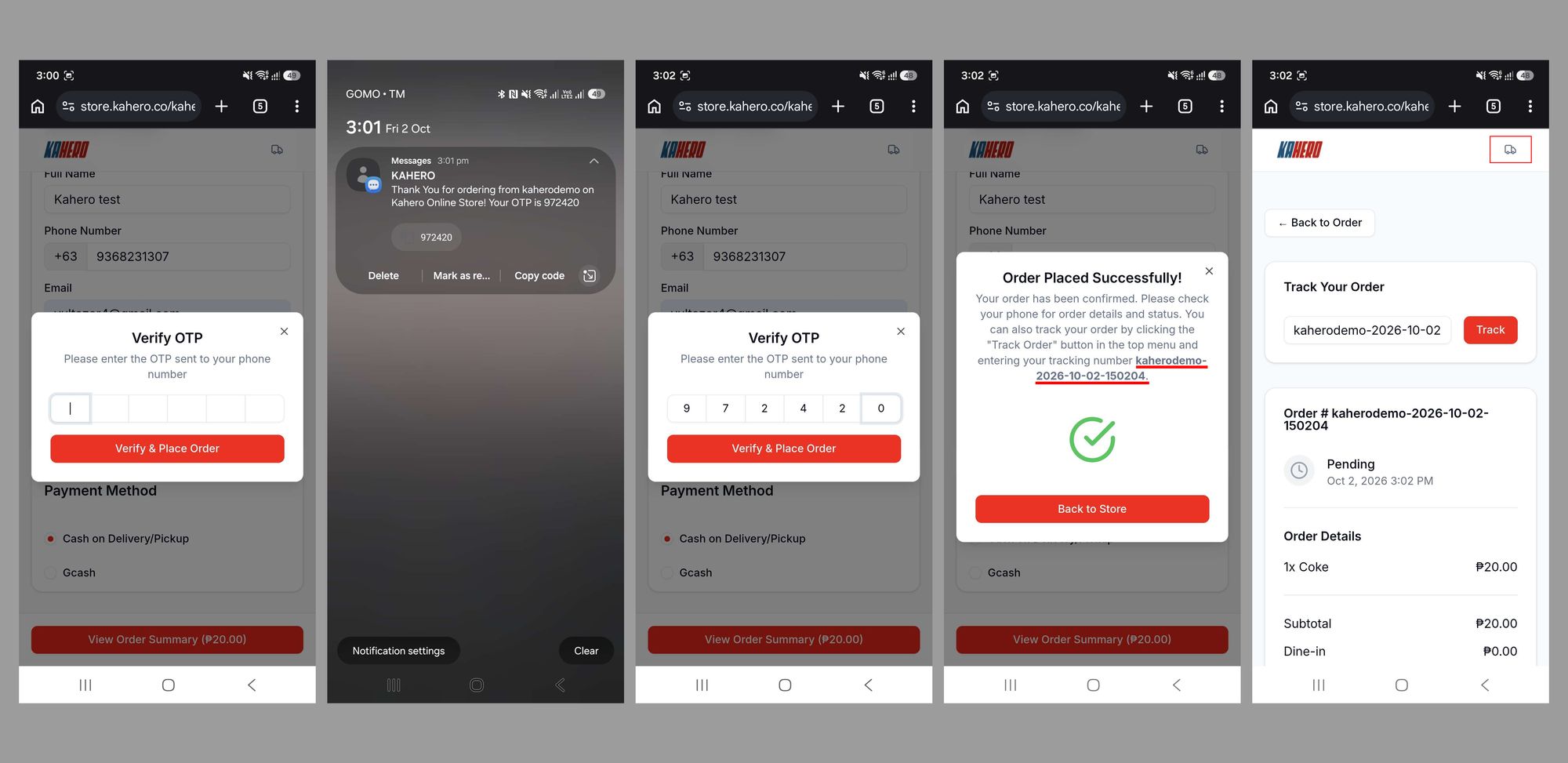
- After placing the order, the website asks for OTP verification. Check the customer's phone for the SMS from Kahero.
- Enter the OTP in the Verify OTP prompt, then tap Verify & Place Order.
- When the order confirmation appears, copy or record the tracking number shown in the message.
- Tap the Track truck icon at the top-right of the website. Enter the tracking number and tap Track to view order status.
3. Process the online order in POS
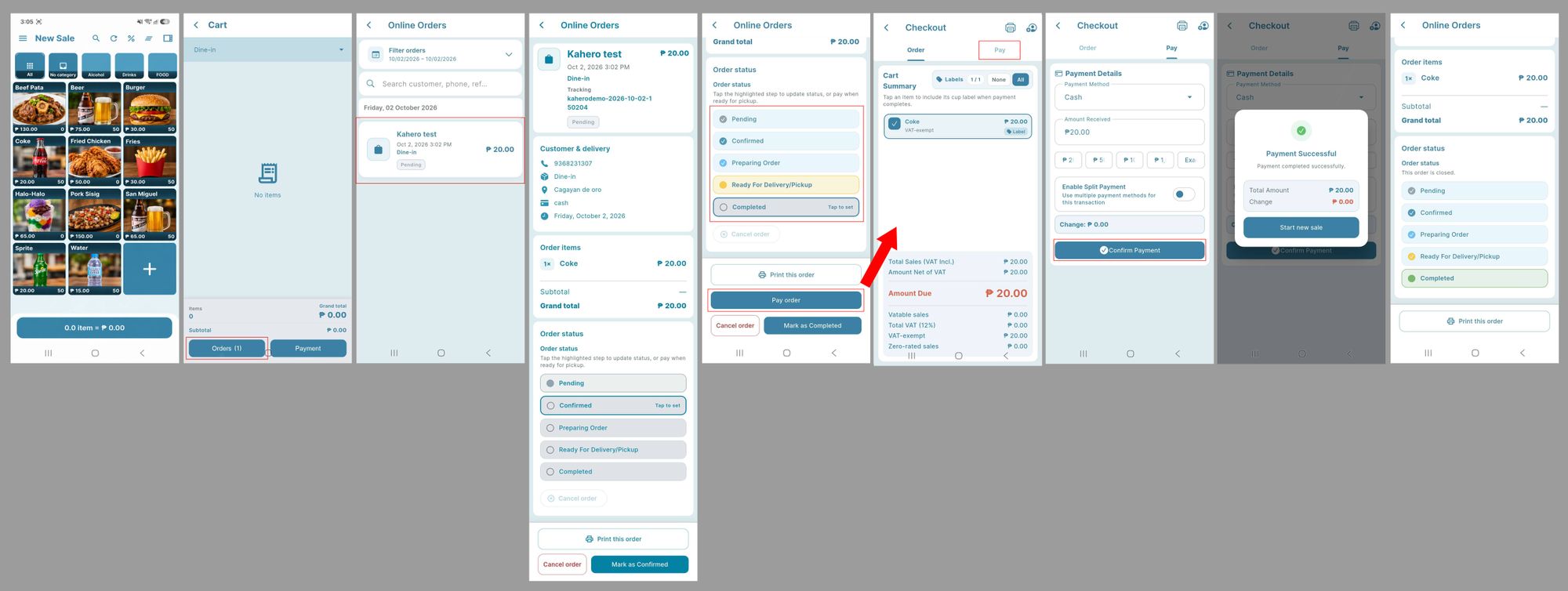
- In POS, open Register, then select Orders.
- Find and select the customer’s online order. Review the customer, items, amount, and tracking/order reference.
- Tap Mark as Confirmed (or select the Confirmed status) to confirm the order.
- Update the order status in sequence as work progresses:
Pending → Confirmed → Preparing Order → Ready for Delivery/Pickup →Pay Order → Pay → Confirm Payment → Completed
- When the order is completed, tap Print this order to print the order record
Reminder: Select the status that reflects the order’s actual progress. Mark Completed only after the order has been fulfilled.