
Use this guide to enable Dining Options, configure dine-in or take-out fees, and select the dining option during a sale.
Step 1: Enable Dining Options
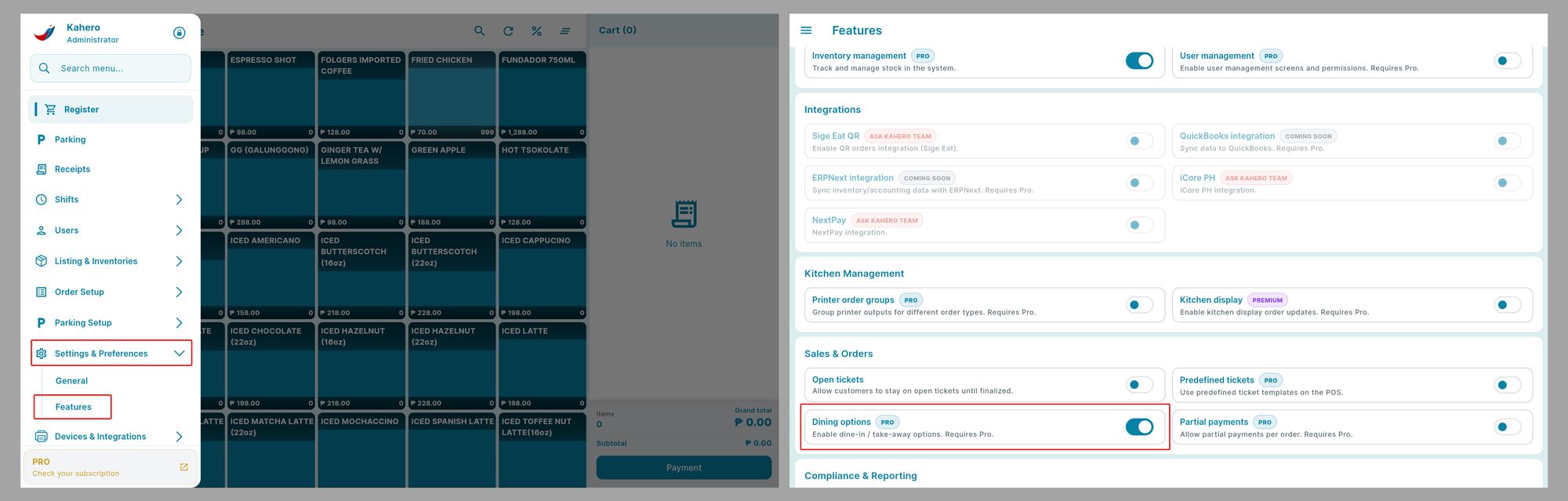
Go to Menu > Settings & Preferences > Features. Under Sales & Orders, turn on Dining Options.
Step 2: Add a Dining Option
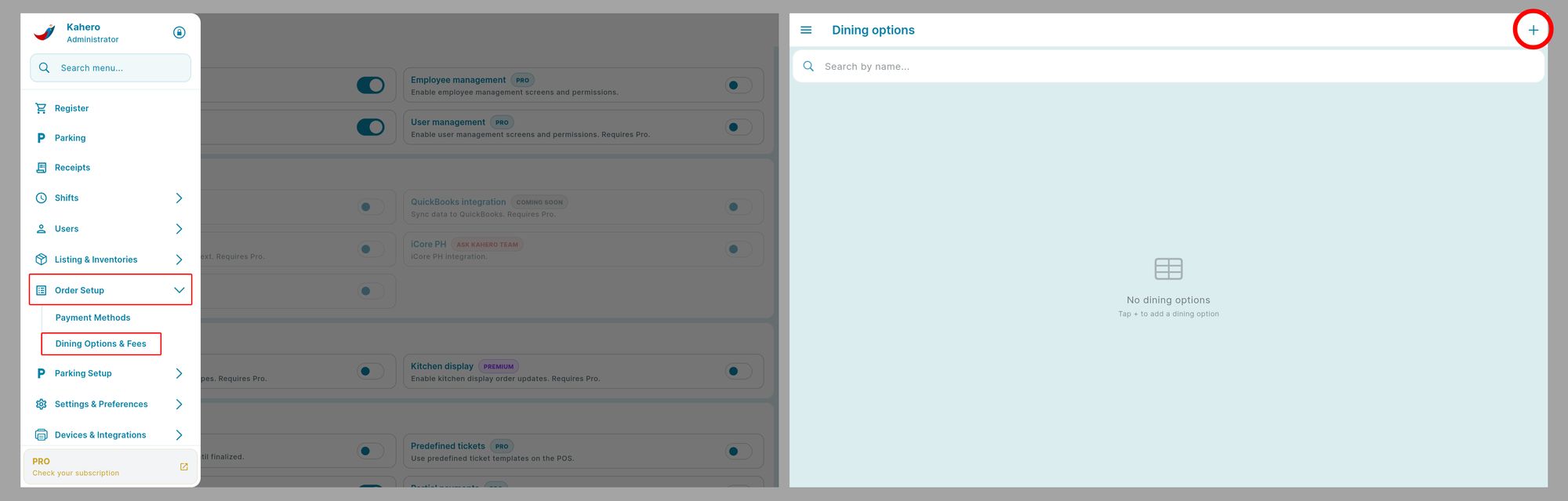
Open Menu > Order Setup > Dining Options & Fees. Tap the + button in the upper-right corner to add a dining option.
Step 3: Configure Dining Option Details and Fees
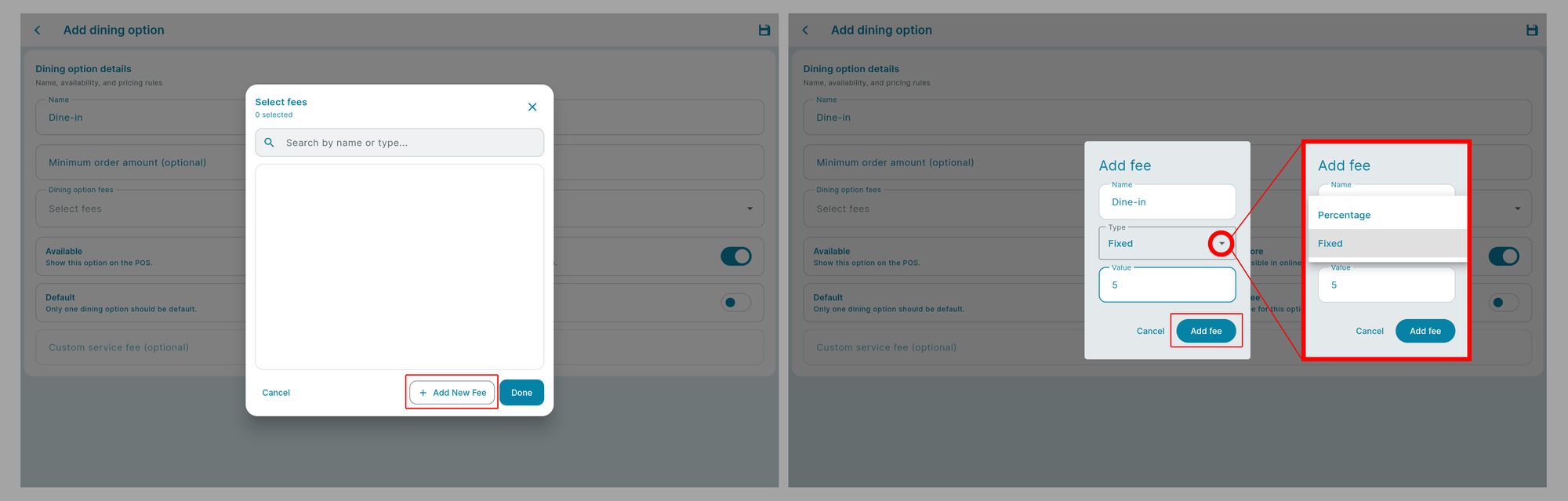
Enter the dining option name (for example, Dine-in or Take-out). Under Dining Option Fees, choose Add New Fee.
Enter a fee name and select the fee type:
• Percentage — applies a percentage-based fee.
• Fixed — applies a fixed amount.
Enter the value, then click Add fee.
Step 4: Select the Fee and Save
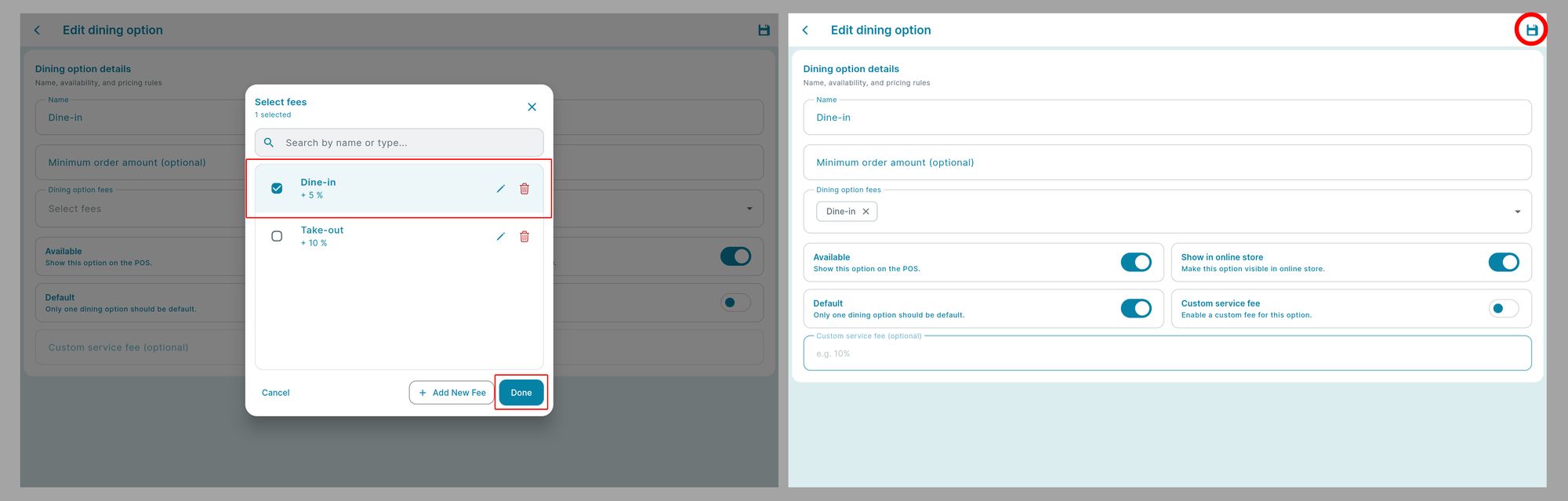
Open Dining Option Fees again, select the fee you created (for example, Dine-in), click Done, and then click the Save icon in the upper-right corner.
Step 5: Use Dining Options During a Sale
Go to Register and punch the items for the order. Tap the dining option dropdown at the top-right of the order panel, then select Dine-in or Take-out. Review the order and applicable dining fee, then tap Payment to proceed.
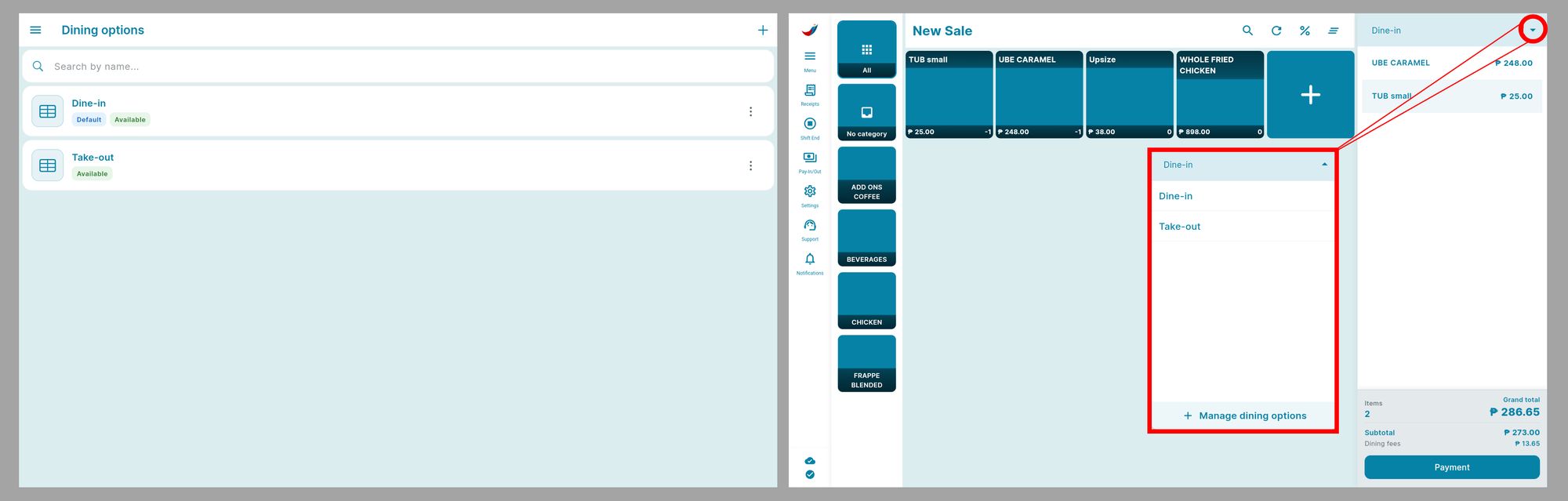
Tip: Make sure the dining option is marked Available so it appears on the Register. If the option should be selected automatically, configure it as the default.