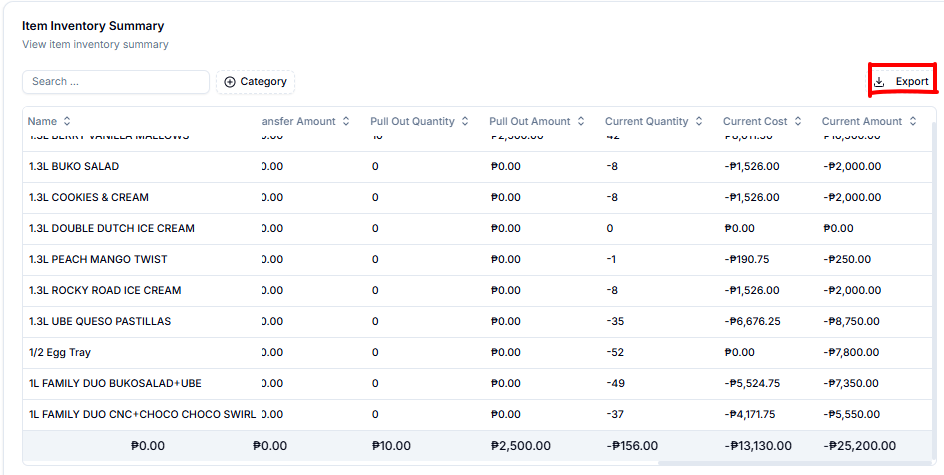
The Inventory Summary page allows you to monitor inventory movement and review quantities, amounts, sales, refunds, and composition-related inventory details.
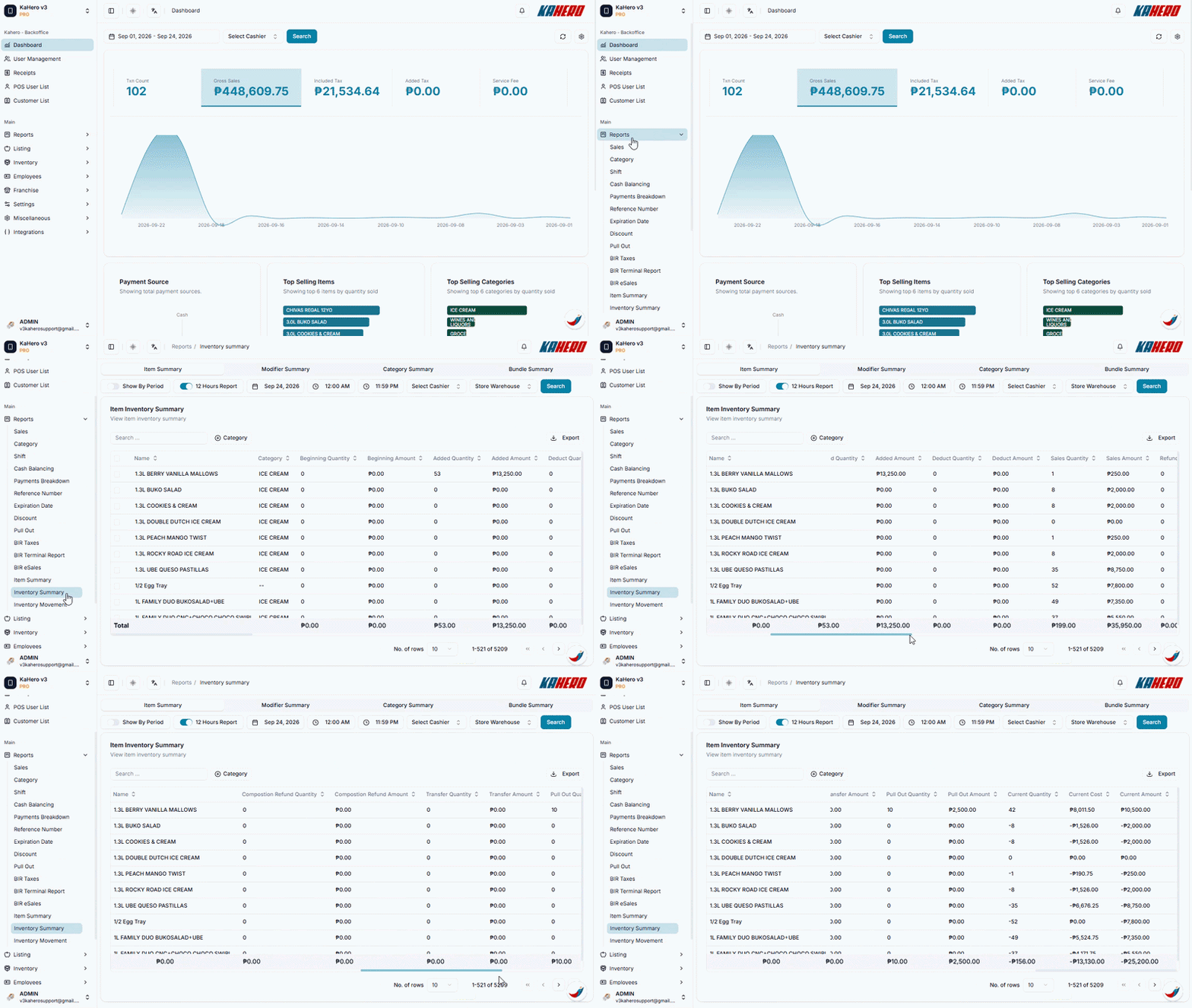
How to Navigate to Inventory Summary
- Log in to KaHero Backoffice using your account.
- On the left-side menu, click Reports to expand the available report options.
- Select Inventory Summary.
- You will be redirected to the Item Inventory Summary page.
Setting the Report Filters
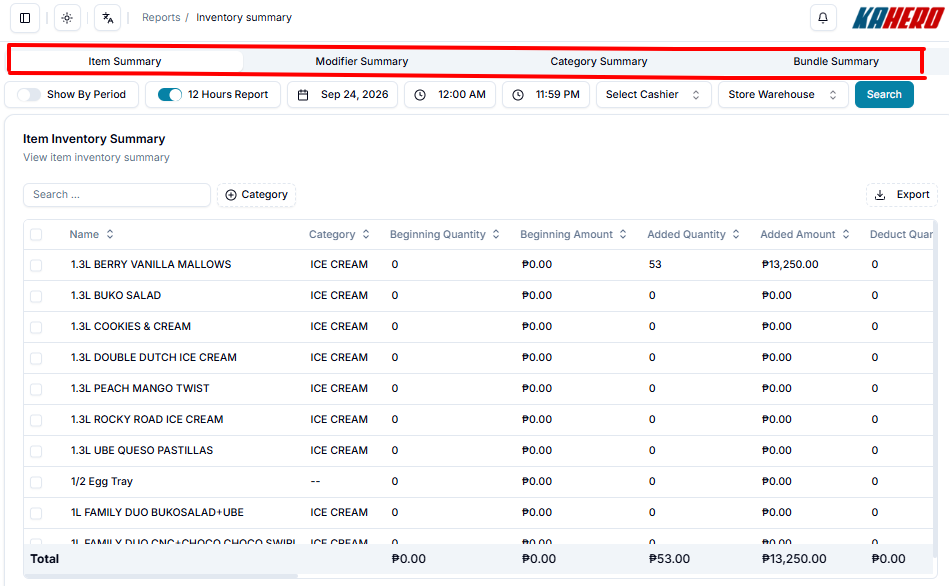
At the top of the page, you can set the information you want to review:
- Item Summary – Select this tab to view inventory information by individual item.
- Modifier Summary – View inventory information related to modifiers.
- Category Summary – View inventory information by category.
- Bundle Summary – View inventory information related to bundles.
- Show By Period – Enable this option if you want to view the inventory data by period.
- Show By Period – Enable this option if you want to view the inventory data by period.
- 12 Hours Report – Use this option when you need to generate a report based on a 12-hour period.
- Date – Select the date you want to review.
- Start and End Time – Set a specific time range when needed.
- Select Cashier – Filter the report by a specific cashier.
- Warehouse – Select the warehouse you want to review.
- Click Search to apply your selected filters.

The table provides detailed item inventory information, including:
- Name – Item name
- Category – Item category
- Beginning Quantity – Quantity available at the beginning of the selected period
- Beginning Amount – Beginning inventory value
- Added Quantity / Added Amount – Items and value added to inventory
- Deduct Quantity / Deduct Amount – Items and value deducted from inventory
- Sales Quantity – Quantity sold
- Sales Amount – Total sales generated from the item
- Refund Quantity / Refund Amount – Quantity and value returned through refunds
- Composition Sales Quantity / Amount – Sales related to item composition
- Composition Refund Quantity – Quantity related to composition refunds
- Transfer Quantity / Amount – items transferred between locations.
- Pull Out Quantity / Amount – items removed or pulled out from inventory.
- Current Quantity – the current stock quantity reflected in the record.
- Current Cost – the cost associated with the current quantity.
- Current Amount – the total amount based on the current stock.
Note: The table contains many columns, so not all information is visible at once. Scroll horizontally using the scrollbar at the bottom of the table to view additional columns.
The Item and Category Summary have the same detailed report. Bundle and Modifier Summary has fewer details on the report. See below:
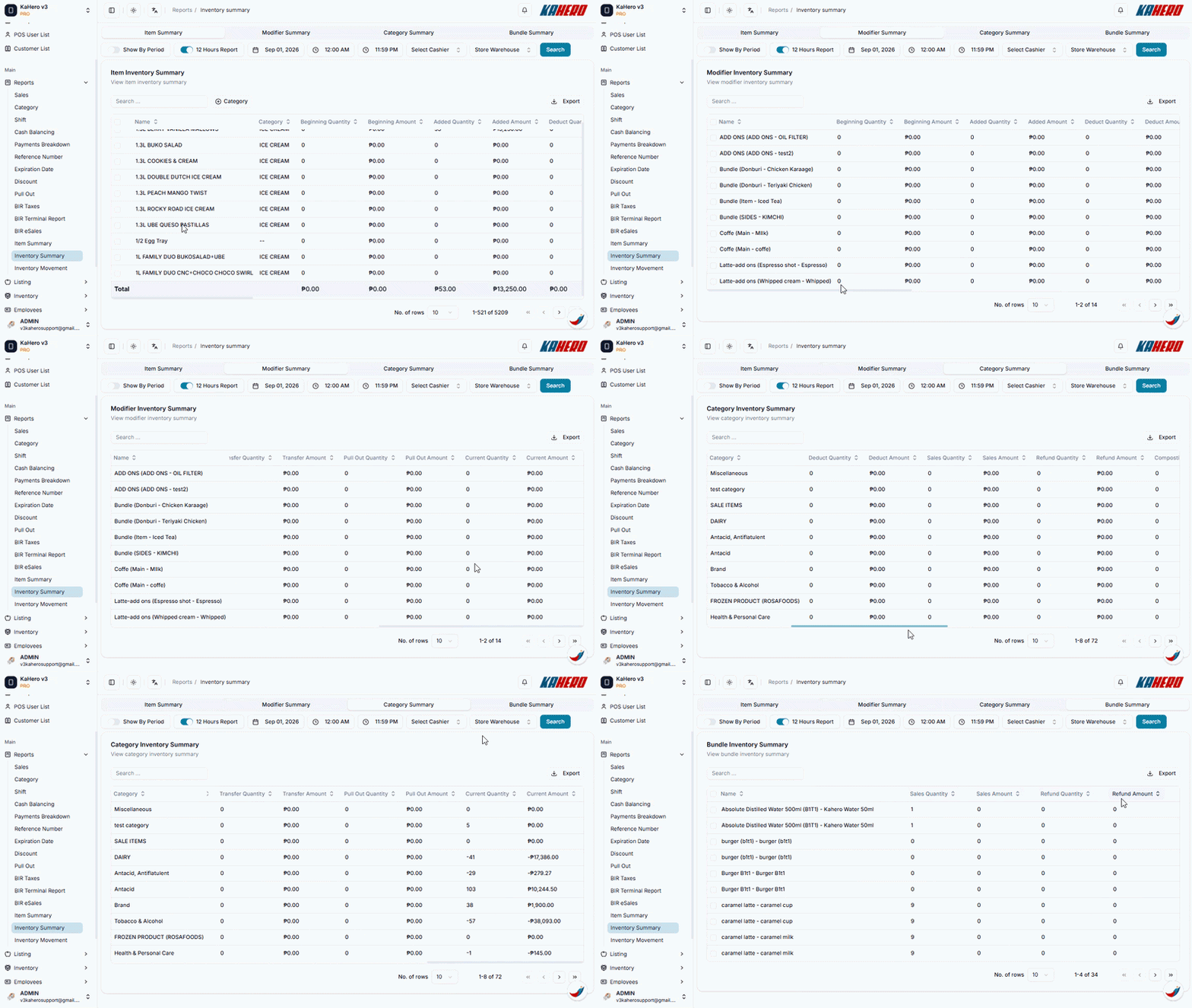
The Modifier summary table provides the following information:
- Name – Item name
- Category – Item category
- Beginning Quantity – Quantity available at the beginning of the selected period
- Beginning Amount – Beginning inventory value
- Added Quantity / Added Amount – Items and value added to inventory
- Deduct Quantity / Deduct Amount – Items and value deducted from inventory
- Sales Quantity – Quantity sold
- Sales Amount – Total sales generated from the item
- Refund Quantity / Refund Amount – Quantity and value returned through refunds
- Transfer Quantity / Amount – items transferred between locations.
- Pull Out Quantity / Amount – items removed or pulled out from inventory.
- Current Quantity – the current stock quantity reflected in the record.
- Current Cost – the cost associated with the current quantity.
- Current Amount – the total amount based on the current stock.
The Bundle summary table provides the following information:
- Name – The name of the bundle.
- Sales Quantity – The total quantity of the bundle sold during the selected period.
- Sales Amount – The total sales amount generated from the bundle.
- Refund Quantity – The total quantity of the bundle that was refunded.
- Refund Amount – The total amount refunded for the bundle.
Click Export in the upper-right corner to download the Inventory Summary for further review or record-keeping.