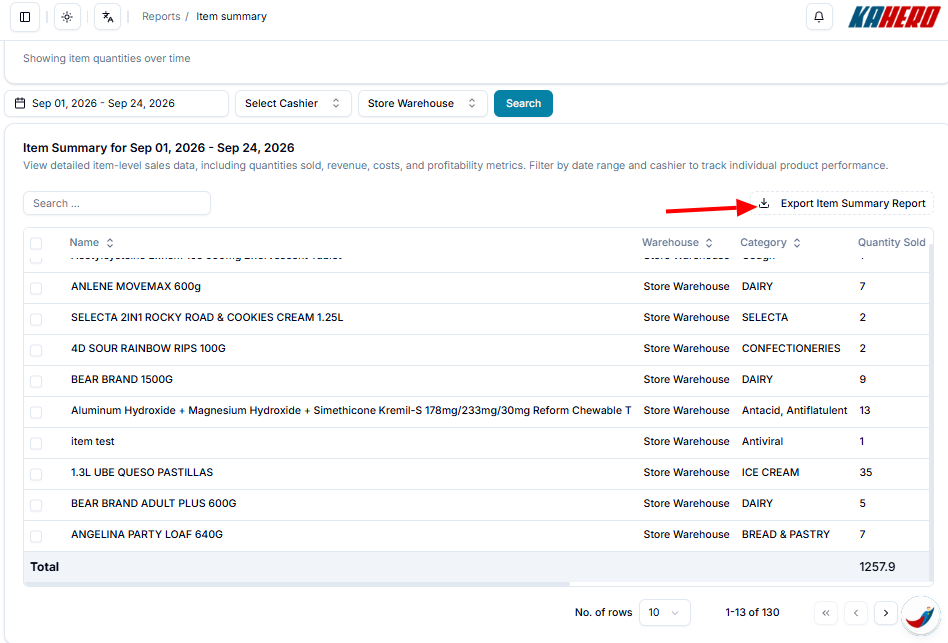
The Item Summary page allows you to review detailed sales information for individual products, including quantities sold, sales, costs, discounts, and other item-level data.
How to Navigate to Item Summary
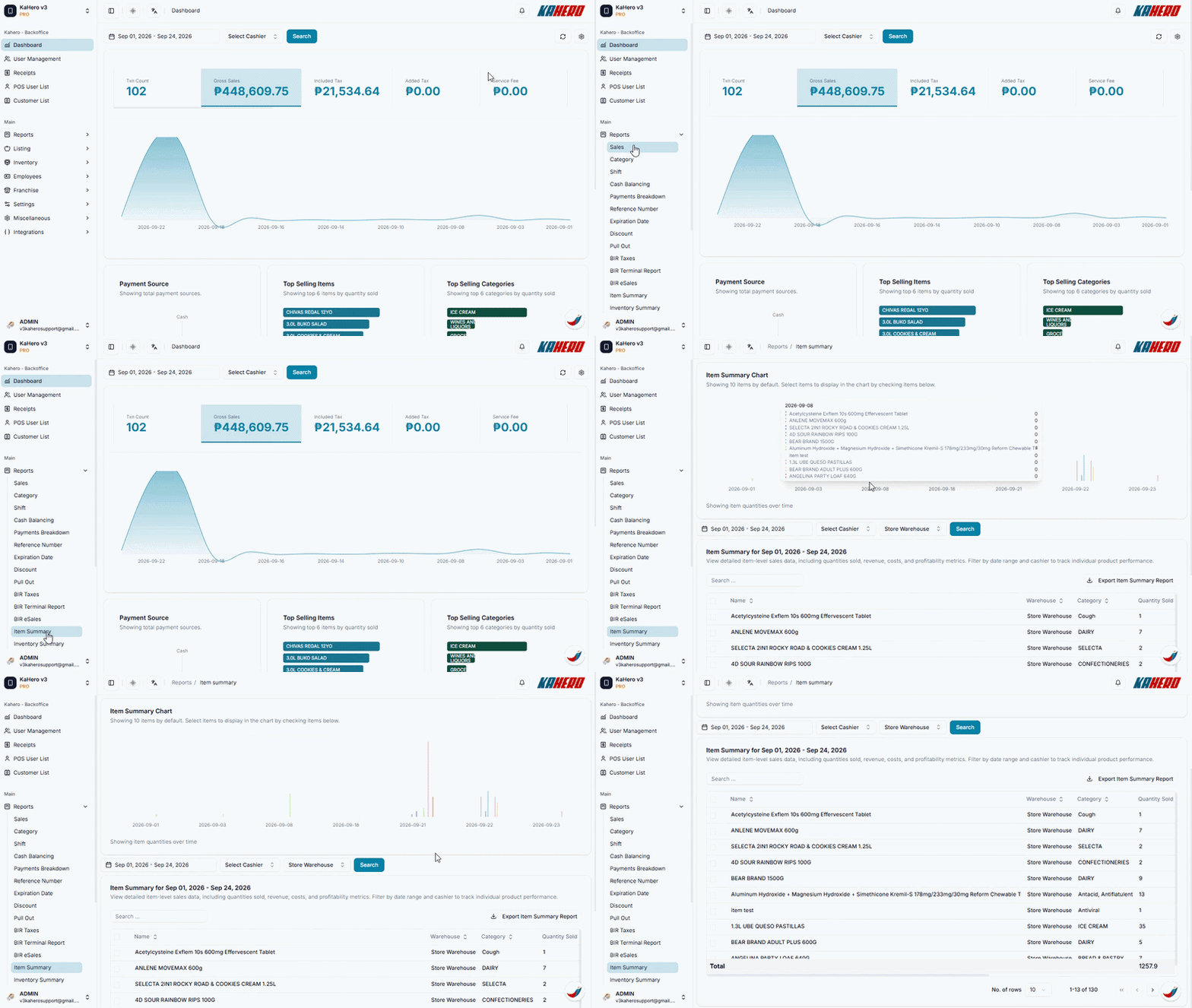
- Log in to KaHero Backoffice using your account.
- On the left-side menu, click Reports to expand the available report options.
- Select Item Summary.
- You will be redirected to the Item Summary page.
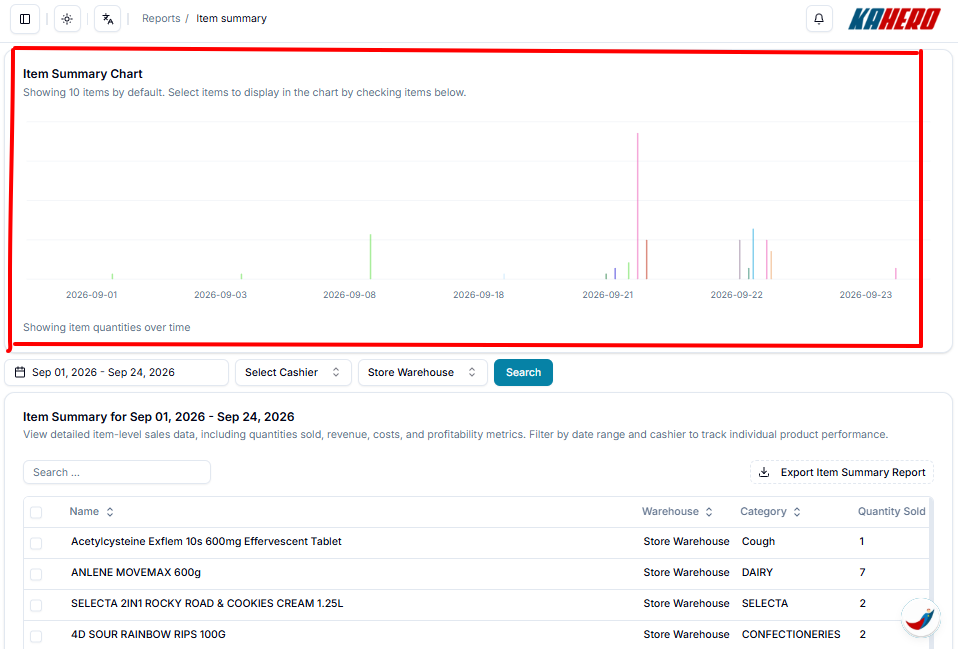
The page also includes an Item Summary Chart, which provides a visual overview of item quantities over the selected period.
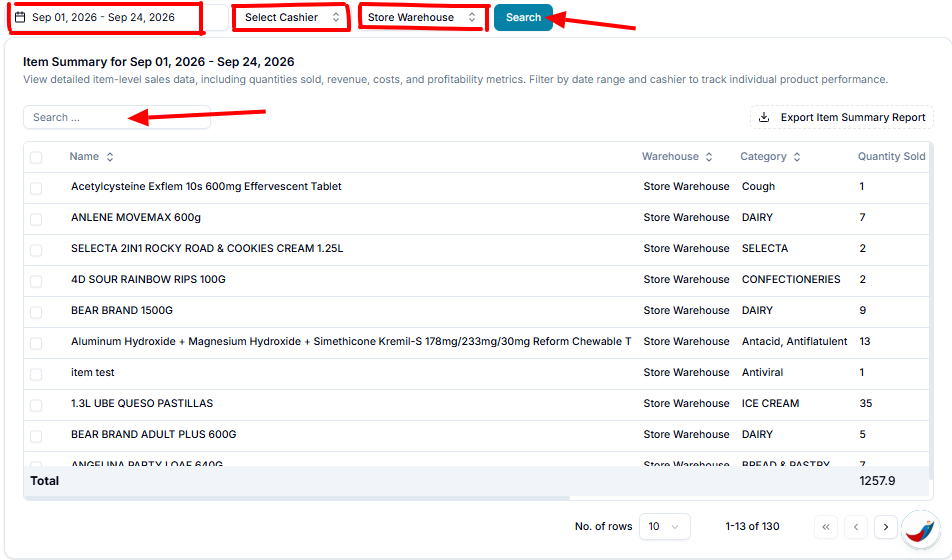
You can set the filters for the report:
- Date Range – Select the period you want to review.
- Cashier – Select a specific cashier if you want to filter the results by cashier.
- Warehouse – Select the warehouse you want to review.
- Click Search to apply your selected filters.
- Use the Search field to find a specific item.
Below, you will find the Item Summary table. It provides information such as:
- Name – Product or item name
- Warehouse – Warehouse where the item is recorded
- Category – Category assigned to the item
- Quantity Sold – Number of units sold
- Total Sold – Total sales generated by the item
- Total Cost – Total cost of the items sold
- Total Add Ons – Total value of add-ons associated with the item
- Total Discount – Discount amount applied to the item
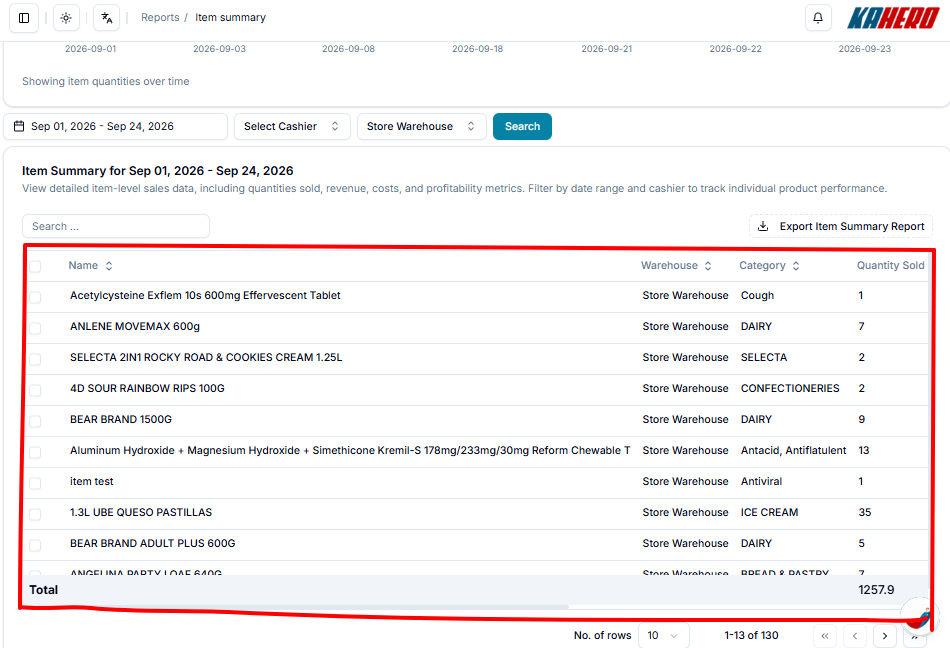
At the bottom of the table, you can also view the total quantities and amounts for the selected period.
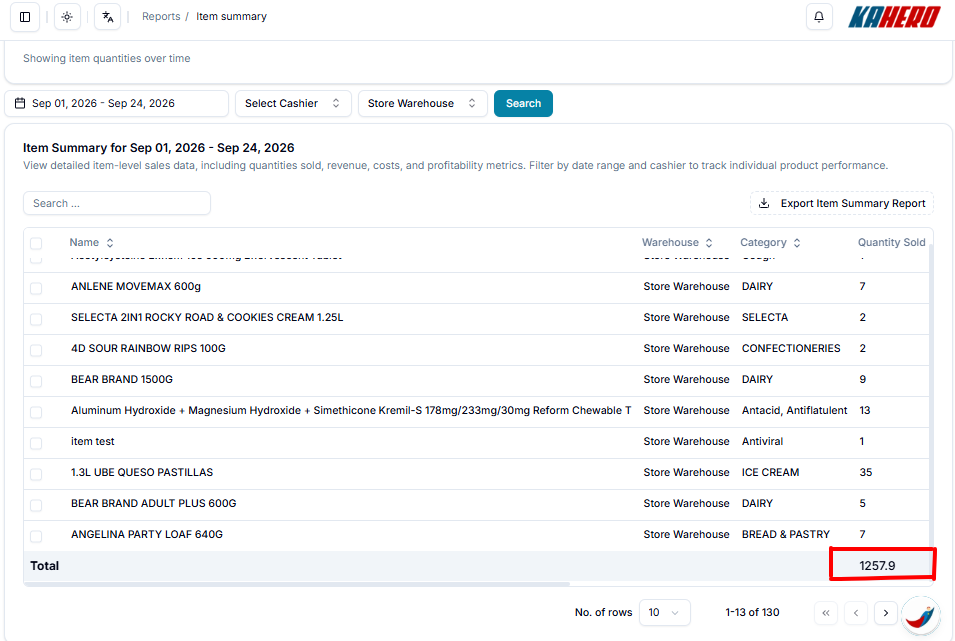
If you need a copy of the report, click Export Item Summary Report at the upper-right corner of the Item Summary section.