
Follow the steps below to enable Employee Management, add employee details, set the work schedule, and save the employee profile.
Step 1: Enable Employee Management
Open Menu > Settings & Preferences > Features. Turn on Employee Management. Once enabled, return to the menu and open Users. The Employees and Time Entries options should now be displayed.
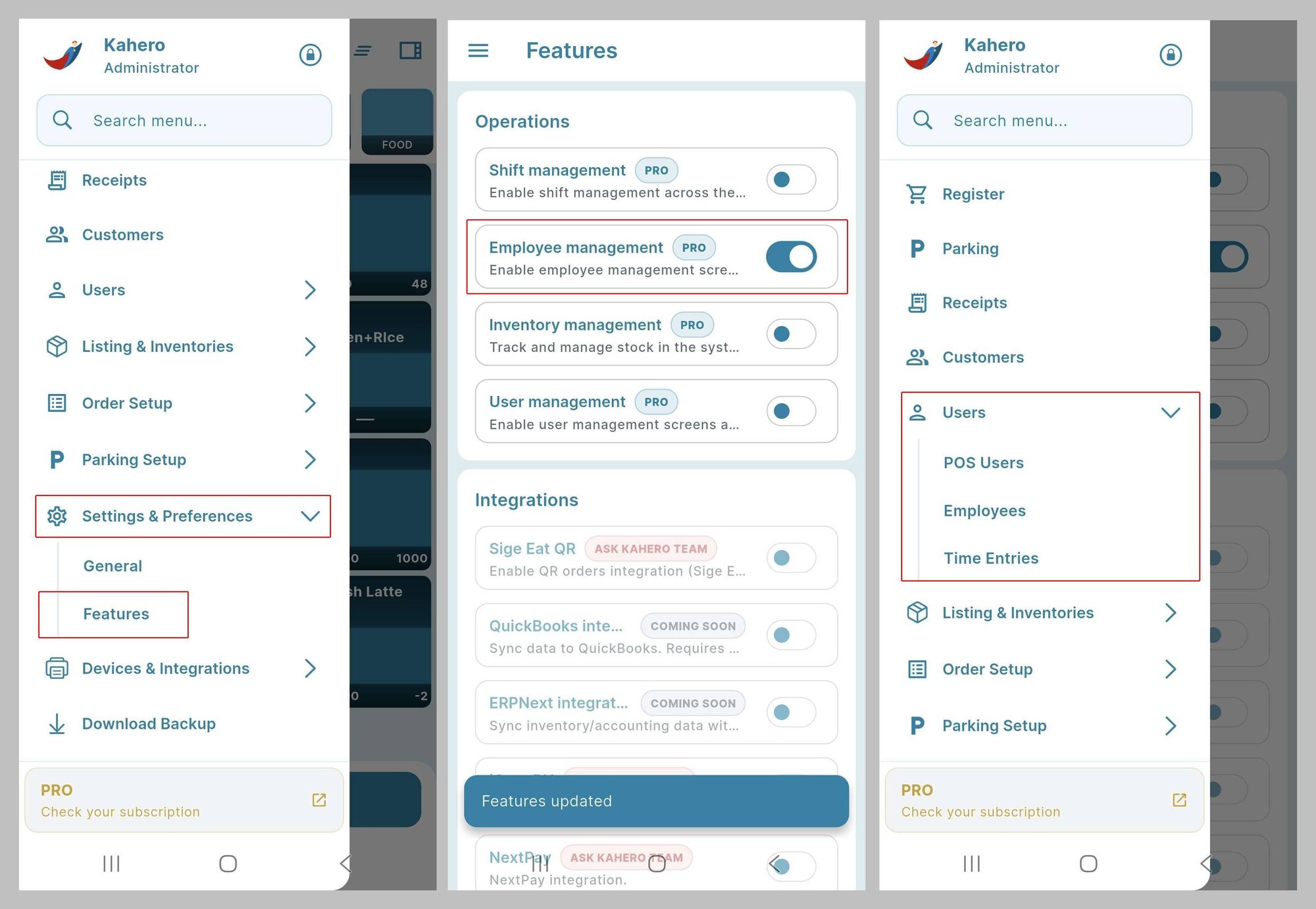
Enable the Employee Management toggle in Settings & Preferences > Features.
Step 2: Open Employees and Add a New Employee
Go to Menu > Users > Employees. Tap the + (Add) button in the top-right corner to open the Add Employee screen.
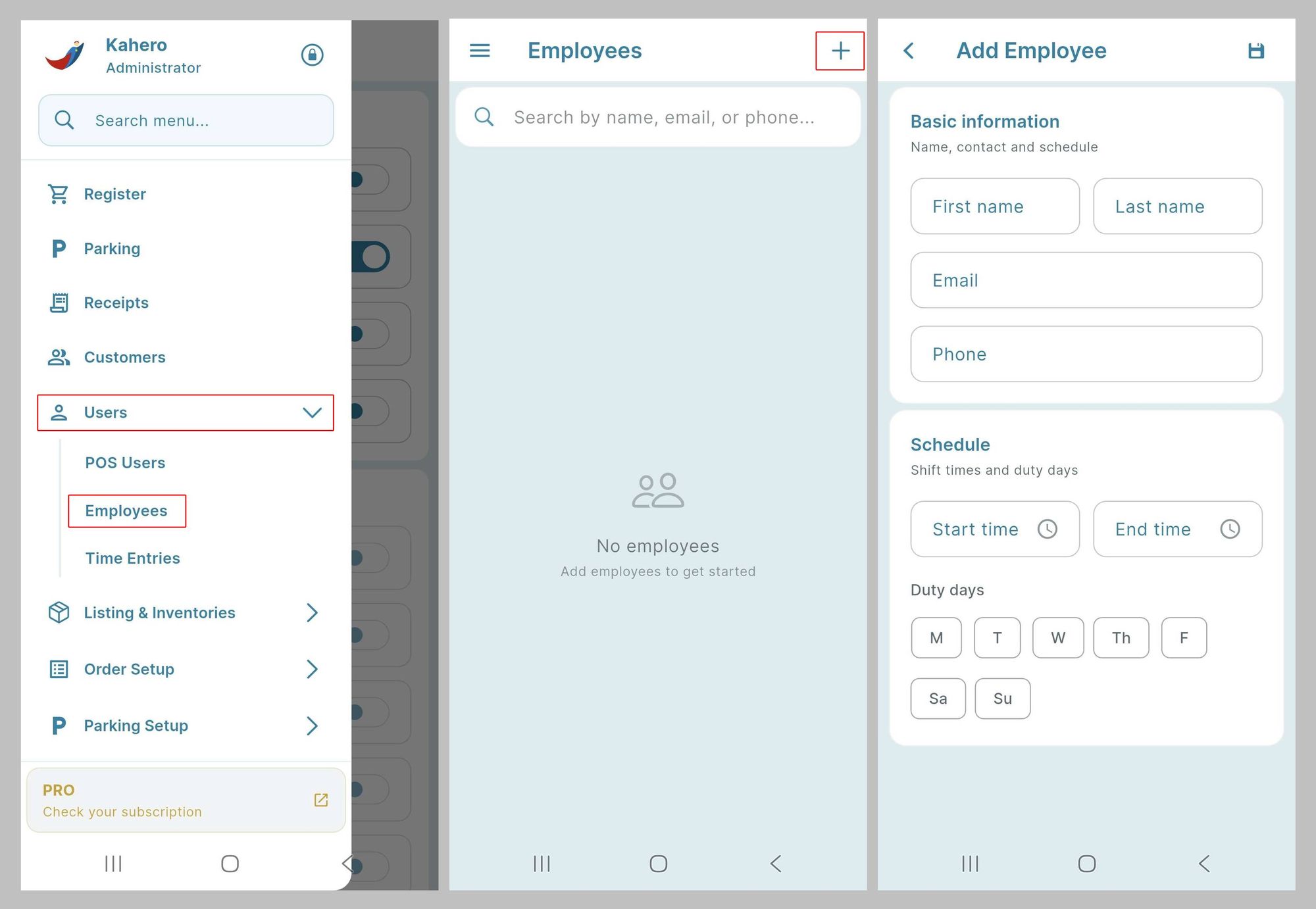
Tap the + button to open the Add Employee form.
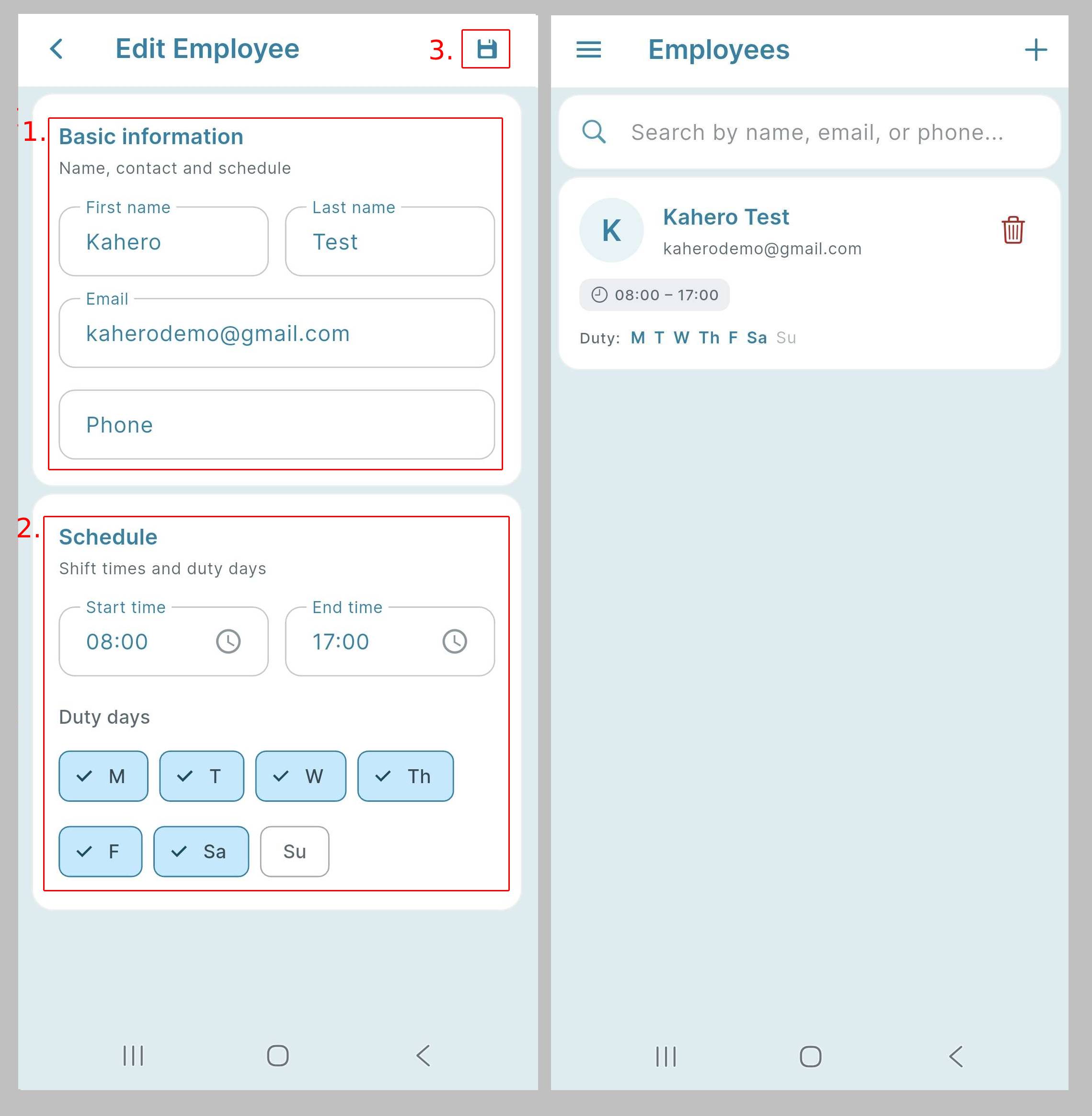
Step 1: Fill In Basic Information.
Enter the employee's First name and Last name. Add the employee's Email and Phone number, if applicable.
Step 2: Set the Work Schedule
Set the employee's Start time (time in) and End time (time out). Choose the applicable Duty days by tapping each day. Selected days will appear highlighted with a check mark.
Step 3: Save the Employee Profile
Tap the Save icon in the top-right corner. After saving, the employee should appear in the Employees list