
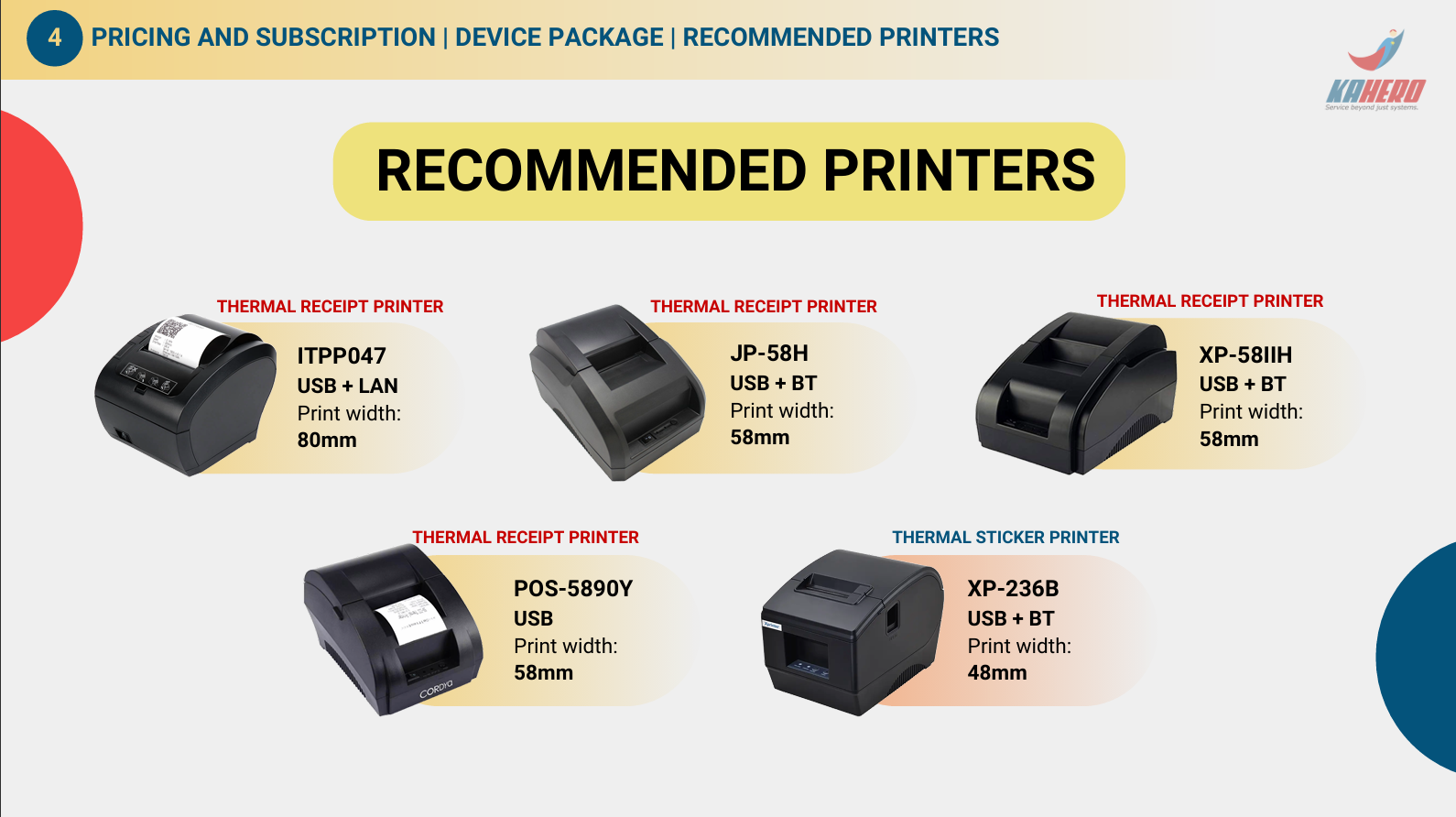
1. Recommended Printers
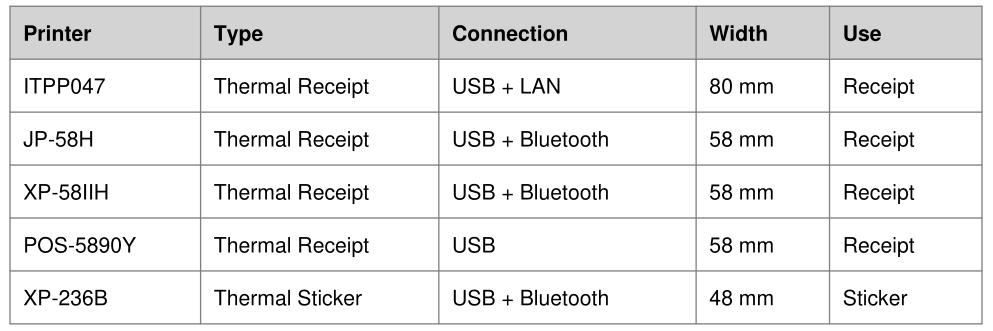
2. Choosing the Printer
Receipt printing: Select a Thermal Receipt Printer.
• Sticker/label printing: Select a Thermal Sticker Printer.
• 80 mm receipt: ITPP047.
• 58 mm receipt: JP-58H, XP-58IIH, or POS-5890Y.
• 48 mm sticker: XP-236B.
• Bluetooth: JP-58H, XP-58IIH, or XP-236B.
• LAN: ITPP047.
• USB: All five listed models.
3. Basic Connection Guide
USB: Turn on the printer → connect it to the POS/tablet → confirm recognition → open KaHero POS → configure the printer→ test print.
Bluetooth: Turn on the printer → enable Bluetooth on the POS/tablet → pair with the printer → open KaHero POS Device & Integrations → select the paired printer → test print.
LAN: Connect the printer to the local network → ensure the POS and printer are on the appropriate network → identify the printer IP/network address → configure the LAN printer in KaHero POS → save and test print.
4. KaHero POS Printer Setup
- Confirm the printer model and print width.
- Confirm the required interface: USB, Bluetooth, or LAN.
- Turn on and connect/pair the printer.
- Open KaHero POS.
- Go to Menu → Device & Integrations → Printer.
- Add/select the appropriate printer interface.
- Set the correct paper size/print configuration.
- Enable the printer for Receipt/Bill or Sticker printing.
- Save the configuration.
- Perform a test print before live transactions.
Troubleshooting
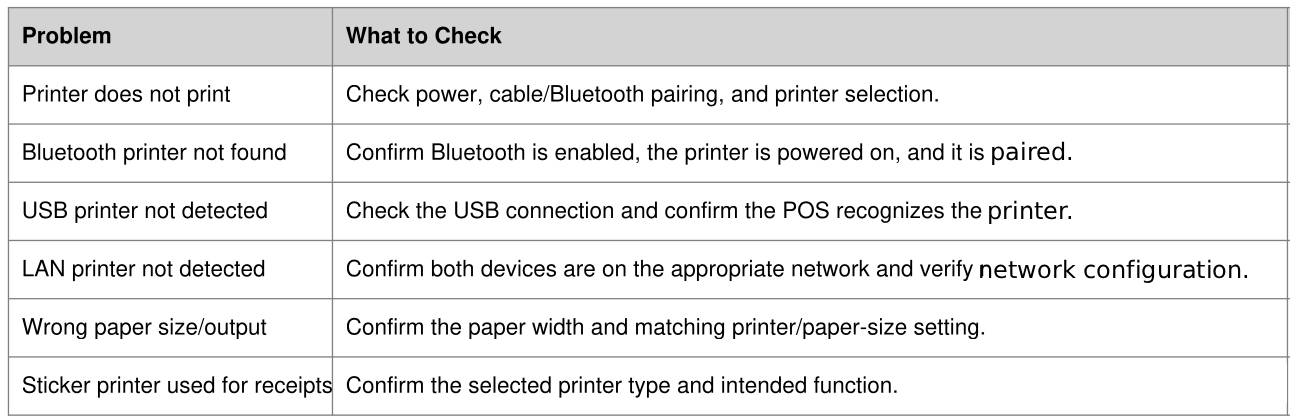
Support tip: When requesting technical support, provide the printer model, connection type, POS/device model, KaHero POS version, and a photo or video of the issue when possible.