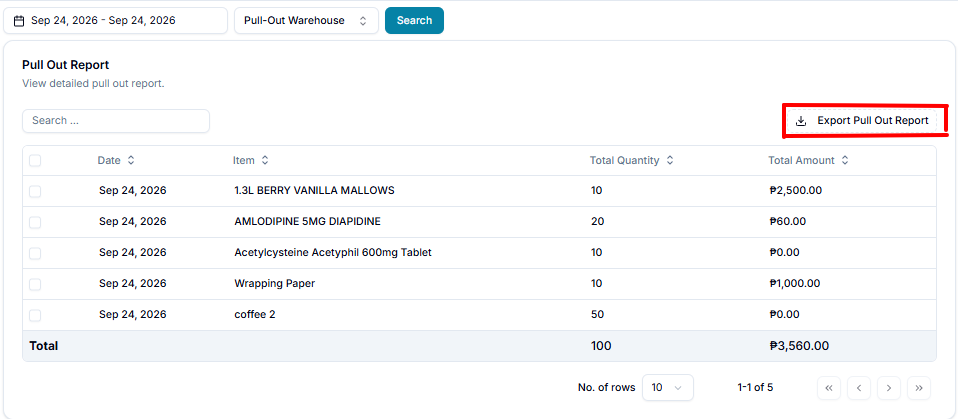
On this page, you can view the data log of items that were physically removed, dispatched, or extracted from a storage facility. It provides details such as the date, item, total quantity, and total amount for each pull-out transaction.
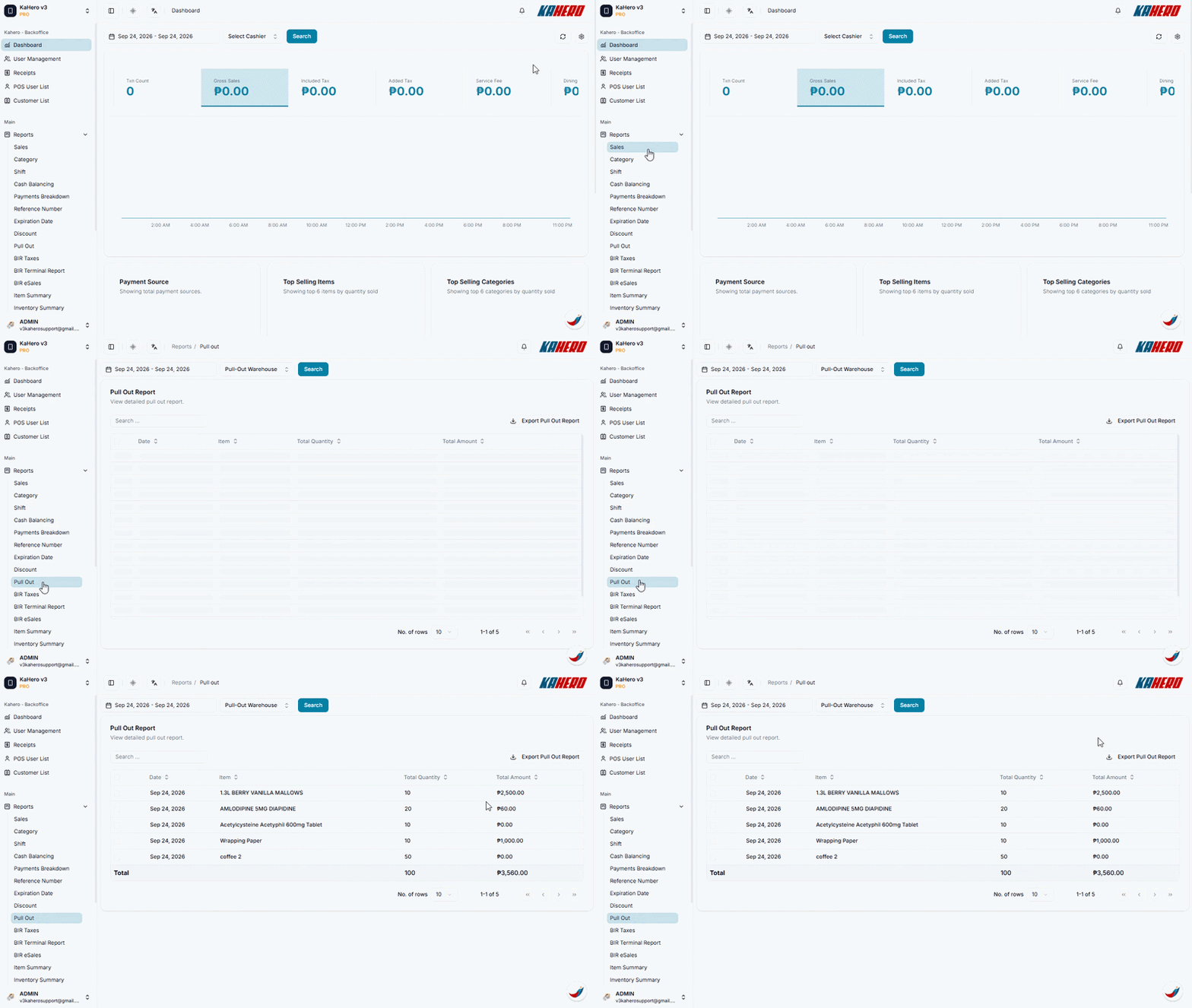
To view the Pull-Out Report in KaHero Backoffice, follow these steps:
- Log in to your KaHero Backoffice account.
- From the left-side menu, click Reports.
- Select Pull Out from the list of reports.
- You will be directed to the Pull Out Report page, where you can view the recorded pull-out transactions.
On this page, you can:
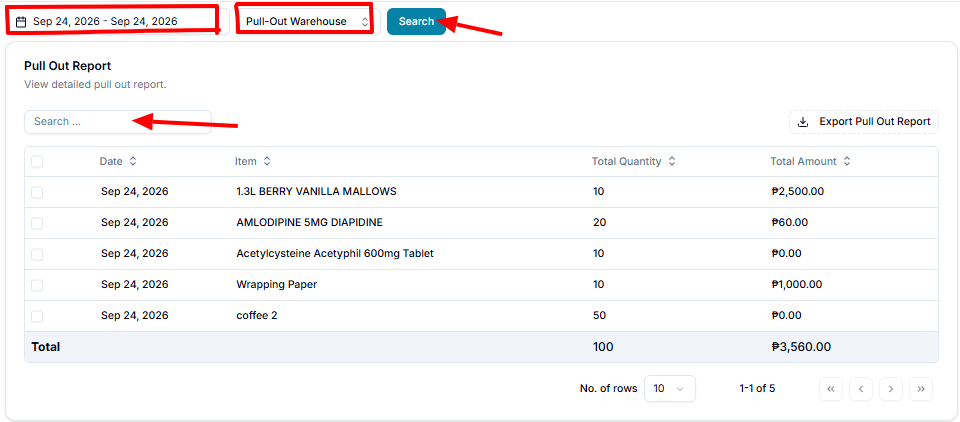
- Set the Date Range – Select the date or period you want to review.
- Select the Warehouse – Choose the warehouse where the pull-out was recorded and click Search.
- Use the Search field to quickly find a specific item.
Review the following details for each pull-out record:
- Date – The date when the item was recorded as pulled out or removed from the storage facility.
- Item – The specific product or inventory item that was pulled out.
- Total Quantity – The total number of units of the item that were pulled out.
- Total Amount – The total value or cost associated with the pulled-out quantity.
Click Export Pull Out Report to download the report for further reference.