
Table of contents
- Download and install KaHero POS
- Setting up your account
- Setting up your Store
- Verify your account
- Logout your account
Download and Install KaHero POS
Download and install KaHero from the Play Store (Android)
⚠️To use KaHero POS, you'll need to have at least Android 8+ or iOS 12+.
Setting up your account
- After downloading KaHero POS, open the app and you will see the Sign In screen.
- If you have an existing account, enter your Email and Password, and tap Sign In.
- For new users, tap Sign Up Now to create a new account.
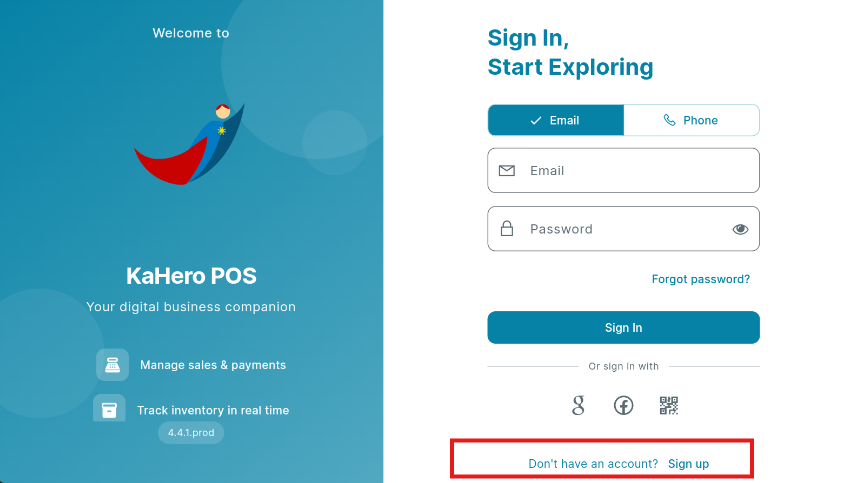
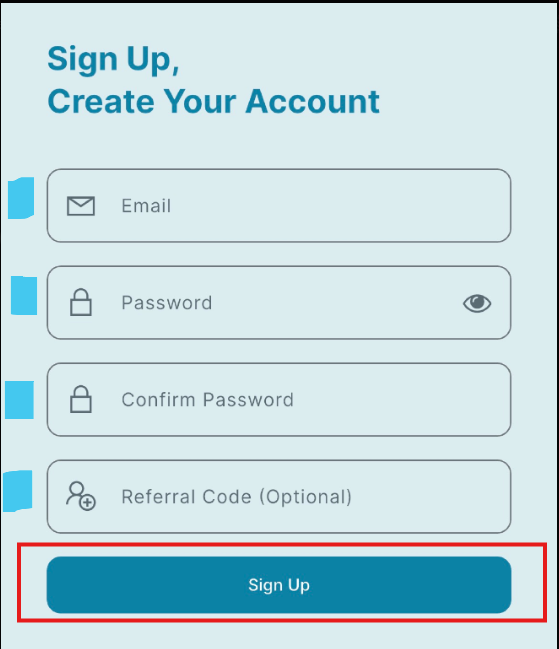
- Enter your Email, Password, and Confirm your Password.
- Tap Sign Up to proceed.
General Settings
Setting up store's general settings
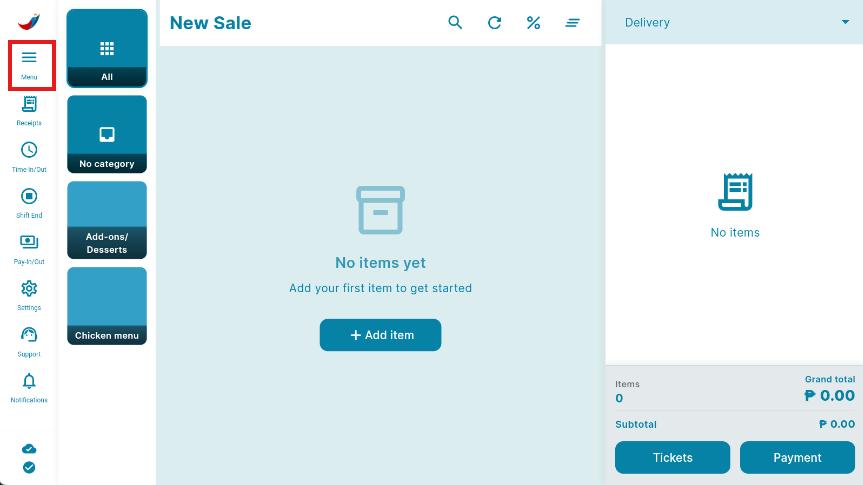
Tap the Navigation Menu icon
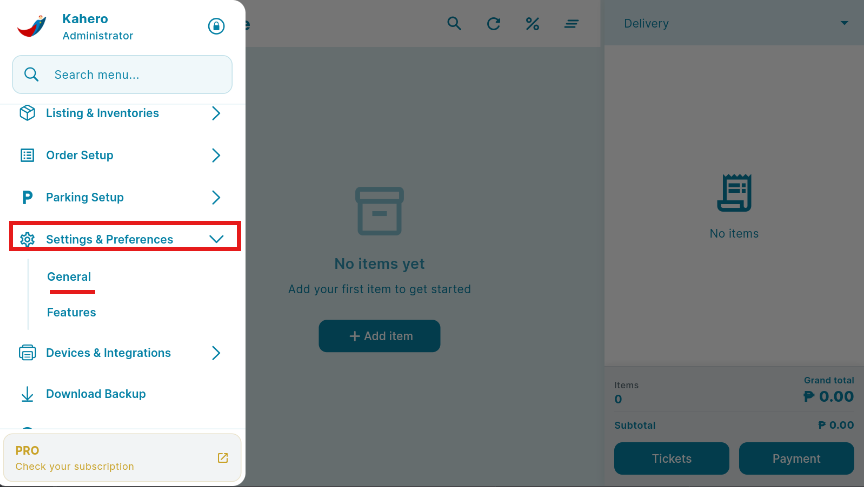
On the Navigation Menu, scroll all the way down to Setting & Preferences
- Tap General.
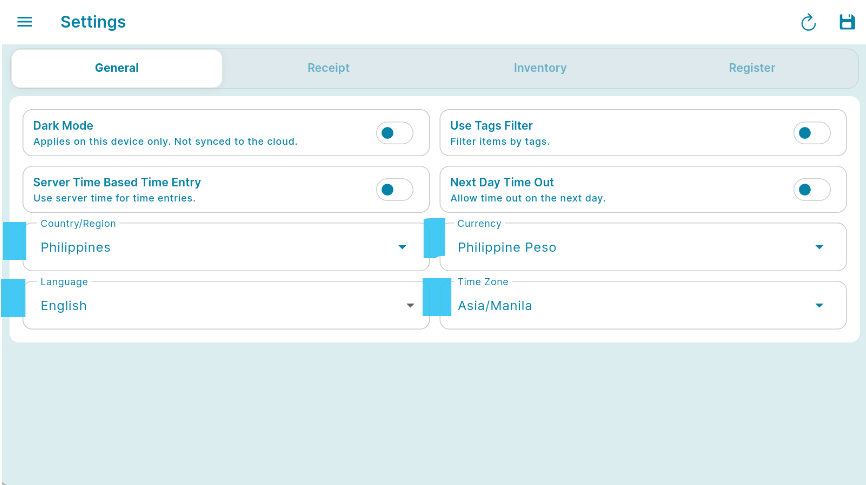
Setup your General
- Choose country/Region
- Language
- Currency
- Time Zone
Setup your Receipt
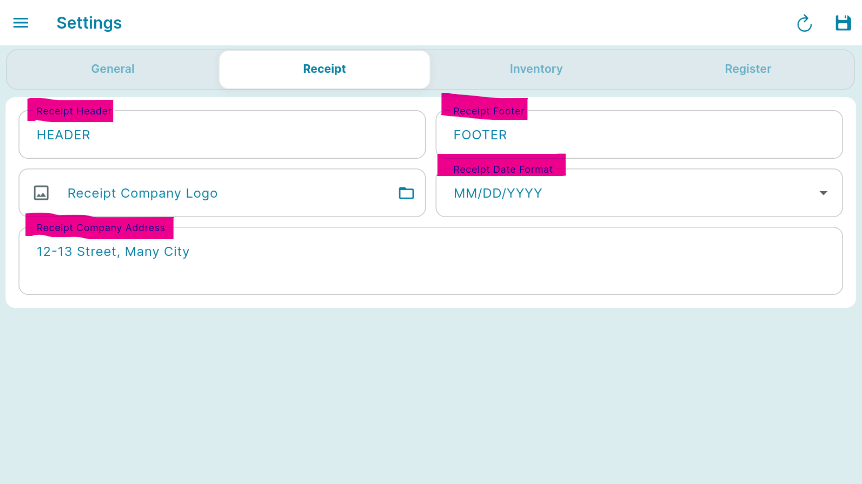
- Create a receipt header
- Create Receipt Footer
- You can attach Receipt Company Logo
- Receipt Date Format
- Receipt Company Address
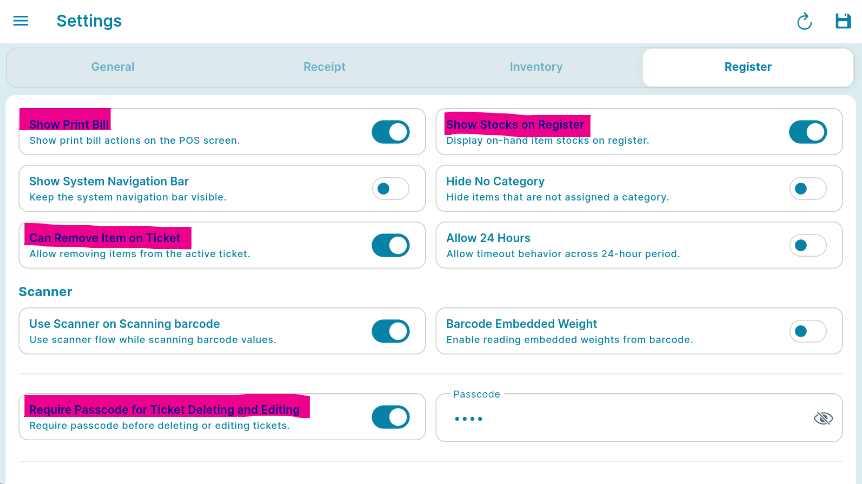
Set up your Register Settings
- Enable SHOW PRINT BILL to show print bill actions on the POS screen.
- Enable SHOW STOCKS ON REGISTER to display on-hand items stocks on register
- Enable CAN REMOVE ITEM ON TICKET to allow removing items from the active ticket
- Enable REQUIRE PASSCODE FOR TICKET DELETING & EDITING to have passcode before deleting or editing tickets
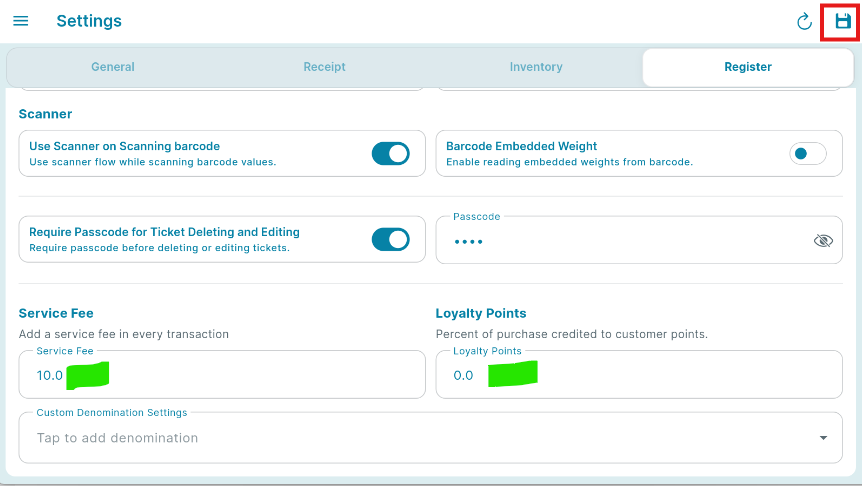
- Set up your store's Service Fee (in percentage) and Loyalty Points of purchase credited to customer points. This will reflect on your transactions on the Register screen.
- SAVE
🥂Wohoo! Your Business is now all set!