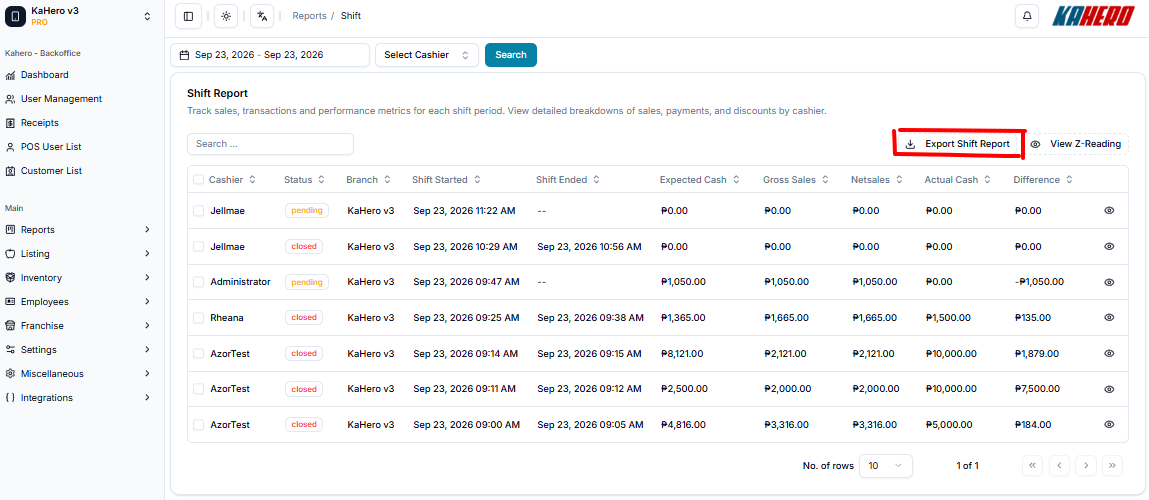
KaHero POS's back office helps you track all the transactions involving shifts management. You access the back office through KaHero POS app or app.kahero.co.
To view the Shift Report in KaHero Backoffice, follow these steps:
- Log in to KaHero Backoffice using your account.
- On the left-side menu, look for Reports.
- Click the Reports menu to expand the available report options.
- Select Shift.
- You will be redirected to the Shift Report page.
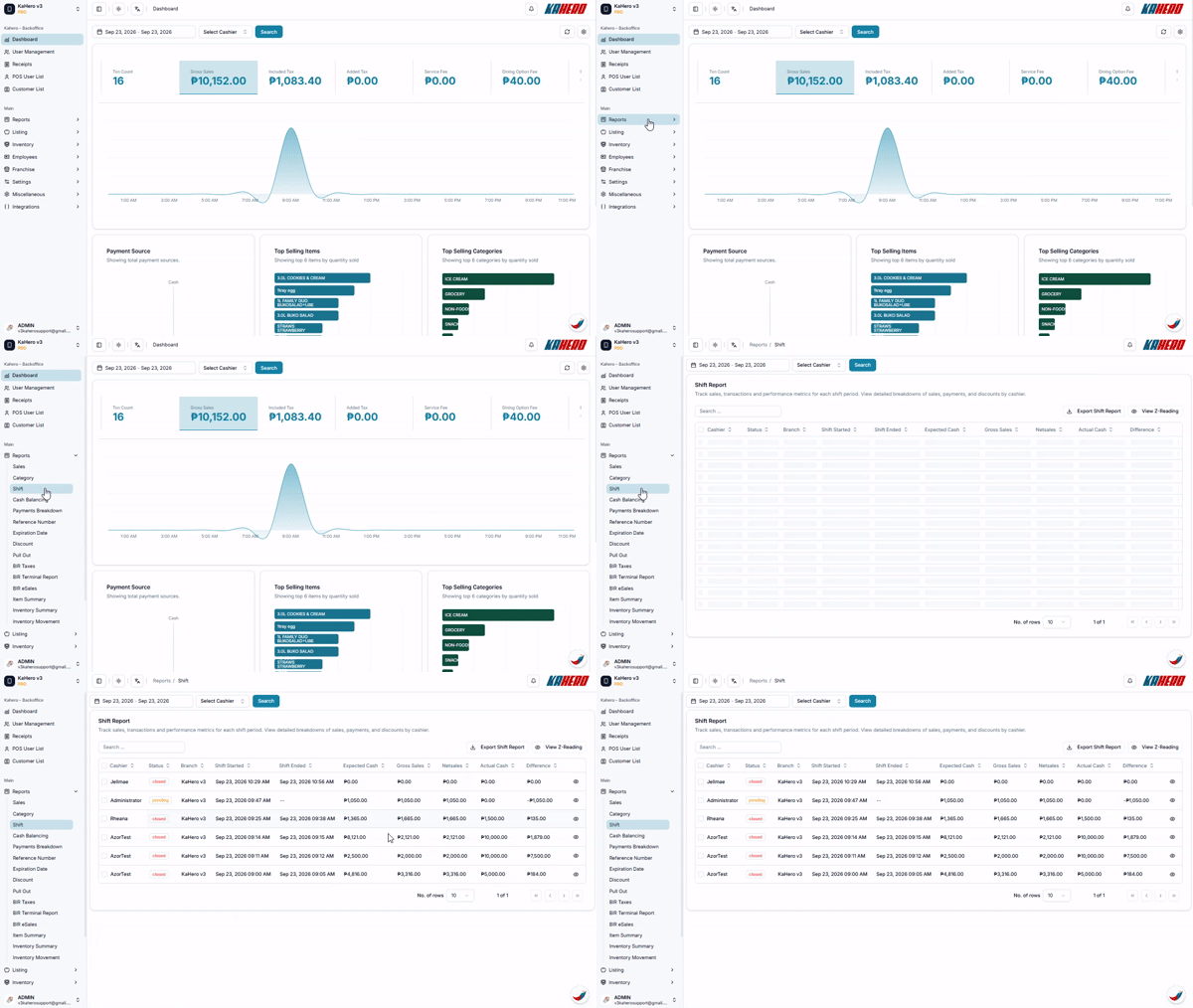
Once you're on the page, you can:
- Select a date range – Use the date filter at the top to choose the period you want to review.
- Select a cashier – Use the Select Cashier dropdown to view shifts for a specific cashier.
- Click Search to apply your selected filters.
- Use the Search field to quickly find a specific shift or cashier.
Review the shift details, including:
| Category | Name of the product category |
| Sales Count | Number of transactions that included items from this category |
| Sold Count | Total quantity of items sold from this category |
| Refund Count | Number of items from this category that were refunded |
| Gross Sales | Total sales amount from this category (before discounts/refunds) |
| Net Sales | Final sales amount after discounts and refunds |
| Item Discount | Discounts applied directly to items in this category |
| Receipt Discount | Discounts applied to the whole receipt (shown as N/A when none) |
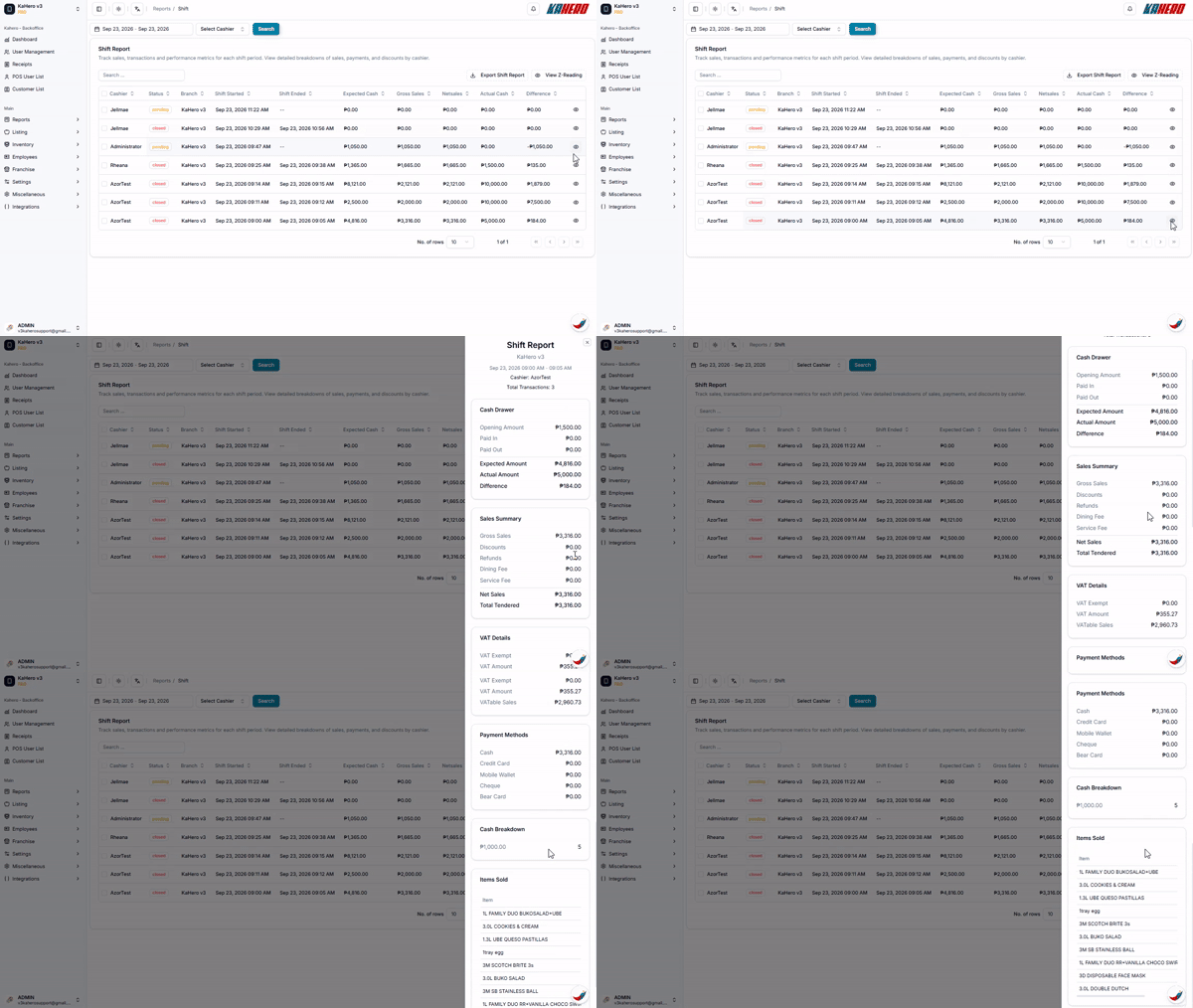
Click the eye icon on the right side of a shift to view its detailed information.
Click View Z-Reading to review the corresponding Z-Reading.
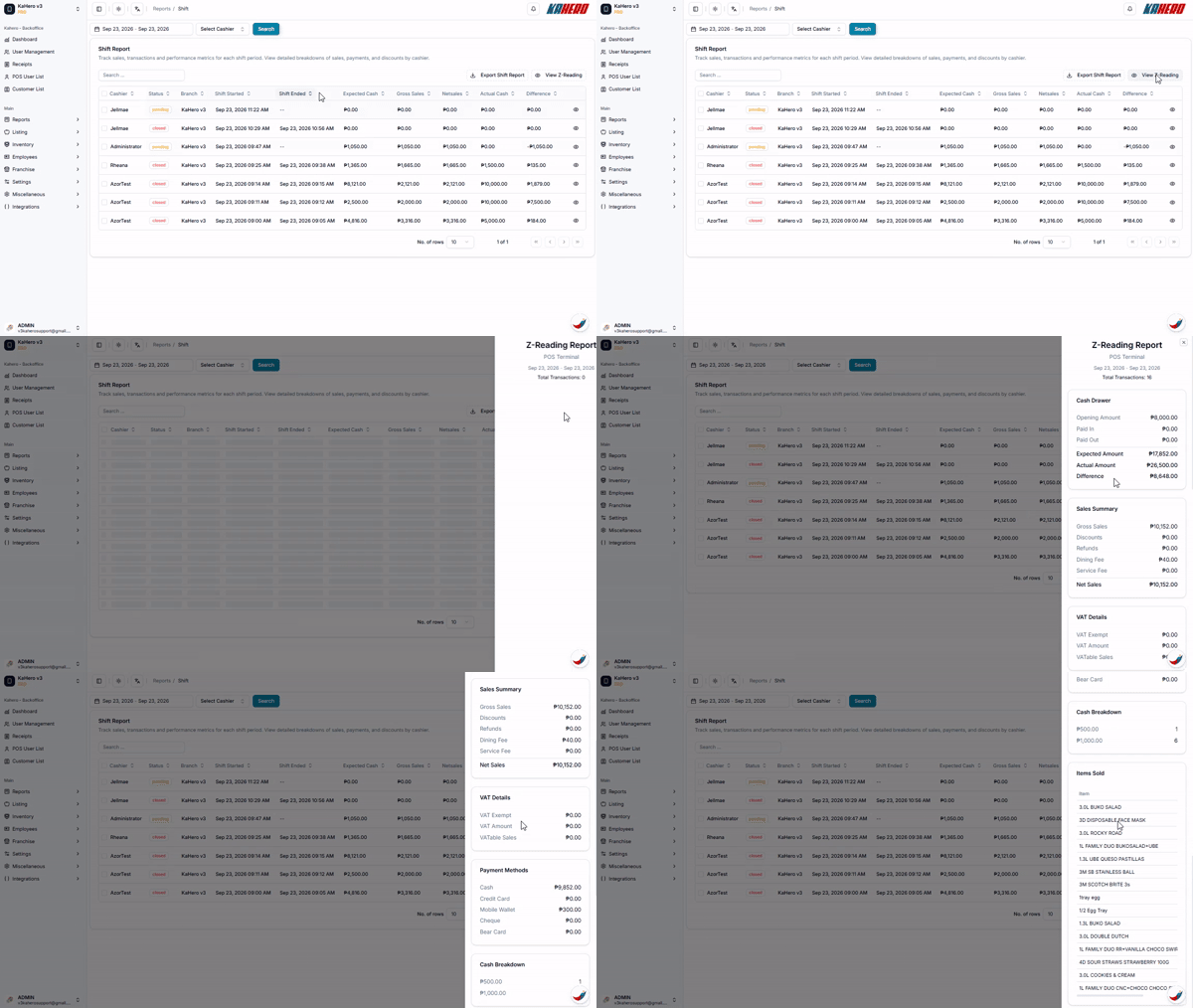
Click Export Shift Report if you need to download the shift report for further review.