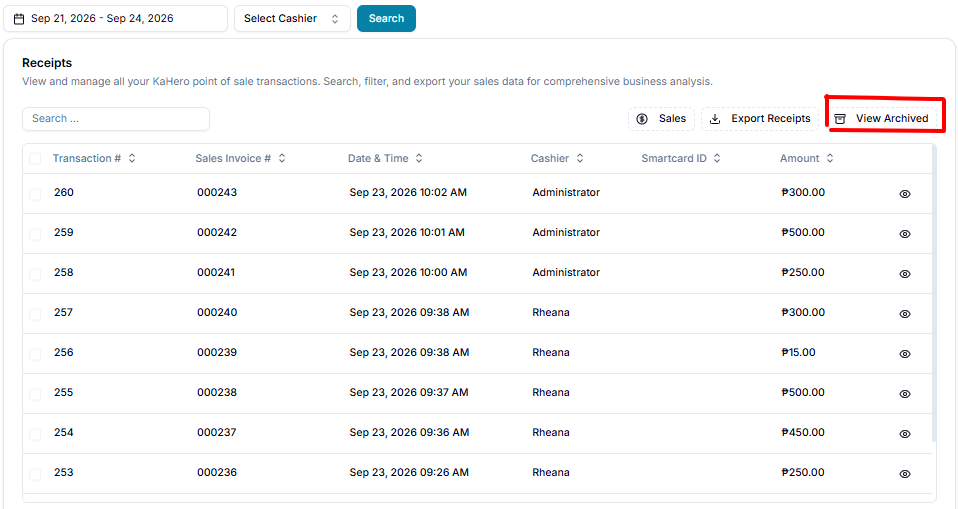
To view and manage receipts in KaHero Backoffice, follow these steps:
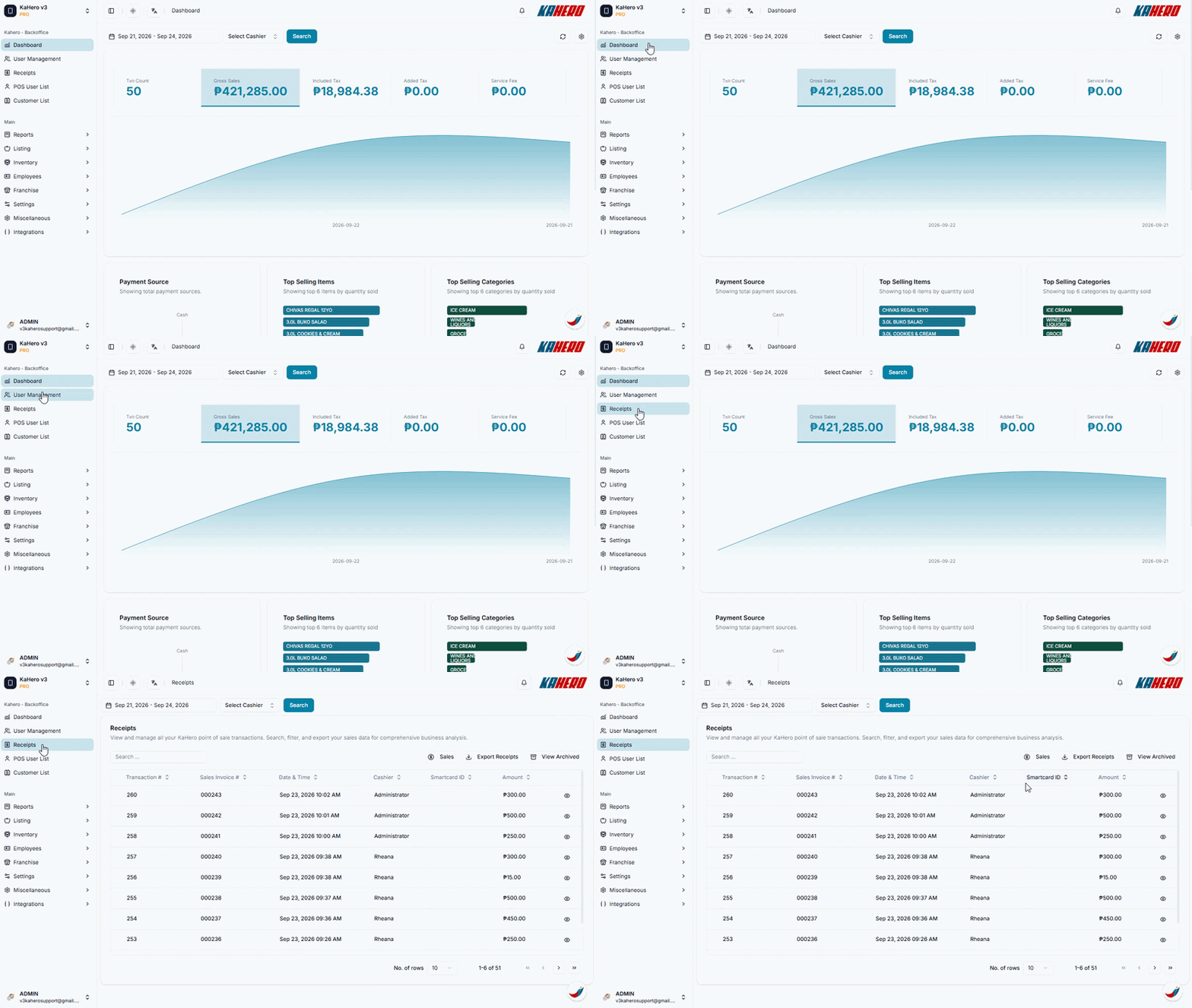
- Log in to KaHero Backoffice using your account.
- On the left-side menu, click Receipts.
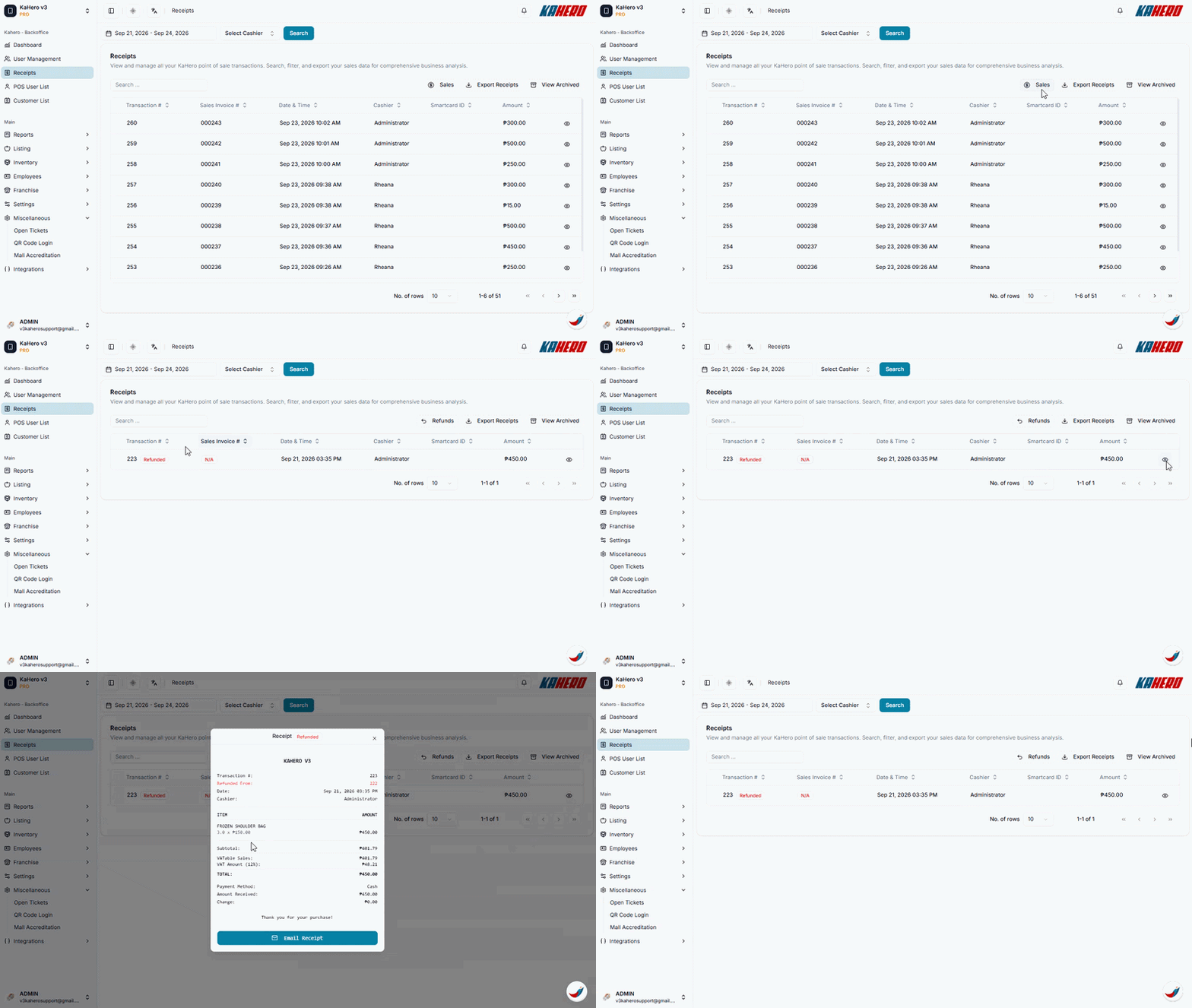
- You will be redirected to the Receipts page, where you can view your recorded transactions.
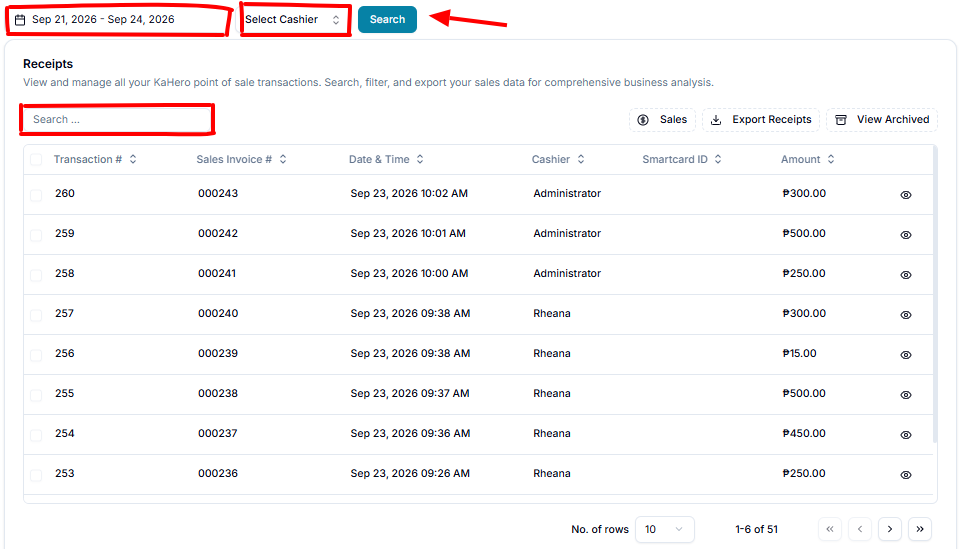
Once you're on the Receipts page, you can:
- Select a date range – Use the date filter at the top to view receipts from a specific period.
- Select a cashier – Choose a cashier from the dropdown to filter receipts by cashier.
- Click Search to apply your selected filters.
- Use the Search field to find a specific transaction or receipt.
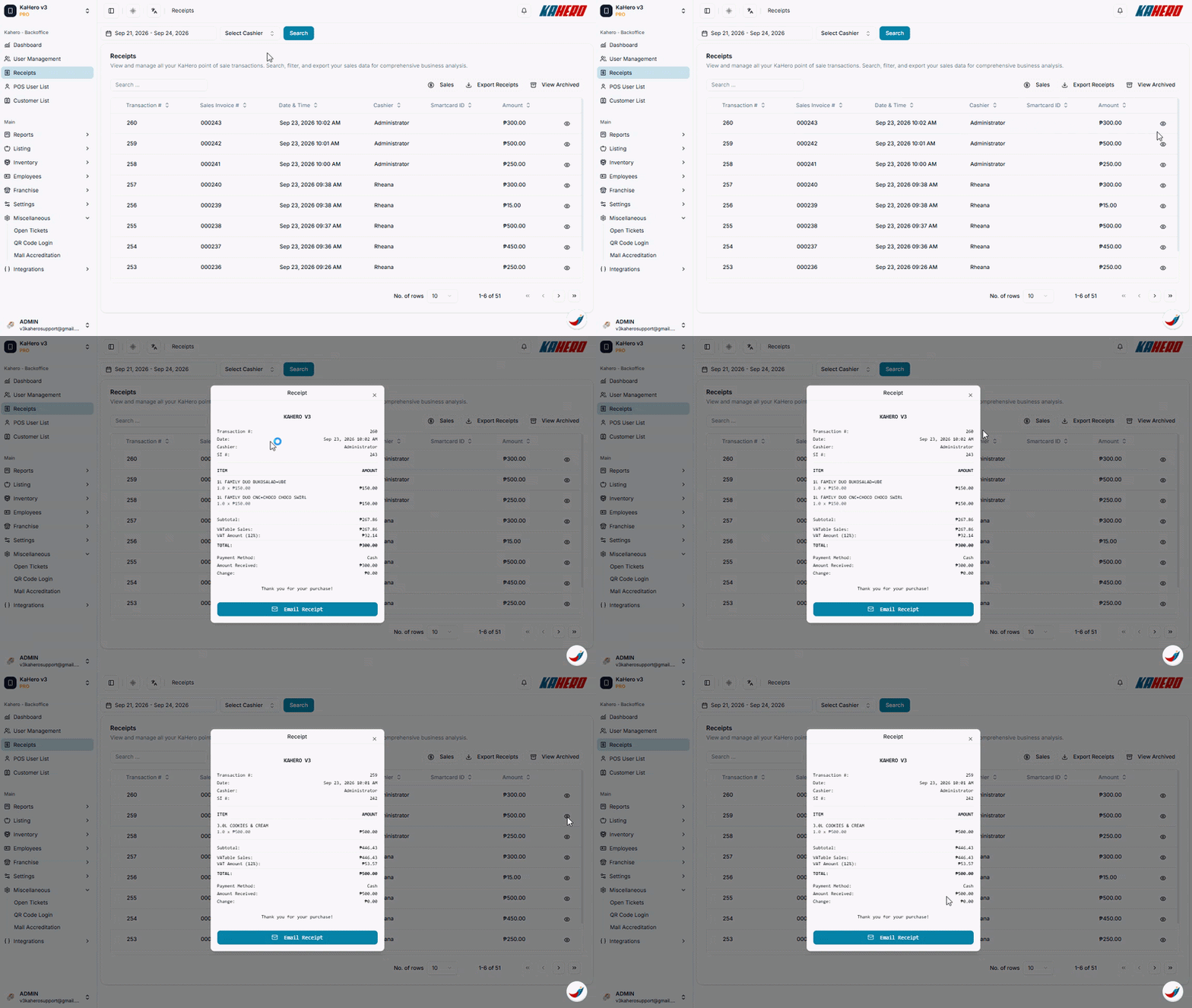
Review the receipt details, including:
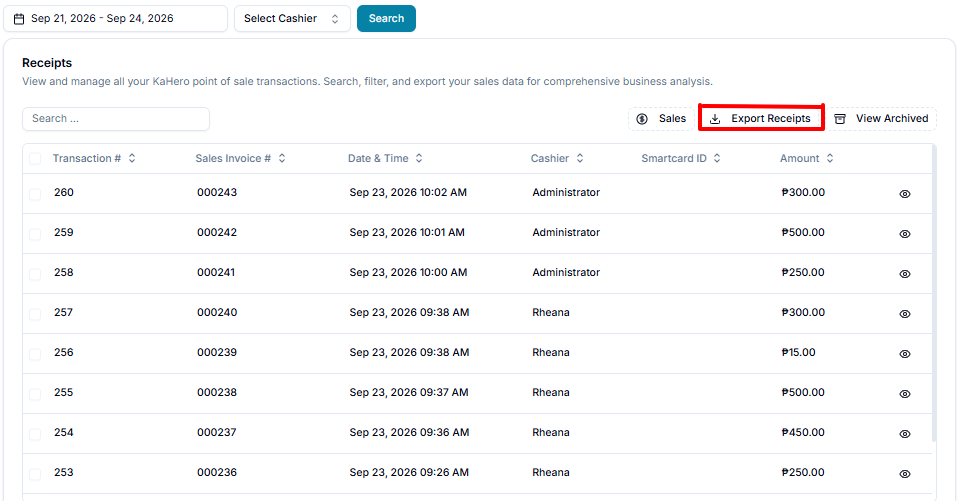
- Transaction # – The unique number assigned to the transaction.
- Sales Invoice # – The official invoice number associated with the sale.
- Date & Time – The exact date and time when the transaction was recorded.
- Cashier – The staff member who processed the transaction.
- Smartcard ID – The Smartcard identification number linked to the transaction, if applicable.
- Amount – The total amount recorded for the transaction.
Click the eye icon on the right side of a transaction to view the receipt details.
Click the Sales button to switch to Refunds. This will display the list of refunds recorded for the selected date.
Click Export Receipts to download the receipt data for reporting or record-keeping.
Click View Archived to view receipts that have been archived.