ADDING ITEM OPTIONS
Item Options under Item Listings allows you to add different variants to a single item. For example, if you are selling the same T-shirt in different sizes, you can create a parent item called “T-Shirt” and add item options such as Small, Medium, and Large.
Using Item Options helps organize item variants efficiently and minimizes the space taken up by multiple item listings.
On the "Navigation Menu" under "Listings", select "Items".
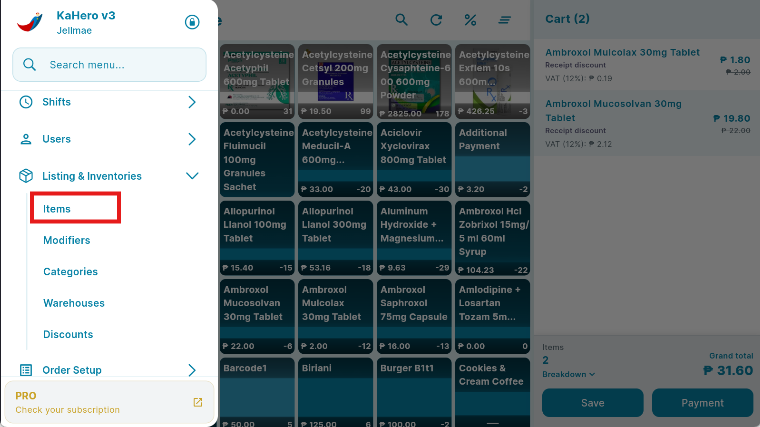
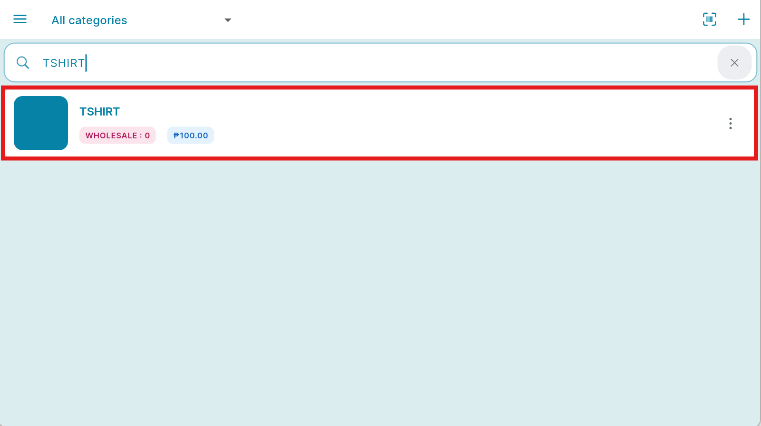
This is your Item screen. Select/Search the item you want to add options to.
On the Item details, Click Options & Modifiers and Add Item Options.
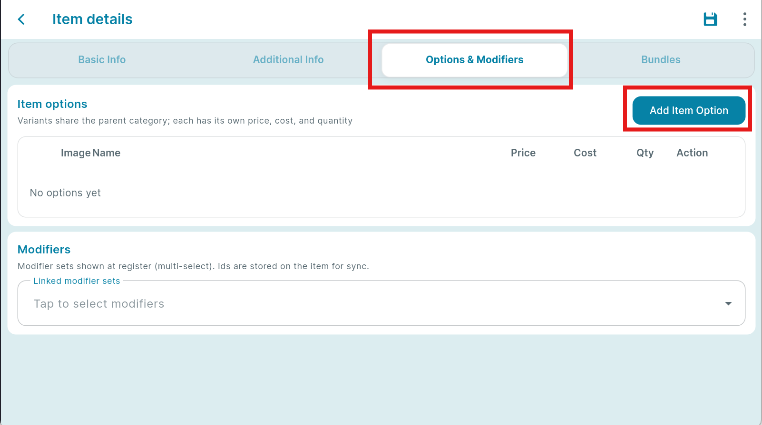
After clicking the ADD ITEM OPTION.
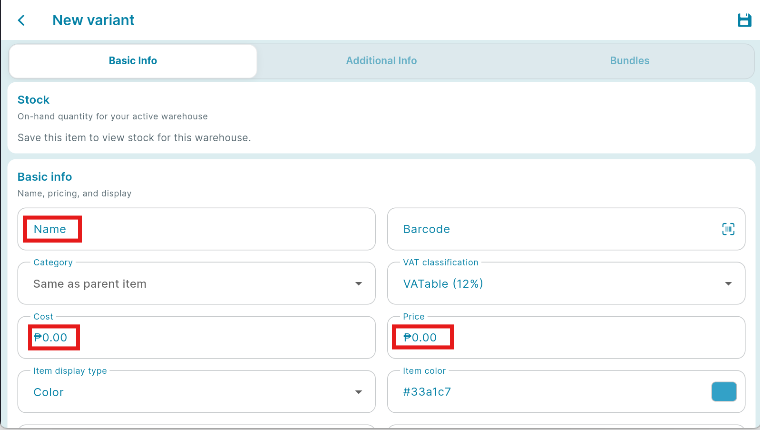
You can then enter the necessary details for the item's option:
A. Enter a label for the item option. (e.g., T-Shirt (Small), T-Shirt (Large))
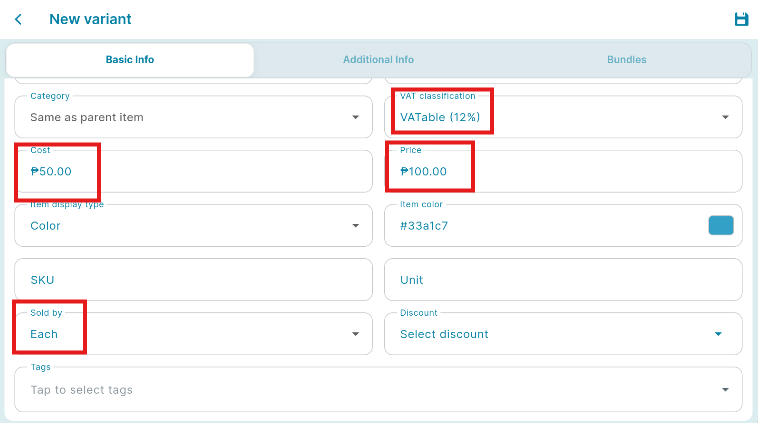
B. Set the price for the specific item option.
C. (Optional) Enter the cost of the item option, then click "Save."
D. Select the unit of measurement used for the item.
E. Enter the beginning quantity for the item option.
F. Enter VAT Classification
SELLING ITEM OPTIONS
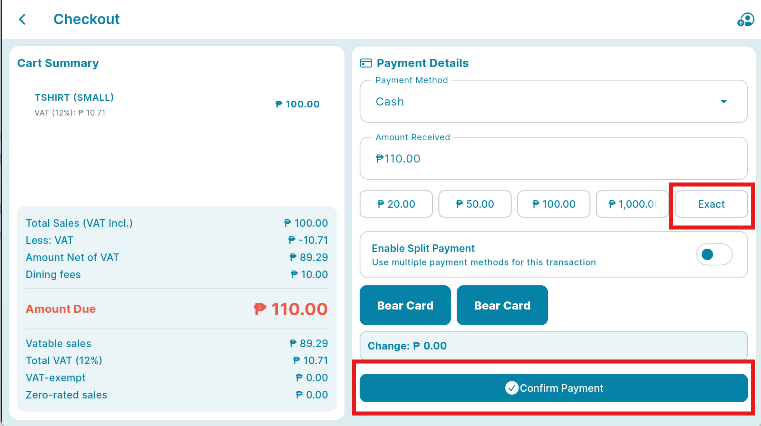
In the Register, select the product that has the item option you want to use.
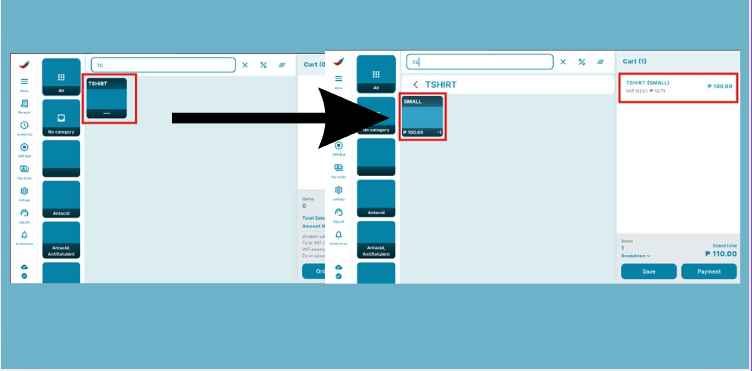
Click the Item Option to proceed with the transaction.