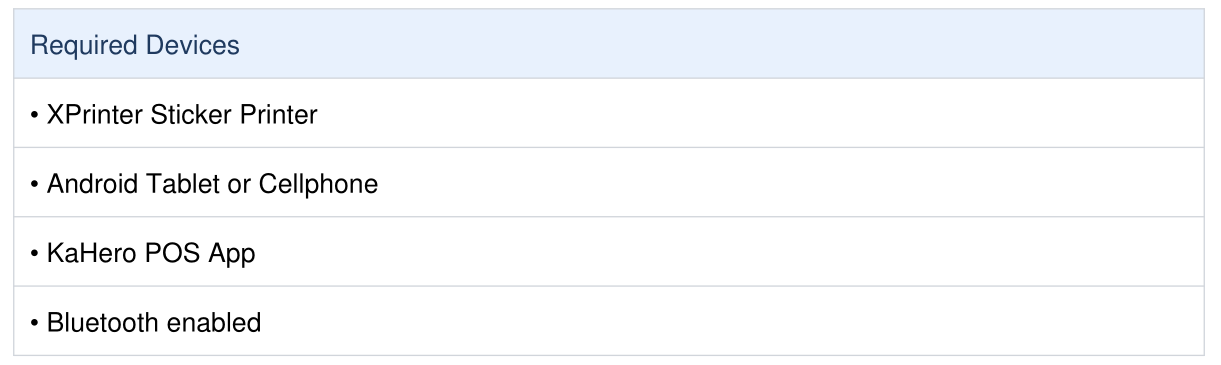
Device: XPrinter Sticker Printer + Android Tablet/Cellphone + KaHero POS
Before You Start
Step 1: Pair the XPrinter via Bluetooth
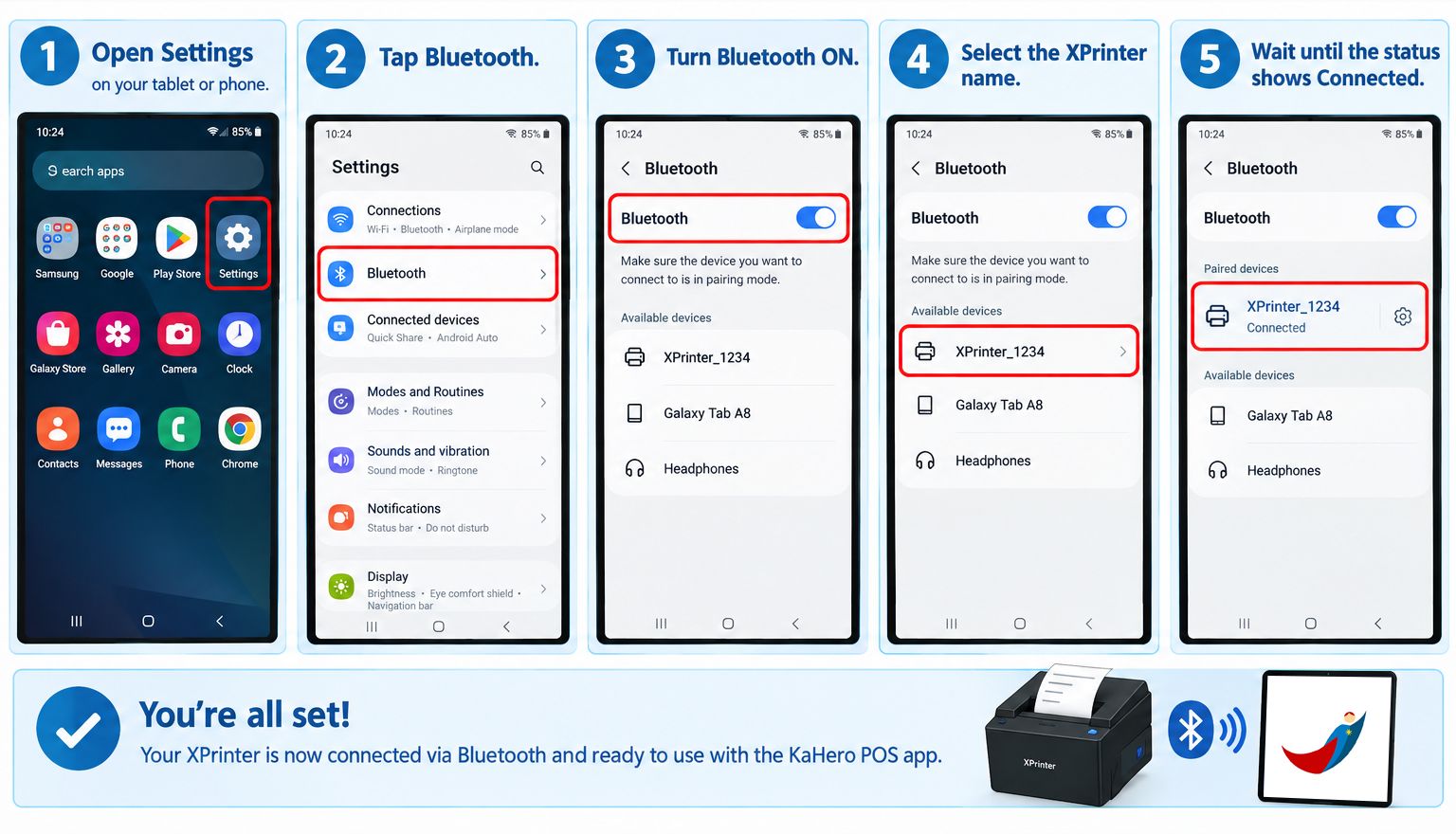
- Turn ON the XPrinter sticker printer.
- Open Settings on your tablet/phone.
- Tap Bluetooth and enable it.
- Select the XPrinter name.
- Wait until it shows Connected.
Step 2: Allow KaHero App Permissions
Go to: Settings → Apps & Notifications → KaHero app → Permissions
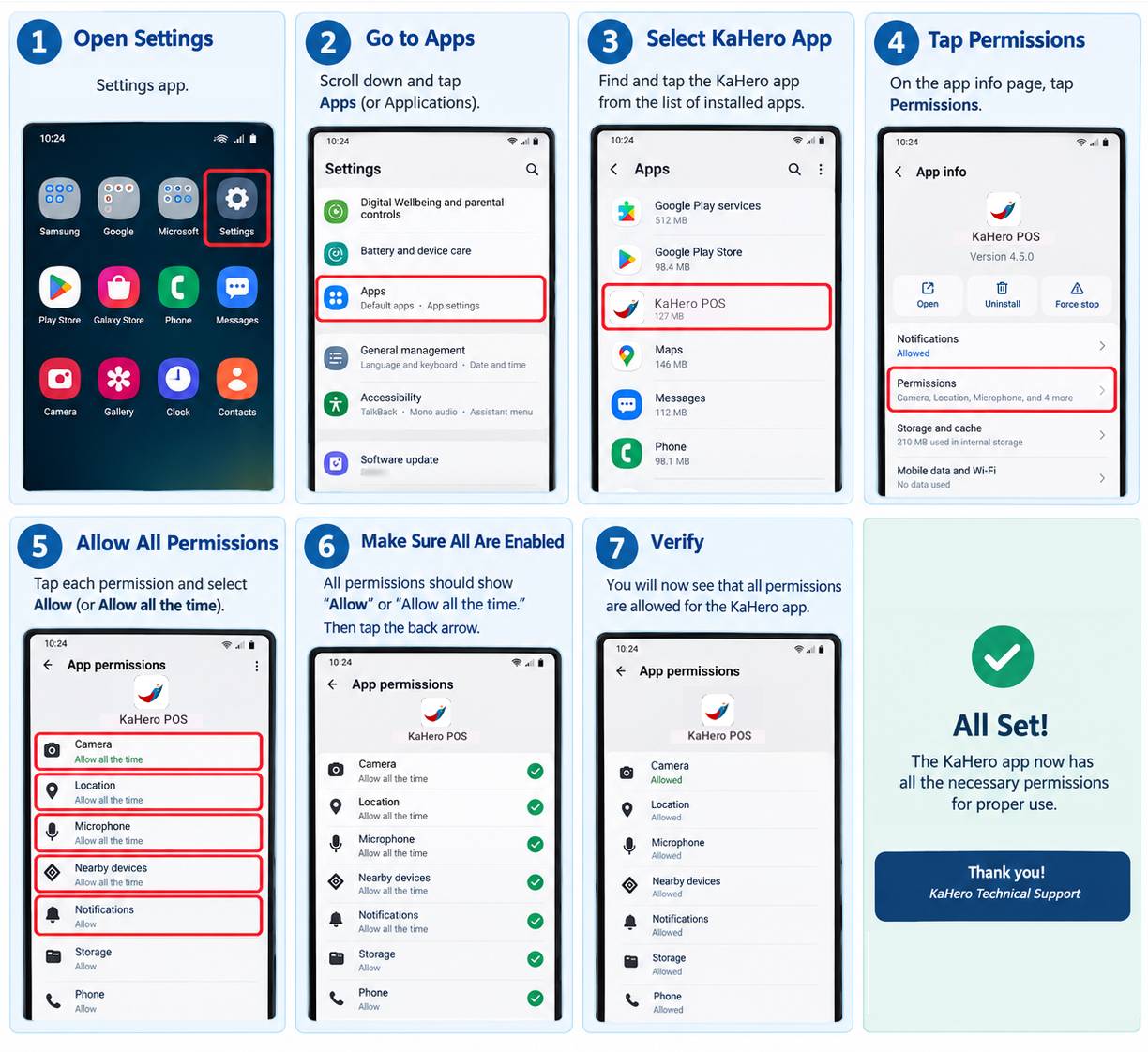
Enable all permissions:
• Camera
• Location
• Microphone
• Notifications
• Storage
Step 3: Login to KaHero POS
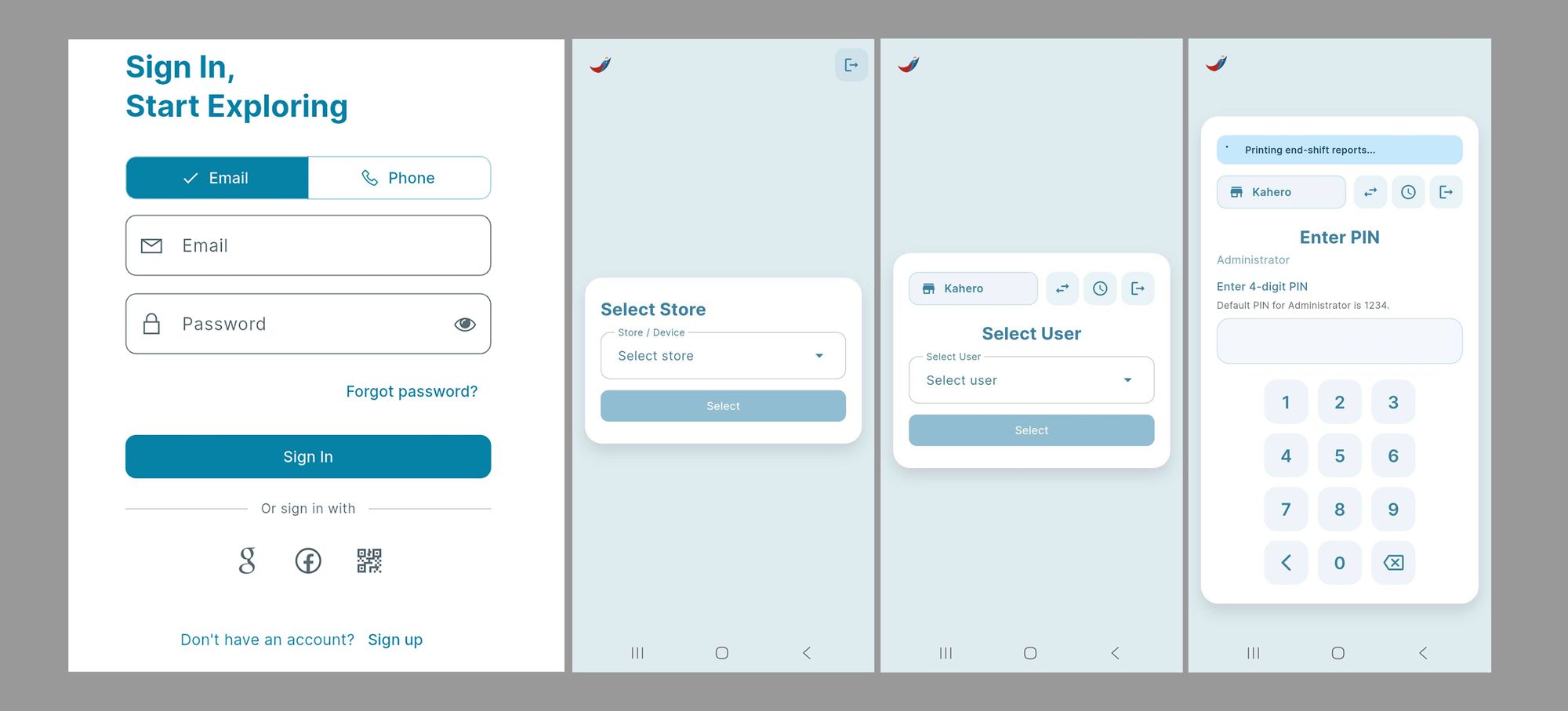
- Open the KaHero POS app.
- Login to your account.
- Select Store
- Select User
- Enter PIN
Step 4: Add the Sticker Printer
Go to: Menu → Device & Integration → Printer
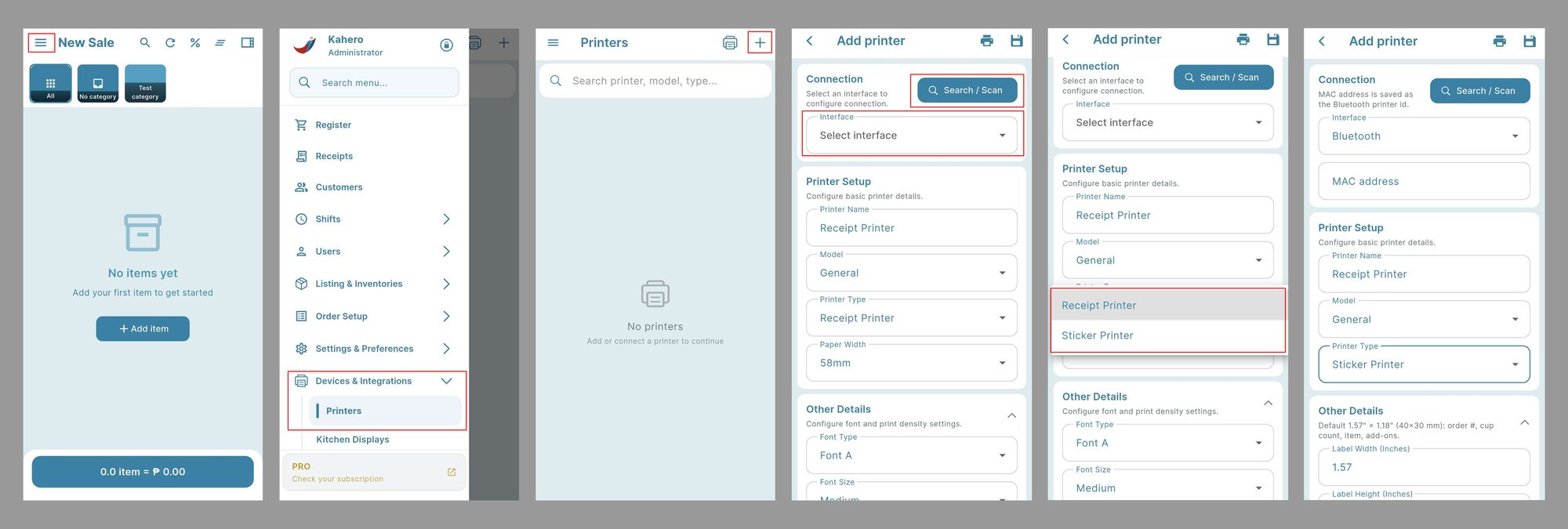
- Tap Add Printer.
- Select Interface: Bluetooth.
- Tap Search/Scan.
- Select the XPrinter name.
- Printer Name: Sticker Printer.
- Printer Type: Sticker Printer.
- Scroll down.
- Set Y Position to 50.
- Tap Save.
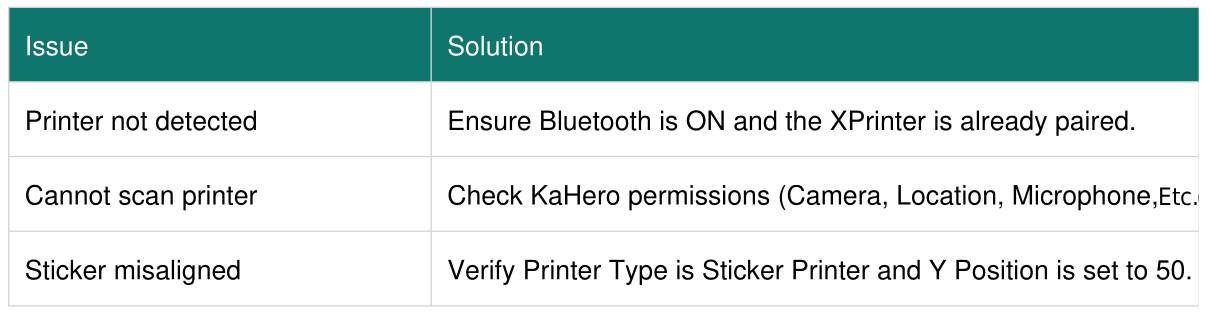
Troubleshooting