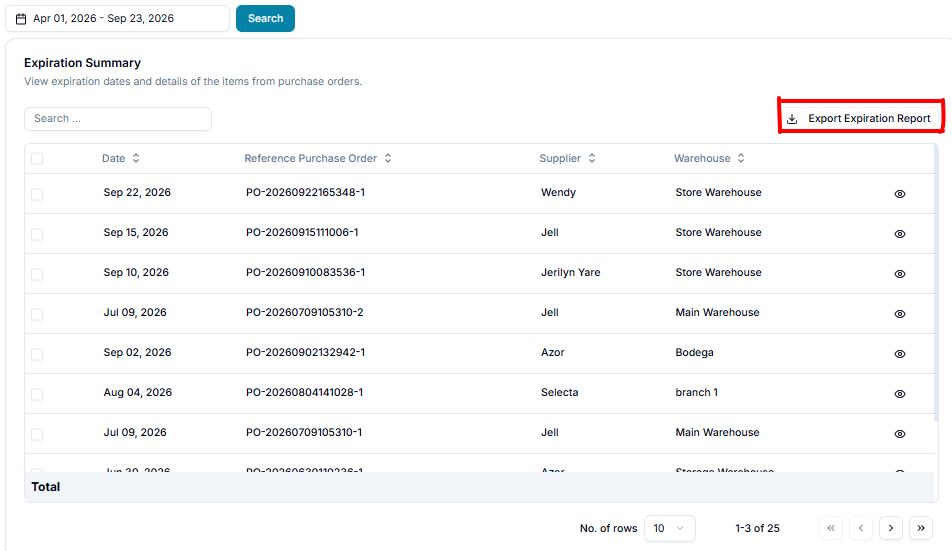
In this page, you can view the expiration dates and details of items recorded in your purchase orders.
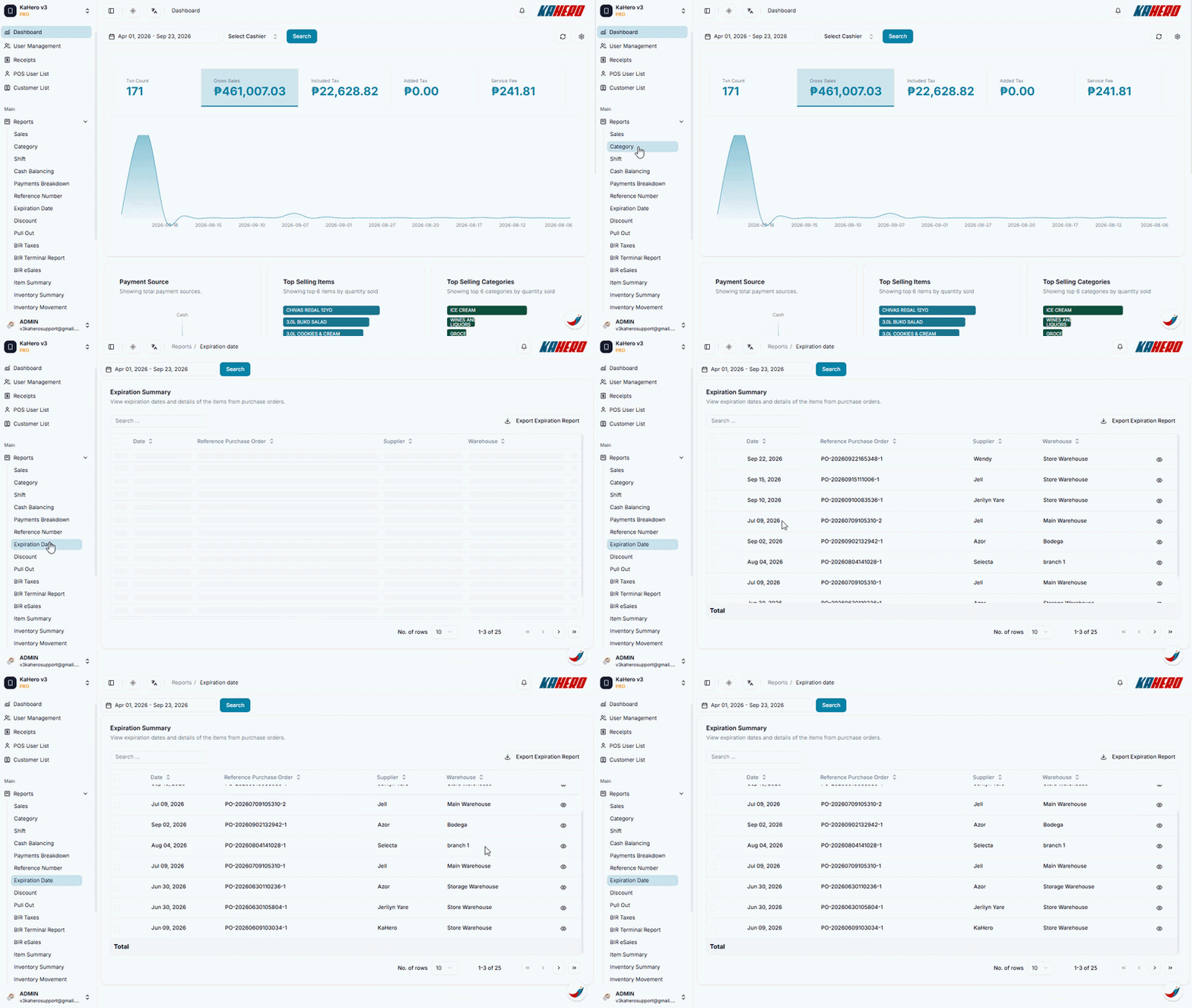
To view the Expiration Summary in KaHero Backoffice, follow these steps:
- Log in to KaHero Backoffice using your account.
- On the left-side menu, click Reports to expand the available report options.
- Select Expiration Date.
- You will be redirected to the Expiration Summary page.
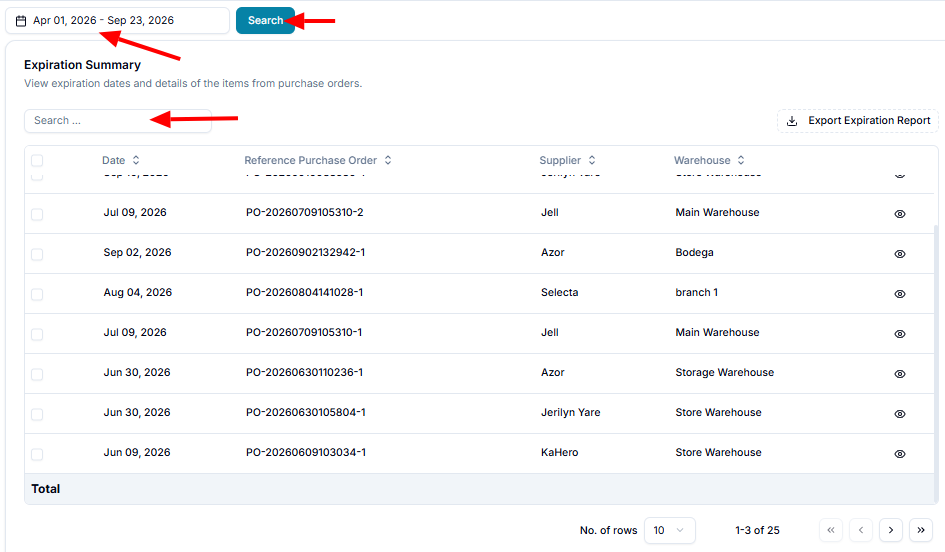
Once you're on the page, you can:
- Select a date range – Use the date filter at the top to choose the period you want to review.
- Click Search to apply the selected date range.
- Use the Search field to find a specific purchase order, supplier, or other record.
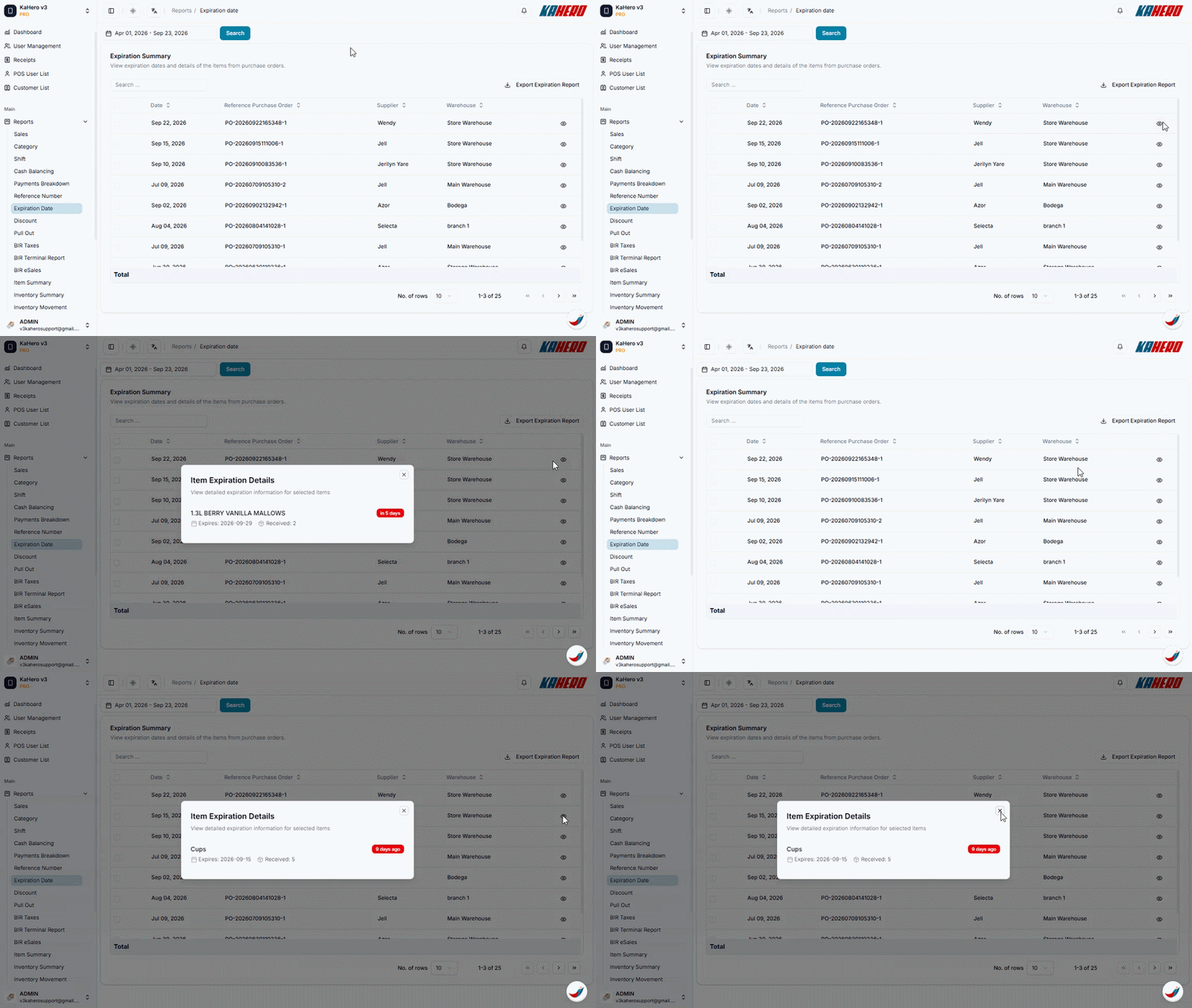
Review the following details:
- Date – The date associated with the purchase order.
- Reference Purchase Order – The purchase order number connected to the items.
- Supplier – The supplier associated with the purchase order.
- Warehouse – The warehouse where the items are recorded.
Click the eye icon on the right side to view the expiration details for a specific purchase order.
Click Export Expiration Report to download the report for record-keeping or further review.